If you have any questions, please feel free to contact us.| Email Us: info@dcheatpress.com


Views: 222 Author: Amanda Publish Time: 2026-02-05 Origin: Site


Content Menu
● What Is The Sawgrass Virtuoso Sublimation System
● Why You Need An Updated 2026 Setup Guide
● Step 1 – Unboxing And Hardware Setup
>> Insert Sawgrass Sublimation Ink
>> Load Sublimation Paper Correctly
● Step 2 – Create And Register Your Sawgrass Portal Account
● Step 3 – Download And Install Virtuoso Print Manager (VPM)
● Step 4 – Activate Virtuoso Print Manager
● Step 5 – Install The Dedicated Sawgrass Printer Driver
● Step 6 – Initial Printer Settings And Status Monitor
● Step 7 – Creating Your First Print Job In VPM
● Step 8 – Understanding VPM Settings Tabs
>> Material Tab
>> Layout Tab
>> Jobs Tab
>> Color Tab
>> Other Tab
● Step 9 – Pressing Your First Sublimation Transfer
● New Best Practices For Modern Sublimation Shops
● Common Setup And Printing Issues (And How To Avoid Them)
● Quick Reference: Sample Heat Press Settings Table
● Take The Next Step: Optimize Your Sublimation Workflow
● FAQs About Sawgrass Virtuoso Setup And First Prints
>> FAQ 1: Why Do I Need Virtuoso Print Manager Instead Of Just Using The Default Printer Driver
>> FAQ 2: How Often Should I Perform Maintenance On My Sawgrass Virtuoso Printer
>> FAQ 3: What Should I Do If My Colors Look Different From What I See On Screen
>> FAQ 4: Can I Use Any Heat Press With My Sawgrass Virtuoso Printer
>> FAQ 5: How Do I Scale From Hobby Printing To Small-Batch Production
Getting a Sawgrass Virtuoso sublimation printer (SG400, SG800 and their successors) properly set up on day one is critical if you want consistent, color-accurate transfers and fewer production issues later. This updated guide walks you through the complete process, adds modern best practices, and helps you build a reliable sublimation workflow from the very first print.

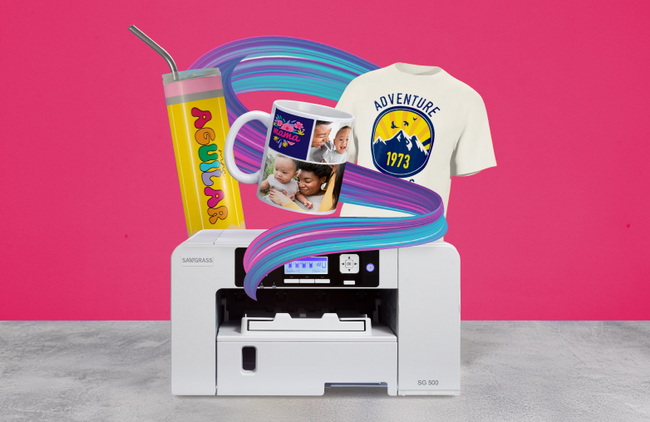
The Sawgrass Virtuoso series is a dedicated desktop sublimation printing system designed for creating full-color transfers on polyester fabrics and polymer-coated hard substrates. These printers rely on specialized sublimation ink, compatible paper, and heat presses to permanently dye your products.
A complete workflow typically includes:
- A Sawgrass Virtuoso printer such as the SG400 or SG800.
- Virtuoso Print Manager (VPM) for color management and job control.
- High-quality sublimation paper with the correct coating.
- A reliable flat, mug, or combo heat press for garments and hard goods.
When these components are set up correctly and used together, you get bright colors, sharp details, and durable prints suitable for both small businesses and larger production environments.
While the original instructions for Sawgrass Virtuoso printers provide a solid foundation, modern users face new challenges and expectations. Interfaces, drivers, and operating systems evolve, and customers increasingly care about color accuracy, production speed, and workflow efficiency.
Some typical gaps in older guides include:
- Mentions of legacy hardware and software screens that may look different on newer versions.
- Limited coverage of macOS users and multi-device use in a studio or shop.
- Minimal troubleshooting guidance for common setup and printing errors.
- Little emphasis on repeatable workflows, presets, and production best practices.
This enhanced guide focuses on giving you both correct step-by-step instructions and the practical, real-world tips you need to scale from your first test print to stable, everyday production.
When you first unbox your Sawgrass Virtuoso printer, follow the labels and on-screen prompts to install the cartridges in the correct order. For an SG400, the usual sequence is Black, Magenta, Cyan, and Yellow from left to right.
- Remove each cartridge from its packaging carefully and avoid touching the nozzles.
- Insert each cartridge slowly until you feel it click into place.
- Do not force or shake cartridges, as this can introduce air bubbles or leaks.
Correct installation ensures stable ink flow and reduces the risk of color banding, error messages, or excessive cleaning cycles.
Next, load your sublimation paper into the tray. Most sublimation sheets have a clearly marked print side and a logo or text on the reverse.
- Place the paper face down in the tray, with the logo side facing up.
- Align the stack against the guides and do not exceed the recommended maximum.
- Adjust the side guides to prevent skewing or misfeeds.
Incorrect paper orientation is one of the most common reasons for dull or washed-out prints, so double-check this step before proceeding.
After loading ink and paper, connect the power cable to a stable outlet and the USB cable between the printer and your computer.
- Press and hold the power button until the printer powers on.
- Allow the machine to initialize and complete its internal startup sequence.
- Do not interrupt this process, as it often charges the ink lines and calibrates components.
On Windows, the system will usually detect the printer and install temporary drivers automatically. These will later be replaced with the dedicated Sawgrass driver that works together with Virtuoso Print Manager.
To access drivers, Virtuoso Print Manager, ICC profiles, and support tools, you need a Sawgrass Portal account.
- Open your browser and go to the official Sawgrass website.
- Click “Login” in the top-right corner of the page.
- Select “Register” or “Register Here” for first-time users.
- Fill in your details and complete the registration form.
Once you have registered and logged in, you can use the Support menu to reach the Product Support Wizard for your specific Virtuoso printer model and ink configuration.
Virtuoso Print Manager acts as the central hub for color management, layout, and job control for your Sawgrass printer.
From your Sawgrass account:
- Open the Support section and select your printer model.
- Use the Product Support Wizard to choose your ink type, printer model, and operating system.
- Select “Virtuoso Print Manager” as the color correction or color management option.
- Click the download link for the appropriate installer for Windows or macOS.
Once the installer has downloaded, open it and follow the on-screen instructions:
- Accept the license agreement when prompted.
- Choose your destination folder if applicable or leave the default path.
- Click “Install” and wait for VPM to finish installing on your system.
After installation, you can either reboot your system if requested or proceed directly to launching Virtuoso Print Manager.
Launch Virtuoso Print Manager from your desktop or applications menu. When it runs for the first time, it will display an End-User License Agreement.
- Read and accept the license terms to continue.
- A Sign In dialog box will appear.
- Enter the same email and password that you used for your Sawgrass Portal account.
After signing in, VPM activates and connects your software environment with your printer and Sawgrass resources. This activation is essential for accessing color profiles, printer settings, and some support features.
With VPM activated, you can now properly install and configure the dedicated Sawgrass driver, which works in tandem with VPM for accurate printing.
- Inside VPM, open the “Set up New Printer” window if it does not appear automatically.
- Choose your Virtuoso model (for example, SG400 or SG800) from the driver list.
- Click the “Install” button to launch the printer driver setup wizard.
In the driver installation wizard:
- Accept the license terms.
- Choose “Add a new printer” as the installation method.
- Select “Connect USB cable” as the method to add the printer.
The wizard will ask you to disconnect and power off the printer temporarily. When prompted:
- Disconnect the USB cable from your computer.
- Turn the printer off and wait a few seconds.
- Reconnect the USB cable and power the printer back on when instructed.
The installer will detect your printer and, after a short process, ask whether you want to set it as the default printer and how you want the Status Monitor to behave. Adjust these preferences based on your workflow, then complete the installation.
At the end of the driver installation, you have the option to configure some initial settings for your Virtuoso printer and Status Monitor.
- Decide whether the Virtuoso printer should be your default device for general printing.
- Enable Status Monitor if you want real-time notifications about ink levels, job progress, and errors.
- Review regional or paper settings such as default page size and orientation.
Taking a few extra minutes here helps prevent common configuration problems and makes everyday printing more intuitive and predictable.
Virtuoso Print Manager supports a variety of file types, allowing flexibility in how you create and import designs.
- Common image formats such as PNG and JPEG.
- Native Sawgrass formats, including SG, SGZ, and SGY.
In addition, you can print from most design or graphics software that supports printing, such as professional design suites and illustration tools. To do this, choose the Virtuoso or VPM printer in the print dialog and set scaling to 100 percent or “Actual Size” to maintain correct dimensions.
If VPM does not open automatically when you send a job from your design software, locate the “Virtuoso Hot Folder” on your desktop. There you may find an SGY file for your job. Double-clicking this file will open VPM with the associated settings window for that print.
Virtuoso Print Manager is organized into several tabs, each controlling a different aspect of your print workflow. Understanding these tabs is essential for both beginners and advanced users.
The Material tab allows you to specify the key physical aspects of your print job.
- Select the intended substrate, such as polyester shirts, metal panels, ceramic mugs, or other coated items.
- Choose the type of sublimation paper you are using.
- Pick the speed or quality mode, for example “High Speed” for production or “Photo” for maximum quality.
Choosing accurate material settings helps VPM apply the most suitable color and ink profiles, which leads to better color accuracy and reduced trial and error.
The Layout tab controls how your artwork is positioned on the page.
- Use the original layout provided by your design software if you prefer complete control there.
- Or let VPM manage layout by enabling options such as centering, mirroring, or multiple copies per sheet.
For production work, this tab is particularly useful for ganging multiple small designs on a single sheet to reduce paper waste or for aligning prints for products that need very precise placement.
The Jobs tab lists all print jobs associated with the current document and gives you control over volumes and sizes.
- Adjust the number of copies for each job to match your order quantity.
- Verify the width and height of each job so the print matches the dimensions of the blank product.
Having a clear job list helps reduce errors, especially in busy shops handling multiple client orders or bulk runs.
The Color tab is where you manage color correction and fine-tuning.
- Select color presets optimized for graphics, photos, or specific substrates.
- Adjust sliders to control saturation, brightness, or individual color channels if needed.
- Create repeatable settings when working with brand colors or team uniforms.
Learning to use this tab effectively can dramatically improve your results and minimize the difference between on-screen previews and printed output.
The Other tab includes additional options that can support your production and documentation.
- Add annotations or notes that may print with the job for internal tracking.
- Toggle smaller behavior settings that affect how VPM displays and handles job data.
Although it is not the first place new users look, this tab can be very helpful when you move from occasional printing to a more structured production environment.
Once your design has printed correctly onto sublimation paper, you are ready to press it onto your target substrate using a heat press.
- Preheat the press to the recommended temperature for your substrate and ink combination.
- Position the transfer on the item and secure it with heat-resistant tape if needed.
- Press with the correct time, temperature, and pressure according to a reliable settings chart.
Many suppliers provide a cheat sheet listing ideal settings for common substrates such as polyester shirts, mugs, metal, and ceramic tiles. Referring to these starting points and making small adjustments for your specific press and environment is the fastest way to achieve consistent, professional results.
Beyond the basic installation and first print, there are several best practices that modern studios and shops can adopt to scale efficiently and maintain quality.
- Standardize presets: Save common combinations of substrate, paper, and color settings within VPM so operators can select them quickly without manual reconfiguration.
- Use consistent materials: Stick to the same brand of sublimation paper and blanks wherever possible to minimize variables affecting color and transfer quality.
- Schedule maintenance: Run nozzle checks and light cleaning cycles on a regular schedule, especially if the printer is idle for several days.
- Document your settings: Keep a digital or physical log of the best settings for each product line so you can reproduce results anytime.
- Train operators: Create simple, visual standard operating procedures for new team members, covering loading, printing, and pressing steps.
These practices reduce waste, minimize downtime, and help your business deliver a consistent customer experience even as you grow.
Even with a clear setup process, new users often encounter a few recurring issues. Recognizing them early makes troubleshooting much easier.
- Dull or desaturated prints: Usually caused by printing on the wrong side of the paper, using incorrect substrate settings in VPM, or pressing at the wrong temperature or time.
- VPM not launching: Often the job has gone to the Virtuoso Hot Folder as an SGY file. Opening this file manually usually brings up the VPM settings window.
- Printer not detected: Double-check the USB cable, follow the driver wizard's instructions about disconnecting and reconnecting the printer at the correct stage, and try alternate ports if needed.
- Color shifts: Verify that you are using the correct ink profile and substrate selection in VPM, and avoid mixing inks from different series.
By systematically checking each point in your workflow (file, VPM settings, printer, paper, press), you can quickly isolate where things are going wrong and fix them with minimal waste.
The following example table illustrates how you might summarize basic starting settings for popular substrates. Always verify and adjust based on your own equipment, ink, and blanks.
Substrate | Temperature (°C) | Time (seconds) | Pressure |
Polyester T-shirt | 190 – 200 | 45 – 60 | Medium |
Polymer-coated mug | 180 – 190 | 180 – 210 | Medium to firm |
Aluminum panel | 185 – 195 | 60 – 90 | Medium |
Ceramic tile | 195 – 205 | 300 – 420 | Light to medium |
Use a similar table on your own website or internal documentation, tailored to the exact supplies and machines you use in your production environment.
Now that you understand how to set up your Sawgrass Virtuoso printer, install Virtuoso Print Manager, and produce your first accurate sublimation transfers, you are ready to take your production to the next level. Review your current workflow, identify weak points such as inconsistent pressing or color variation, and refine your presets and documentation for repeatable success. Then, choose reliable, high-quality heat press equipment and accessories that match your production volume, and start applying these best practices in your day-to-day work to unlock a smoother, more profitable sublimation business.
Contact us to get more information!
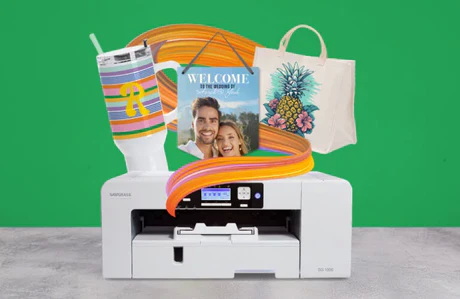
Virtuoso Print Manager is designed specifically for Sawgrass sublimation printers and ink. It handles color management, substrate profiles, and job layout in ways that generic printer drivers cannot. Using VPM ensures more accurate colors, more consistent output, and better control over materials and print quality.
Light maintenance, such as nozzle checks and basic cleaning, should be performed weekly in a busy shop or any time the printer has been idle for several days. More thorough maintenance can be scheduled monthly or quarterly, depending on your print volume. Regular maintenance prevents clogs, reduces banding, and extends the life of your printer.
First, confirm that you are using Virtuoso Print Manager with the correct substrate, paper, and ink selected. Then, ensure your monitor is reasonably calibrated and avoid using overly saturated display modes. If needed, fine-tune settings in the Color tab of VPM and document the combinations that give you the best match between screen and print.
You can use many different heat presses, but a high-quality, well-calibrated press gives you more reliable results. Look for even heat and consistent pressure across the platen, as well as stable temperature recovery between presses. If your press has cold spots or inconsistent pressure, you may see uneven colors, ghosting, or partial transfers.
To scale up, start by standardizing your presets and documenting your best settings for each product line. Invest in a dependable heat press, consistent blanks, and a controlled environment to reduce variables. As orders grow, train additional operators using clear guides and consider adding more printers or specialized presses as needed.
1.
https://www.heatpressnation.com/blogs/blog/setup-and-first-print-with-sawgrass-virtuoso-sublimation-printers


