If you have any questions, please feel free to contact us.| Email Us: info@dcheatpress.com


Views: 222 Author: Amanda Publish Time: 2026-02-04 Origin: Site


Content Menu
● Why the Sawgrass SG500 & SG1000 Are Ideal for Sublimation
>> SG500 vs SG1000: Which Should You Choose?
● Before You Begin: System & Workspace Checklist
● Unboxing and Initial Hardware Setup
>> Step 1: Unpack the Printer Safely
>> Step 2: Install Sublijet-UHD Ink Cartridges
>> Step 3: Load Sublimation Paper Correctly
>> Step 4: Connect Power and Turn On
● Installing Sawgrass Print Manager (Windows & Mac)
>> Step 1: Create or Log Into Your Sawgrass Account
>> Step 2: Download Sawgrass Print Manager
● Adding and Configuring the Printer in Sawgrass Print Manager
>> Step 1: Activate Sawgrass Print Manager
>> Step 2: Run “Setup New Printer”
>> Step 3: Complete Driver Setup on Windows (USB Method)
>> Step 4: Complete Driver Setup on macOS
>> Step 5: Confirm Ink Profile Selection
● Creating Your First Print With Sawgrass Print Manager
>> Method 1: Printing Directly From Sawgrass Print Manager
>> Method 2: Printing From Design Software (Windows)
● Recommended Sawgrass Print Manager Settings for First-Time Users
>> Material Tab: Substrate, Paper Type, and Quality
>> Layout Tab: Sizing and Arrangement
>> Color Tab: Graphics vs Photo Modes
>> Other Tab: Advanced Options
● Pressing Your First Sublimation Transfer
● Pro Tips to Avoid Common SG500/SG1000 Issues
>> 1. Eliminate Driver Conflicts
>> 2. Keep Your Printer Powered and Active
>> 3. Use Compatible Blanks and Coatings
>> 4. Store Inks and Paper Properly
● When to Upgrade From SG500 to SG1000
● Focus on Reliable Heat Press Equipment
● Frequently Asked Questions (FAQ)
>> 1. Do I have to use Sawgrass Print Manager, or can I print directly to the SG500/SG1000?
>> 2. How long does initial ink charging take on the SG500/SG1000?
>> 3. Can I reuse my SG400/SG800 bypass tray with the SG500 or SG1000?
>> 4. Why are my colors dull or faded after pressing?
>> 5. How often should I print to keep my Sawgrass sublimation printer healthy?
Getting your Sawgrass SG500 or Sawgrass SG1000 sublimation printer correctly set up from day one is critical for color accuracy, print consistency, and long-term reliability. This comprehensive guide walks you through unboxing, software installation, Sawgrass Print Manager configuration, and your very first sublimation print, with pro tips and troubleshooting along the way.
- SG500 & SG1000 key features and ideal use cases
- Unboxing and physical setup
- Installing and configuring Sawgrass Print Manager (Windows & Mac)
- Creating and sending your first sublimation print
- Recommended print settings and heat-press basics
- Troubleshooting, maintenance, and expert tips
Sawgrass has built a strong reputation for dedicated desktop sublimation printers that are easier to manage and more consistent than converted inkjets. The SG500 and SG1000 continue this trend with refinements designed specifically for small businesses, studios, and serious hobbyists.
- Purpose-built desktop sublimation engines, not converted office printers.
- Support for Sublijet-UHD inks for sharper photos and richer color.
- Wi-Fi printing, USB connectivity, and optional additional trays for more flexibility.
- New single-roller bar and improved internal design for smoother paper handling.
- Backlit front control panel for clearer status and easier setup.
Feature | Sawgrass SG500 | Sawgrass SG1000 |
Max media size (without tray) | Up to A4 / Letter size | Up to 11" x 17" tabloid size |
Ideal users | Home-based shops, small products, mugs | Growing studios, larger prints, signage |
Bypass/option trays | Supports compatible optional trays | Supports bypass and large-format trays |
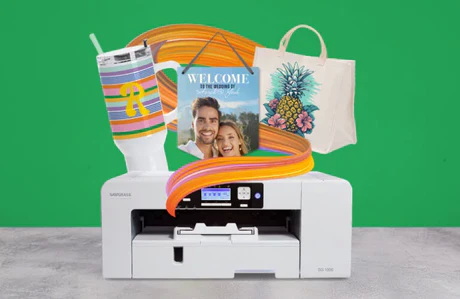
If you plan to print larger panels, signage, or gang sheets, the SG1000 offers more room to grow, while the SG500 is compact and cost-effective for everyday sublimation blanks.
Setting up your environment correctly prevents many of the connectivity and color issues users face later.
- Computer: Windows PC or Mac with a stable internet connection.
- Account: Free Sawgrass account for software download and activation.
- Connection: USB cable (included) or network (Ethernet/Wi-Fi) depending on your workflow.
- Workspace: Flat, stable surface with enough clearance behind the printer for paper path and optional trays.
- Power: Plug directly into a surge-protected outlet, not a daisy-chained extension strip.
If you previously used an SG400 or SG800, fully uninstall Virtuoso Print Manager before installing Sawgrass Print Manager to avoid driver conflicts.
Inside each SG500 or SG1000 box you will typically find the printer, an installation kit with ink cartridges, the power cable, and a USB cable.
1. Remove the printer and all accessory boxes from the carton.
2. Carefully peel off all blue tape and protective film from the exterior.
3. Open panels and paper trays to remove any internal foam or cardboard spacers.
Leaving any packing material in place can cause paper feed errors or noisy operation on your first prints.
The installation kit lid usually includes diagrams showing the correct ink orientation and slots.
1. Open the front or side ink compartment cover.
2. Remove each cartridge from its pouch, keeping the Use By date visible.
3. Insert Black, Magenta, Cyan, Yellow cartridges from left to right into their labeled slots until they click.
4. Close the ink compartment cover.
Once powered on, the printer will take several minutes to charge the ink lines during first-time setup.
Using proper sublimation paper and loading it in the right orientation is essential for sharp images and consistent color.
- Open the bottom front tray and adjust the guides to match your paper size.
- Load sublimation paper blank-side down in the tray; in most cases the bright white or smoother side is the print side.
- Do not overfill the tray; keep it below the maximum stack mark.
- Reinsert the tray firmly until it clicks into place.
1. Connect the power cord between the printer and a grounded outlet.
2. Connect the USB cable to your computer if you plan to install via USB.
3. Press the power button until the panel lights up; the printer will initialize and begin charging ink.
Avoid turning the printer off or disconnecting power during ink charging, as this can interrupt initialization.
Sawgrass Print Manager (SPM) is the required print pipeline for the SG500 and SG1000 because it manages color, substrates, and paper profiles.
1. Visit the official Sawgrass software download page.
2. Create a free account or log in to an existing one.
3. Complete the registration form, then click Create account to access downloads.
Your account credentials will also activate SPM during installation.
- From your account dashboard, click Download Software.
- Scroll to Sawgrass Print Manager and choose the version for Windows or macOS.
- Save the installer to your computer and wait for the download to complete.
1. Run the single setup file you downloaded.
2. Accept the license agreement and follow the on-screen steps.
3. When prompted, allow the installer to complete and choose Reboot Now to fully register SPM.
If you select Reboot Later, you must restart before proceeding to printer driver setup to avoid detection issues.
1. Double-click the downloaded DMG file.
2. Launch the Sawgrass Print Manager package inside and click Install.
3. Enter your macOS administrator password when prompted and allow the installation to complete.
4. After installation, you may close and eject the DMG.
On macOS, you may need to allow the installer in your security settings if the system blocks it the first time.
1. Open Sawgrass Print Manager from your desktop or applications list.
2. Accept the End-User License Agreement.
3. Sign in with your Sawgrass account to activate the software.
Once activated, the Printers window will appear, showing current printers and ink configurations.
1. In the Printers window, click Setup New Printer.
2. In the Printer Model dropdown, select SG500 or SG1000 as appropriate.
3. Click Install, then press OK when prompted to continue.
1. Accept the license and agreements in the driver setup window.
2. Under Method to Install Printer Driver, select Add a new printer.
3. Under Select Method to Add Printer, choose Connect USB cable.
4. When prompted, disconnect and power off the printer, then click Next to allow driver files to install.
5. Reconnect the USB cable and power the printer back on; the installer will auto-detect it.
When detection succeeds, Windows may ask whether to set this as your default printer. Choose No, because you will send jobs through Sawgrass Print Manager instead of printing directly to the device.
A printer properties window will appear where you can adjust default tray options, though most users can leave the defaults and click OK.
1. With the printer temporarily powered off, allow the installer to finish.
2. Turn the printer back on and open System Settings → Printers & Scanners.
3. If the Sawgrass printer appears with a random alphanumeric name, select it and click the minus button to remove it.
4. Click the plus button, select your Sawgrass SG500 or SG1000 from the list, and click Add.
Now open Sawgrass Print Manager and confirm the printer appears correctly in the Printers window.
In SPM, choose the ink type installed in your printer, typically Sublijet-UHD for most general-purpose sublimation workflows. Using the correct profile ensures accurate color and consistent results across substrates.
You are now ready to send your first sublimation job through SPM, which ensures proper mirroring, color handling, and substrate presets.
1. Right-click the SPM icon in your taskbar (Windows) or menu bar (macOS).
2. Select Open Local File.
3. Choose the image you want to print. SPM supports PNG, JPEG, TIFF, HEIC, and native SG/SGZ/SGY formats.
On Windows, SPM installs itself as a virtual printer, letting you print from any software that supports printing.
1. In your design software, go to Print and select Sawgrass Print Manager as the printer.
2. Set scaling to 100% or Actual Size so SPM controls sizing.
3. Send the job. SPM will launch a Settings window for that print.
If SPM does not appear, check the Sawgrass Smart Folder on your desktop. The job will be saved there as a file that you can open in SPM.
The SPM settings window contains several tabs that control how your printer interprets each job.
- Material (Substrate): Choose what you are pressing onto, such as polyester fabric, coated metal, or ceramic.
- Paper type: Select the sublimation paper brand or profile you are using when available.
- Quality:
- Fast: Drafts and test layouts.
- High or Photographic: Standard product prints.
- Ultra Fine: Maximum detail and quality for demanding photo work.
- Mirror: Enabled by default so designs transfer correctly when pressed. Disable only for special products such as sublimation heat transfer vinyl.
- Source: If you have an additional or bypass tray, choose the correct tray from this field.
- Use Layout from application if you have already sized the design in your graphics software.
- Use SPM layout settings if you want to arrange multiple copies, add margins, or control fit directly in SPM.
The Jobs section shows job count, width, and height. Adjust copies here if you are running multiple identical products.
- Graphics mode is tuned for logos, vector art, and bold colors.
- Photo mode is tuned for portraits and photographic images.
- Fine-tune brightness, contrast, and color sliders only after testing default profiles so you can see how your printer behaves.
- Print to File: Saves the job as a file you can reprint later without opening the original artwork.
- Additional options can be adjusted as needed after your initial tests.
When you are satisfied with your settings, click Print to send the job to your SG500 or SG1000.
Once printing is complete, handle the printed transfer gently to avoid smudging before pressing.
- Follow time, temperature, and pressure recommendations specific to your substrate.
- Use a dedicated sublimation heat press or a well-maintained multi-function press for consistent results.
- Pre-press moisture-sensitive substrates such as textiles to remove wrinkles and steam.
For everyday production, it is helpful to keep a printed cheat sheet of recommended settings for common substrates such as mugs, metal panels, and polyester shirts next to your press.
If you upgraded from SG400 or SG800, fully uninstall Virtuoso Print Manager and old drivers before installing SPM and adding your new printer. This prevents ghost printers and communication errors.
Sublimation printers perform best when used regularly. Printing small samples weekly helps keep lines primed and reduces the chance of clogs. Avoid unplugging the machine unnecessarily so it can perform maintenance cycles.
Only use sublimation-ready substrates such as polyester fabrics or polymer-coated hard goods. Standard cotton and uncoated surfaces will not permanently bond with sublimation dyes and will produce weak or washed-out prints.
- Store ink at room temperature, away from direct sunlight.
- Keep sublimation paper in its original packaging or a sealed container to protect it from humidity.
As your sublimation business grows, you may outgrow the SG500's maximum print size. Consider upgrading to the SG1000 when:
- You frequently piece together designs that exceed A4 or Letter size.
- You are producing larger panels, flags, or gang sheets for efficient batch production.
- You want to add a bypass tray for long or oversized media.
Migrating within the Sawgrass ecosystem is straightforward because SPM supports both printers with similar workflows and settings.
A well-configured printer is only half of a reliable sublimation workflow. To fully unlock the capabilities of your SG500 or SG1000, you also need stable, precise, and durable heat press equipment that can maintain consistent temperature and pressure across every job. High-quality heat transfer, welding, and embossing machines ensure that the color and detail you see on screen actually transfer cleanly to your blanks.
By pairing your Sawgrass sublimation printer with professional-grade presses and finishing equipment, you reduce misprints, lower material waste, and build a more scalable production line that can handle rush orders and long-term contracts.
You now have a complete, step-by-step workflow to set up your Sawgrass SG500 or SG1000 and produce your first high-quality sublimation prints. To ensure every print transfers with stable temperature, even pressure, and long-lasting color, equip your studio with professional heat transfer, welding, and embossing machines engineered for continuous production. Visit COLORFUL at dcsbheatpress.com today to explore dedicated heat press solutions that match your Sawgrass printer, streamline your printing line, and help your business deliver consistent, premium results on every order.
Contact us to get more information!

Sawgrass Print Manager is strongly recommended and effectively required because it handles color profiles, substrate settings, and mirroring specifically for SG-series sublimation printers. Printing directly through standard drivers often leads to inconsistent color and wasted blanks.
Initial ink charging typically takes several minutes, during which the printer pulls ink through the lines and prepares the system for printing. During this time the printer should remain powered on and undisturbed.
Many SG400 and SG800 bypass or option trays are compatible with SG500 and SG1000 units, although you should confirm tray type and firmware support using the latest manufacturer documentation before installation.
Common causes include using the wrong substrate type, incorrect time or temperature or pressure on the heat press, selecting the wrong paper or substrate preset in SPM, or forgetting to mirror the design when required. Reviewing each of these factors step by step usually identifies the issue.
For best results, run at least small test prints weekly to keep ink moving, maintain nozzle health, and allow the printer's internal maintenance cycles to operate effectively. This routine helps prevent clogs and keeps colors consistent.
1. https://www.heatpressnation.com/blogs/blog/sawgrass-sg500-1000-setup-and-first-print
2. https://care.sawgrassink.com/hc/en-us/articles/10622386966299-Setting-up-Your-Printer
3. https://ast.jpplus.com/support/solutions/articles/65000119851-sawgrass-sg500-sg1000-install-guide-complete-new-install
4. https://www.heatpressnation.com/pages/sawgrass-sg500-setup-and-installation
5. https://www.coastalbusiness.com/sawgrass-printer-setup-in-minutes-sg500-sg1000-vj628-made-simple
6. https://www.silhouetteschoolblog.com/2022/10/how-to-set-up-sawgrass-sg1000.html
7. https://sawgrassink.com/pages/sawgrass-sg500-printer-setup-video
8. https://www.youtube.com/watch?v=fwQ2IBOkvOA
9. https://www.youtube.com/watch?v=vVqhdz1Kz1I
10. https://www.youtube.com/watch?v=erWkZ_Uynvs


