If you have any questions, please feel free to contact us.| Email Us: info@dcheatpress.com


Views: 222 Author: Amanda Publish Time: 2026-01-28 Origin: Site


Content Menu
● What Is Dark/Opaque Inkjet Heat Transfer Paper?
● Dark vs. Light Transfer Paper
● Equipment and Materials You Need
● Step-by-Step: How to Use Dark Opaque Inkjet Heat Transfer Paper
>> 2. Print Your Design (No Mirroring)
>> 3. Cut and Weed the Printed Transfer
>> 5. Heat Press Settings for Dark Opaque Inkjet Paper
● Pro Tips for Better Color, Detail, and Durability
● Washing and Care Instructions for Dark Inkjet Transfers
● Common Mistakes and How to Avoid Them
>> 1. Forgetting to Trim Excess White
>> 2. Using the Wrong Side of the Paper
>> 3. Ignoring Manufacturer Settings
>> 4. Skipping Garment Pre-Press
● When to Choose Dark/Opaque Inkjet Heat Transfer Paper vs. Other Technologies
● Example Settings Table for Dark/Opaque Inkjet Transfer Paper
● Strategic CTA: Turn Your Designs Into Real Products
● FAQs About Dark/Opaque Inkjet Heat Transfer Paper
>> 1. Do I need to mirror my image when using dark opaque inkjet heat transfer paper?
>> 2. Can I use any inkjet printer with dark transfer paper?
>> 3. Why is there a white box around my design on dark garments?
>> 4. How long do dark inkjet transfers last in the wash?
>> 5. Can I apply dark inkjet transfer paper with a household iron instead of a heat press?
Dark/opaque inkjet heat transfer paper is one of the easiest ways to create vibrant, full-color designs on black or dark-colored T-shirts, hoodies, tote bags, and more. By following a structured workflow—from artwork setup to pressing and washing—you can get long-lasting, high-resolution results that look professional enough for small-batch production.
Dark/opaque inkjet heat transfer paper is a specialty paper with a white, opaque backing layer that allows full-color inkjet prints to show clearly on dark fabrics. Unlike light transfer paper, it blocks the garment color, so your design remains bright and true to the original artwork.
Key characteristics:
- Works with most desktop inkjet printers (pigment or dye-based).
- Has an opaque white layer to hide dark fabric color.
- Requires cutting (trimming) around the design to avoid a visible white box.
- Is applied with a heat press or, for hobby use, a home iron, though a press gives more consistent results.
The best suited substrates include T-shirts, sweatshirts, cotton tote bags, some polyester garments, and certain rigid blanks like mouse pads or puzzles, as long as they can withstand the required temperature and pressure.
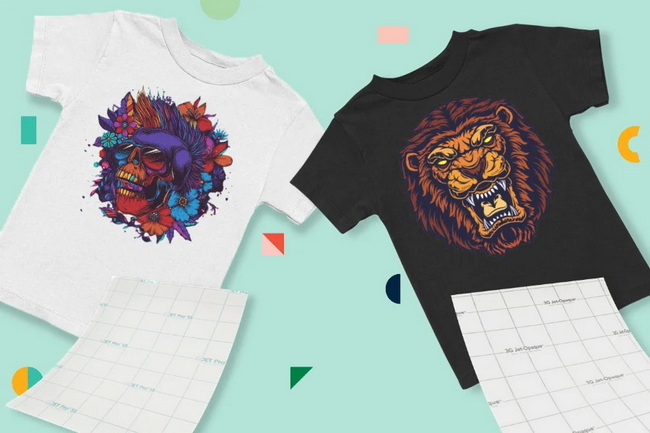
Using the wrong paper type is one of the biggest causes of dull prints or show-through on garments.
Paper type | Best for fabrics | Visual behavior | Image mirroring | Typical look |
Dark/opaque inkjet transfer paper | Black and dark-colored garments | Has a white backing that completely blocks garment color. | Print right-reading (no mirroring). | Thick, sticker-like, strong color pop. |
Light inkjet transfer paper | White and light-colored garments | Semi-transparent; garment color can influence design. | Usually requires mirroring before printing. | Softer hand; integrates more with fabric. |
If you can clearly read your design on screen and your garment is dark, you almost always want dark opaque inkjet heat transfer paper.
Before you start, prepare a consistent setup. This reduces wasted sheets and improves repeatability for small-batch runs.
You will need:
- Inkjet printer: Most home or office inkjet printers work; pigment inks often offer better wash resistance than basic dye inks.
- Dark/opaque inkjet heat transfer paper compatible with your printer
- Cutting tools: Scissors or craft knife for simple shapes, or a vinyl cutter with contour cutting for detailed designs.
- Heat press: A flat heat press with even pressure (for example, 15" x 15") is ideal for consistent, commercial-looking results.
- Protective cover sheet: Silicone-coated non-stick sheet or parchment paper to protect both the transfer and the upper platen.
- Garments: Prefer smooth, tightly woven cotton, cotton-poly blends, or compatible polyester fabrics.
Good artwork preparation is critical for sharp, professional-looking prints.
1. Create or import your design in software such as Photoshop, Illustrator, CorelDRAW, or Canva.
2. Set the canvas size to match or slightly exceed the printable area of the transfer sheet.
3. Use at least 300 dpi resolution for crisp, high-detail prints.
4. If possible, add a small bleed (extra color) around the edges of the design to prevent white gaps after cutting.
5. For dark/opaque transfer paper, keep your design right-reading, with no mirroring.
Tip: Avoid large solid blocks of color over huge areas, because they can feel heavier on the garment and may be prone to creasing.
Printer settings play a big role in color saturation and durability.
- Load the dark inkjet transfer paper with the coated or printable side facing the print heads, according to the manufacturer's instructions.
- In your printer dialog:: Select Photo or Best quality mode for richer colors.: Set the media type to Plain Paper or Photo Paper, based on your paper supplier's recommendation.
- Do not mirror the image; print it exactly as you want it to appear on the garment.
- Allow the print to dry completely on a flat, dust-free surface before cutting or pressing.
If you plan production runs, keep a print settings log for each paper brand and design type so you can repeat successful results.
On dark/opaque paper, any unprinted area will appear as white on the garment.
- Carefully cut around the design using:: Scissors or a craft knife for simple shapes, logos, and text.: A vinyl cutter with contour cutting (print and cut) for intricate artwork and fine detail.
- Remove, or weed, any unnecessary white background if your design involves internal cutouts, such as inside letters or shapes.
The cleaner the cut, the more professionally printed the final garment will look.
Proper garment preparation significantly improves adhesion and wash durability.
- Pre-wash garments if they may shrink or have heavy finishing chemicals.
- Place the garment on the lower platen of your heat press, smoothing out wrinkles and seams.
- Pre-press for 3–5 seconds to remove moisture and flatten the surface.
This step reduces steam and bubbles under the transfer and helps the adhesive bond more evenly.
Each brand of dark inkjet transfer paper has specific time, temperature, and pressure recommendations, which you should always follow.
Typical starting settings (always confirm with your paper instructions):
- Temperature: around 330–350 °F (165–177 °C).
- Time: 20–30 seconds.
- Pressure: firm to heavy pressure, depending on garment thickness and paper type.
Basic pressing steps:
1. Place the pre-pressed garment flat on the platen.
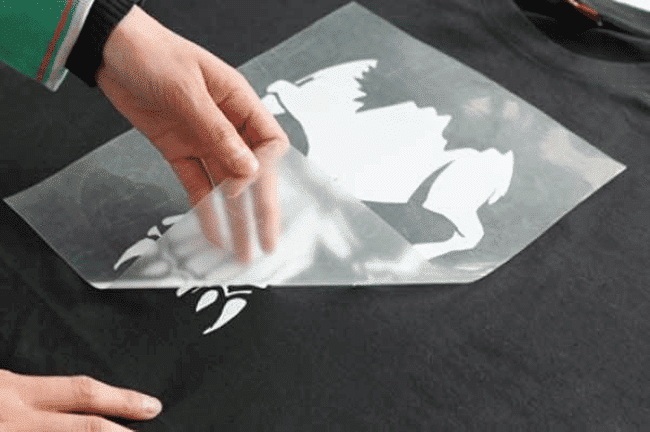
2. Peel the printed transfer off its backing sheet so that the printed image faces up on the garment.
3. Position the transfer where you want it, typically centered and about 5–7 cm below the neck seam for T-shirts.
4. Cover with a protective sheet (non-stick or parchment) to prevent sticking and control surface gloss.
5. Close the heat press and apply the recommended time and pressure.
6. When the time is complete, open the press and carefully remove the cover sheet.
7. Lay the garment flat and allow the transfer to cool fully so the print can set.
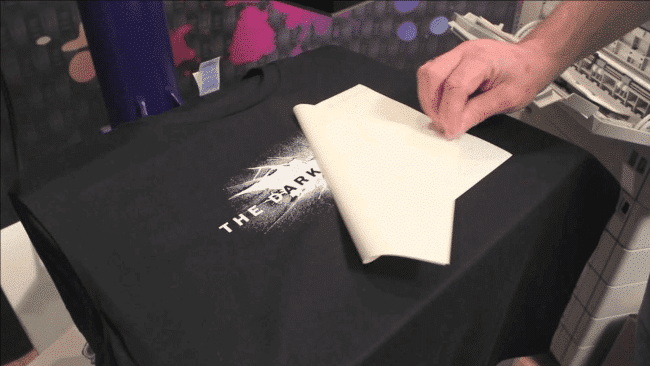
Many dark transfer papers recommend a cold peel, meaning you should not stretch the fabric while it is still warm and pliable.
To move from acceptable results to professional-grade output, focus on a few advanced best practices.
- Use high-quality inks: Pigment inks usually offer better UV and wash resistance than basic dye inks.
- Choose tightly woven garments: A smoother surface gives better adhesion and less visible texture through the print.
- Test before production: Always do at least one test press for new paper, new garments, or new artwork, then wash test the result.
- Avoid over-pressing: Too much heat or time can cause color shifts, shine, or stiffness.
- Press on a flat area: Avoid pressing over thick seams, collars, or zippers that can prevent even pressure.
Proper after-care is essential for long-lasting prints and repeat orders from customers.
Recommended washing guidelines:
- Wait at least 24 hours, and preferably up to 48 hours, before the first wash.
- Turn the garment inside out before washing to minimize abrasion on the print.
- Wash in cold or warm water using a mild detergent; avoid bleach or aggressive chemicals.
- Use a gentle cycle and avoid high-speed spinning where possible.
- Tumble dry on low heat or, ideally, hang dry to extend the life of the transfer.
- Do not iron directly on the transfer; if needed, iron inside out or use a pressing cloth.
Common reasons prints wash off or crack include insufficient heat during pressing, incompatible inks, harsh detergents, and repeated high-temperature drying.
Leaving a large unprinted area around your design causes a visible white rectangle on dark garments. Always trim closely around the artwork, especially for logos and text, and use contour cutting for complex shapes to achieve a more “screen printed” look.
Printing on the backing side or loading paper incorrectly results in weak, smudged prints or wasted sheets. Always check the manufacturer's guide for which side to print on and test with a small mark in a corner before full production.
Using random temperatures or times increases the risk of poor adhesion and early wash-out. Follow the exact time, temperature, and pressure instructions for your specific dark opaque inkjet heat transfer paper, and adjust only slightly after test presses if needed.
Pressing directly on a wrinkled, moist garment can trap moisture and cause bubbling or incomplete bonding. Always pre-press for a few seconds to remove moisture and smooth the fabric before you apply the transfer.
For custom apparel businesses and serious hobbyists, dark inkjet transfer paper is one solution among several.
Use dark/opaque inkjet heat transfer paper when:
- You want to produce short runs or one-off pieces quickly.
- You have an inkjet printer and a heat press but no specialty equipment, such as direct-to-garment or direct-to-film printers.
- You need full-color prints on dark garments without complex setup.
Consider other methods, such as sublimation, direct-to-film, or screen printing, when:
- You need hundreds or thousands of the same design.
- Your garments are primarily light-colored polyester, where sublimation excels.
- You want a very soft hand feel with minimal film on the surface.
Use a table like this on your product or tutorial page to help users quickly find the right settings. Always adjust to your specific paper brand.
Parameter | Typical value | Notes |
Temperature | 330–350 °F (165–177 °C) | Follow the manufacturer's exact specification. |
Time | 20–30 s | Longer times at slightly lower temperatures can reduce scorching. |
Pressure | Firm to heavy | Ensure consistent pressure across the entire print area. |
Peel | Usually cold peel | Allow the garment to cool flat before handling. |
First wash | After 24–48 h | Turn inside out and wash gently for best durability. |
If you are ready to turn your designs into sellable dark-garment products, make sure you combine high-quality dark opaque inkjet heat transfer paper with a stable, accurate heat press and reliable cutting tools. Start with a small test batch, refine your settings and workflow, then scale into short runs for clients, events, or your own apparel brand to build a repeatable, profitable production process.
To achieve consistent, professional results on dark fabrics, explore our range of heat presses, dark inkjet transfer papers, and finishing equipment, and upgrade your workshop so every press delivers the color, detail, and durability your customers expect.
Contact us to get more information!
No. For dark/opaque inkjet transfer paper, you normally print the image right-reading and do not mirror it, because the printed side faces up on the garment when you press it.
Most home and office inkjet printers work, but you must use the correct side of the paper and the recommended print settings. Pigment-based inks often provide better wash resistance than standard dye inks, especially for garments that will be washed frequently.
Dark/opaque inkjet transfer paper has a white backing, so any unprinted area remains white on the garment. Cutting closely around the design or using contour cutting removes that unwanted border and gives a more professional look.
With proper pressing and gentle washing—inside out, in cold water with mild detergent—dark inkjet transfers can withstand many wash cycles. Harsh detergents, bleach, or very hot drying can shorten their lifespan and increase the risk of cracking or peeling.
Some products allow application with a home iron, but a heat press ensures more even heat and pressure, leading to more reliable adhesion and longer-lasting prints. For small business use or frequent production, a heat press is strongly recommended for consistent quality control.
[1]https://www.visionsub.com/best-inkjet-heat-transfer-paper-for-dark-fabrics/
[2] https://geckopaper.co.uk/does-iron-on-transfer-paper-wash-off/
[3]https://www.visionsub.com/tips-for-using-inkjet-transfer-paper-on-t-shirts/
[4]https://teckwrapcraft.com/blogs/how-to-guides/best-heat-transfer-paper-for-inkjet-printers-the-ultimate-guide
[5]https://colmanandcompany.com/blog/3g-jet-opaque/
[6] https://www.heatpressnation.com/blogs/blog/how-to-use-dark-opaque-inkjet-heat-transfer-paper


