If you have any questions, please feel free to contact us.| Email Us: info@dcheatpress.com


Views: 222 Author: Amanda Publish Time: 2026-01-28 Origin: Site


Content Menu
● Understanding Cameo 3 vs Cameo 4 Tools
● Which Cameo 3 Tools Work on Cameo 4
>> Cameo 3 Tools and Adapter Compatibility
● How to Use Cameo 3 Tools on Cameo 4: Step‑by‑Step
>> Step 1 – Identify the Correct Adapter
>> Step 2 – Insert the Tool into the Adapter
>> Step 3 – Load the Adapter into Tool 1
>> Step 4 – Confirm the Tool in Silhouette Studio
>> Step 5 – Test Cut Before Full Job
● Visual Aids and Suggested Diagrams
● Best Practices for Using Cameo 3 Tools on Cameo 4
>> Use the Right Tool for the Right Material
>> Calibrate Force and Speed for Older Tools
>> Keep Blades Clean and Sharp
>> Cameo 3 AutoBlade Is Not Compatible
>> Do Not Put Tool 1 Blades into Tool 2
>> Always Follow Official Compatibility Charts
● Example Workflow: Cutting HTV with a Cameo 3 Ratchet Blade on Cameo 4
● How a Good Heat Press Complements Your Cameo 4
● Optimize Your Cutting and Pressing Workflow
● Frequently Asked Questions (FAQ)
>> 1. Can I use all Cameo 3 tools on the Cameo 4?
>> 2. Do I always need an adapter to use Cameo 3 tools on Cameo 4?
>> 3. Why does my Cameo 4 not recognize the tool I installed?
>> 4. Can I use Cameo 3 tools in the Cameo 4's Tool 2 slot?
>> 5. Are there special settings for older blades on the Cameo 4?
Silhouette Cameo 4 owners can still get great value from many Cameo 3 tools and blades by using the included tool adapter set in the dual carriage system. With the right adapter, you can keep working with your existing Ratchet Blade, Fabric/Deep Cut Blade, 2 mm Kraft Blade, and Pen Holder while enjoying the Cameo 4's speed, power, and smart tool detection.
- Which Cameo 3 tools are compatible with the Cameo 4
- How to match each tool with the correct adapter color
- Step‑by‑step setup and cutting workflow for older tools
- Key limitations, safety tips, and troubleshooting ideas
- How high‑quality heat press equipment complements your Cameo 4 workflow

Silhouette redesigned the Cameo 4 tool carriage, adding higher cutting force, a different dual‑carriage layout, and smart tool detection. Because of this, many older Cameo 3 tools do not fit directly into the Cameo 4 without an intermediate adapter.
- Tool 1 (left side): General‑purpose carriage for most blades and pens, including older tools when used with the proper adapter.
- Tool 2 (right side): High‑force carriage reserved for special Cameo 4‑only tools such as the Rotary Blade, 3 mm Kraft Blade, and Punch Tool.
On the Cameo 4, Cameo 3 tools are always used in Tool 1 with an adapter, not in Tool 2.
The shank diameter and locking mechanism of Cameo 4 tools differ from Cameo 3, so older tools will not lock into the Cameo 4 carriage by themselves. The plastic adapter sleeves bridge this difference so your Cameo 4 can securely hold the tool and recognize it correctly in Silhouette Studio.
Silhouette's official tool adapter set for Cameo 4 and Portrait 3 includes four color‑coded adapters that support the most widely used Cameo 3 tools. The table below summarizes typical compatibility; always check current Silhouette documentation for updates.
Tool Type | Typical Adapter Color | Works in Cameo 4? | Carriage Slot | Typical Uses |
Standard / Black Ratchet Blade | Black adapter (for Ratchet Blade) | Yes, with adapter | Tool 1 | Everyday vinyl, HTV, cardstock cutting |
Premium Blade | Blue or black adapter (set dependent) | Yes, with adapter | Tool 1 | Long-life general cutting |
Fabric Blade | Gray adapter (Fabric / Deep-Cut) | Yes, with adapter | Tool 1 | Bonded fabrics, thicker textiles |
Deep-Cut Blade (2 mm) | Gray adapter | Yes, with adapter | Tool 1 | Chipboard, foam, specialty media |
2 mm Kraft Blade (older style) | Compatible adapter per Silhouette list | Yes, with adapter | Tool 1 | Thicker, more rigid materials |
Silhouette Sketch Pens (black bodies) | White adapter (pen holder / sketch) | Yes, with adapter | Tool 1 | Drawing, sketching, faux hand-lettering |
Pen Holder (Cameo 3) | White adapter | Yes, with adapter | Tool 1 | Using third-party pens and markers |
Cameo 3 AutoBlade | None | No, not compatible | – | Use Cameo 4 AutoBlade instead |
This mapping is based on Silhouette's adapter kit documentation and typical community practice; users should verify the physical adapter icons and official charts when setting up their machines.
The process for most Cameo 3 tools is similar. You attach the tool to the correct adapter, load it into Tool 1, then confirm settings in Silhouette Studio.
- Lay out the four Cameo 4 adapters (blue, gray, black, white) on your workspace.
- Check the small icons on each adapter that indicate compatible tools (blade icon, pen icon, Kraft icon, etc.).
- Match your Cameo 3 tool to the adapter with the appropriate icon and recommended color mapping.
Tip: If you are unsure, refer to the printed chart or online compatibility table Silhouette publishes for the Cameo 4 tool adapter kit.
- Hold the adapter in one hand and the Cameo 3 tool in the other so the cutting end points downward.
- Gently slide the blade or pen into the adapter until it is fully seated and flush at the top.
- Close any locking tab or twist mechanism on the adapter to secure the tool.
Make sure there is no wobble. A loose fit can cause inaccurate cuts or damage to your cutting mat and materials.
- Power on your Silhouette Cameo 4 and lift the lid.
- Open the Tool 1 clamp by pulling it forward or pushing the release tab, depending on your model.
- Drop the adapter (with tool installed) into the Tool 1 housing, aligning the flat side and notches as indicated.
- Close the clamp firmly so the adapter cannot move during operation.
The tool must sit at the correct height in Tool 1 for smart tool detection to read it correctly in Silhouette Studio.
- Open Silhouette Studio and select your Cameo 4 in the machine list.
- Go to the “Send” panel and check the Tool 1 drop‑down list to confirm that the software recognizes the correct blade or pen.
- Select a material preset that matches your media (vinyl, HTV, cardstock, etc.).
- Adjust the cut settings (Blade, Force, Speed, Passes) if needed for your older tool.
Even with smart detection, you remain responsible for choosing safe force and speed based on your tool and material.
- Place your material on the cutting mat or feed it directly if using a roll.
- Run a small test cut (such as a tiny square and triangle) in one corner.
- Weed the test shape to see if the cut depth and quality are acceptable.
- If necessary, adjust blade depth, force, or speed and repeat the test until you get clean results.
A consistent test routine saves time and reduces material waste, especially when working with thicker or more expensive media.
To improve user experience and support DIY beginners, consider adding the following illustrations in your page design:
- A labeled diagram of the Cameo 4 dual carriage (showing Tool 1 and Tool 2 clearly).
- A top‑down photo showing each adapter color with captions for compatible tools.
- A step‑by‑step image sequence: inserting a Ratchet Blade into the adapter, then loading it into Tool 1.
- A simple settings table or graphic comparing suggested starting forces for different materials.
These visuals will make it much easier for new owners to understand Cameo 3 tool compatibility at a glance and reduce confusion during the first setup.
- Use the Ratchet or Premium Blade for standard adhesive vinyl, HTV, and light cardstock.
- Use the Fabric or Deep‑Cut Blade with properly stabilized fabrics, foam, or thicker specialty materials.
- Use Sketch Pens or a Pen Holder when drawing or writing directly onto cards, packaging, or planner inserts.
Choosing the correct tool helps maintain blade life and ensures clean cuts with fewer re‑runs.
Because Cameo 4 is faster and more powerful than Cameo 3, its default settings may be too aggressive for some older tools.
- Start with lower force and moderate speed when testing legacy blades.
- Increase force gradually only if cuts are incomplete.
- Avoid running older tools at maximum speed for dense or detailed designs.
This cautious approach reduces wear on both blade and motor, and prevents accidental cuts through the mat.
- Inspect tips regularly for nicks or debris after cutting glitter card, flock, or other messy media.
- Gently remove fibers with a soft brush or compressed air instead of scraping the blade.
- Retire heavily worn blades to avoid ragged cuts and wasted material.
Regular maintenance ensures that your investment in Cameo 3 tools continues to deliver reliable results on Cameo 4.
The Cameo 3 AutoBlade does not fit or function in the Cameo 4 due to differences in shank shape, grooves, and carriage design. For automatic depth adjustment, you must use the dedicated Cameo 4 AutoBlade instead of the older version.
Tool 1 and Tool 2 have different housings and motors, so tools designed for one cannot be safely used in the other. Placing Tool 1 blades or adapters into Tool 2 can lead to poor cuts or even mechanical damage to your machine.
Silhouette may release new tools or update compatibility over time. Users should always cross‑check the latest official charts for the Cameo 4 tool adapter set before trying a new combination.
This example shows how a small apparel shop could use an existing Ratchet Blade with a Cameo 4 to cut heat transfer vinyl (HTV) for T‑shirt printing.
- Install the Ratchet Blade into the black adapter and lock it.
- Load the adapter into Tool 1 and close the clamp firmly.
- In Silhouette Studio, select Cameo 4, choose “Heat Transfer, Smooth” as the material, and confirm the Ratchet Blade is shown for Tool 1.
- Set a moderate speed and run a small test cut at the corner of your HTV sheet.
- Weed the test shape; if the backing is uncut and the vinyl weeds cleanly, proceed with the full design.
- After cutting, weed the full design and press it with a reliable heat press at the recommended time, temperature, and pressure.
For pressing, a stable, even‑heating machine can help ensure consistent transfer quality and reduce failed prints.
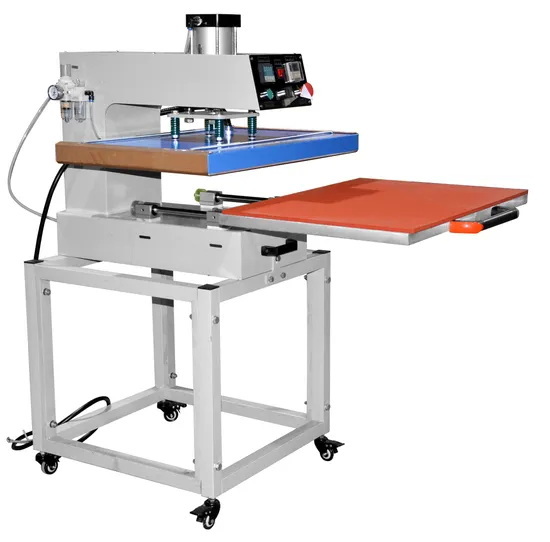
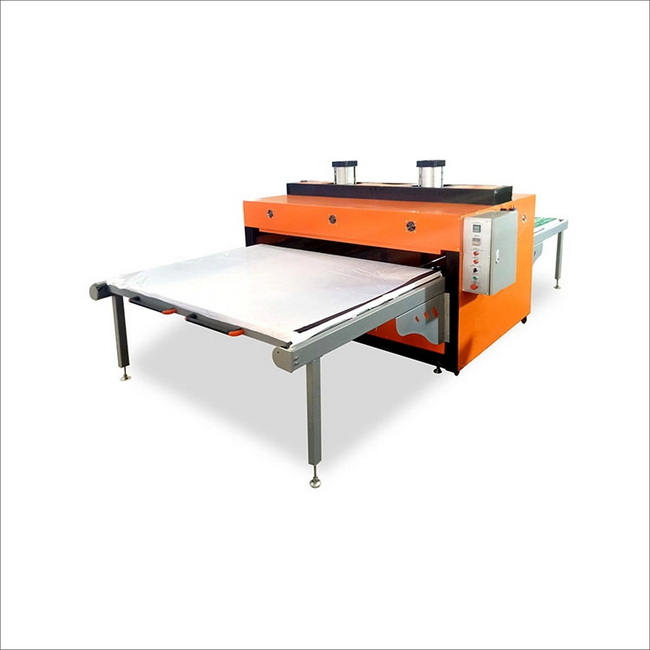
A cutting workflow using Cameo 3 tools on Cameo 4 is only half of the personalization process; you also need a reliable heat press to finish HTV, sublimation, or DTF transfers. High‑quality heat transfer equipment, welding machines, and embossing machines are designed to support consistent, repeatable printing results for growing studios and commercial users.
- Stable platen temperature helps HTV and sublimation transfers fuse evenly across the entire design.
- Accurate pressure adjustment reduces issues like incomplete adhesion, fading edges, or scorching.
- Durable structures are better suited to longer production runs in commercial environments.
By combining a Cameo 4 (using optimized Cameo 3 tools) with professional‑grade heat press machines, small studios can build a more efficient, profitable production line for garments and hard‑surface blanks.
If you are upgrading from a Cameo 3 to a Cameo 4, you do not have to abandon your existing tools. With the proper adapters and a clear setup process, you can keep using your favorite blades and pens while benefiting from the Cameo 4's improved speed, force, and smart features.
To build a more stable and scalable production workflow for garments, gifts, labels, and promotional products, pair your Cameo 4 cutting setup with reliable, even‑heating heat transfer equipment. Contact your preferred professional supplier today to discuss heat press, welding, and embossing machines that match your production scale, and start turning more of your designs into high‑quality finished products with confidence.
Contact us to get more information!
Not all Cameo 3 tools are compatible; key tools such as the Ratchet Blade, Premium Blade, Fabric/Deep‑Cut Blade, certain Kraft Blades, and Sketch Pens can be used with the correct adapters, but the Cameo 3 AutoBlade is not supported.
Yes, Cameo 3 tools require the Cameo 4 tool adapter set to fit and lock into the Cameo 4's Tool 1 carriage because the housing and shank design changed between generations.
If Silhouette Studio shows the wrong tool, the adapter may not be fully seated, or you may be using an incompatible tool or color adapter; double‑check the official compatibility chart and ensure the Tool 1 clamp is fully closed.
No, Tool 2 is reserved for specific Cameo 4‑only tools like the Rotary Blade, 3 mm Kraft Blade, and Punch Tool; older Cameo 3 tools should be used only in Tool 1 with the correct adapter.
You can start with Silhouette's default material presets but should run test cuts and often reduce force or speed slightly for older blades to avoid over‑cutting or rapid wear, especially on dense or textured materials.
1. https://www.silhouette101.com/archives/silhouette-cameo-4-tool-adapters
2. https://www.silhouetteschoolblog.com/2020/09/silhouette-cameo-3-tool-compatibility.html
3. https://craftercuts.com/products/silhouette-cameo-4-and-portrait-3-tool-adapter-set
4. https://silhouette-secrets.com/2020/06/14/lets-explore-cameo-4-tools/
5. https://www.thepinningmama.com/silhouette-cameo-4/
6. https://www.heatpressnation.com/blogs/blog/should-i-upgrade-to-a-cameo-4
7. https://www.youtube.com/watch?v=HpP3UpCOsuw
8. https://www.youtube.com/watch?v=OUbpG5DijIA
9. https://www.heattransferwarehouse.com/blog/-silhouette-cameo-4-vs-silhouette-cameo-3/
10. https://www.silhouetteamerica.com/tool-adapt-set


