If you have any questions, please feel free to contact us.| Email Us: info@dcheatpress.com


Views: 222 Author: Amanda Publish Time: 2026-01-23 Origin: Site


Content Menu
● Essential Equipment and Materials
● Step-by-Step: How to Sublimate a Mouse Pad
>> Step 1 – Design, Size, and Mirror Your Artwork
>> Step 2 – Print Your Sublimation Transfer
>> Step 3 – Prepare the Mouse Pad for Pressing
>> Step 4 – Align and Secure the Transfer
>> Step 5 – Set Correct Time, Temperature, and Pressure
>> Step 6 – Press the Mouse Pad
>> Step 7 – Cool and Reveal the Print
● Recommended Settings for Different Mouse Pad Types
>> Standard Neoprene Mouse Pads
>> Thicker or Premium Gaming Mouse Pads
>> High-Density Rubber Base Pads
● Advanced Tips for Large and Gaming Mouse Pads
>> Handling Oversize Transfers and Seams
>> Pressure Management for Long or Thick Pads
● Common Sublimation Problems on Mouse Pads and Solutions
>> Problem 1: Dull, Faded, or Washed-Out Colors
>> Problem 2: Ghosting or Double Images
>> Problem 3: Press Lines and Edge Indentations
>> Problem 4: Visible Seams When Using Multiple Sheets
● Can You Print Over a Mistake on a Mouse Pad?
● Why Choose Professional Heat Presses Like COLORFUL Machines
● Take Action: Elevate Your Mouse Pad Sublimation with COLORFUL
● FAQs About Sublimating Mouse Pads
>> 1 – What Is the Best Temperature and Time to Sublimate a Mouse Pad?
>> 2 – Why Does My Mouse Pad Look Faded After Sublimation?
>> 3 – How Do I Stop Ghosting on Sublimation Mouse Pads?
>> 4 – Can I Sublimate a Regular Mouse Pad Bought from a Store?
>> 5 – How Do I Avoid Seam Marks When Sublimating Large Gaming Mouse Pads?
Sublimating a mouse pad is a powerful way to add high-value personalization to any home, office, or gaming setup, as long as you control design preparation, print quality, and heat press settings correctly. This enhanced guide walks through every step in detail, explains how to avoid common failures, and shows how professional machines like COLORFUL heat presses can make your production more stable and scalable.

Before you press your first mouse pad, make sure your equipment, materials, and design files are prepared and compatible with sublimation workflows. Proper preparation helps you avoid wasted blanks, color issues, and unnecessary reprints.
- Sublimation printer using true sublimation ink, such as a dedicated desktop sublimation printer.
- Flat heat press with accurate temperature and pressure control; a swing-away style performs very well for thicker items like neoprene mouse pads.
- Computer and design software (for example, Photoshop, Illustrator, CorelDRAW, or free design tools) to prepare and mirror artwork.
- Sublimation-ready mouse pad blanks with a white, polyester-coated surface, typically backed with rubber or neoprene.
- Sublimation paper matched to your printer and ink system.
- Heat-resistant tape or sublimation adhesive spray to hold the transfer firmly in place.
- Protective parchment or butcher paper to catch stray ink and protect the heat press platen.
Even small details such as using a lint roller and clean protective paper can significantly improve final print quality and reduce visible specks or press marks on mouse pads.
The following step-by-step process gives you a practical workflow that can be repeated consistently, from design sizing to final cooling.
- Set your design canvas to the actual size of the mouse pad plus at least 3 to 5 millimeters of bleed on every side so you can print edge to edge without white borders.
- Work in RGB color mode using an appropriate ICC profile when available to achieve vibrant, predictable colors.
- Always mirror the design horizontally before printing, especially when text or logos are involved, so everything reads correctly after pressing.
A generous bleed and proper mirroring are two of the simplest ways to prevent visible borders and costly misprints on mouse pads.
- Use your sublimation printer's recommended print settings for photo or high-quality output so fine details stay sharp and color gradients remain smooth.
- Print on the coated side of the sublimation paper and allow the transfer to dry completely before handling or taping to avoid smudges and fingerprints.
- Keep your printed design slightly larger than the pad outline so the entire top surface is fully covered when aligned and pressed.
Drying the transfer and handling it gently helps maintain rich, uniform color after sublimation.
- Confirm that the blank is a true sublimation mouse pad with a white polyester-based face; general or uncoated pads will not sublimate correctly.
- Use a lint roller to remove loose fibers, dust, or hair from the surface; even small specks can create tiny white spots in the final print.
- Optionally pre-press the blank for 30 to 50 seconds at the target temperature to remove hidden moisture and stabilize the material.
Moisture trapped in neoprene or rubber-backed mouse pads is a major cause of faded centers, banding, and uneven color during sublimation.
- Place the printed transfer face up on your work surface and position the mouse pad printable side down on top, aligning it carefully within the bleed area.
- Secure the pad and paper together using heat-resistant tape along two to four edges, or apply a light layer of sublimation adhesive spray to prevent any shifting.
- Ensure the print lies completely flat with no wrinkles or trapped air pockets between the paper and mouse pad surface.
Good alignment and secure taping help prevent ghosting, which appears as a faint duplicate image or soft edges caused by movement during pressing.
While each manufacturer may recommend slightly different settings, most sublimation mouse pads press correctly within a predictable performance range.
Typical mouse pad sublimation settings:
Parameter | Recommended Range | Notes |
Temperature | 375–400°F (190–204°C) | Many neoprene pads respond well around 380–400°F. |
Time | 40–70 seconds | 40–45 seconds at higher temperatures, 60–70 seconds at slightly lower. |
Pressure | Medium to medium-high | Enough for full contact without crushing pad edges. |
Too little temperature or time leads to dull, washed-out colors, while excessive heat or time can cause scorching, yellowing, or a burnt appearance.
- Place a sheet of protective parchment or butcher paper on the lower platen of your heat press.
- Position the mouse pad and transfer bundle on the platen, usually with the paper side facing up, and cover it with another sheet of protective paper.
- Close the press with medium pressure for the chosen time and temperature settings, ensuring the entire pad surface is under even contact.
A swing-away heat press, especially in sizes like 15 by 15 inches, provides stable, even pressure on thicker mouse pads and can reduce edge marks or indentations.
- Once the timer finishes, open the press and carefully remove the mouse pad, keeping the transfer paper in place until it is off the hot platen.
- Allow the pad to cool for a short period so the dye can stabilize inside the coating.
- Peel away the transfer in a smooth, confident motion and inspect edges, color saturation, and critical text areas to confirm an even, sharp image.
Allowing the pad to cool slightly before removing tape or paper minimizes the risk of micro-shifts that might create faint double images while the ink is still mobile.
Although the basic principles are consistent, different mouse pad constructions may require small adjustments to time, temperature, and pressure.
- Temperature: 380–400°F
- Time: 40–60 seconds
- Pressure: Medium
These typical settings deliver vivid colors and clean lines for standard office and promotional mouse pads.
- Temperature: 375–390°F
- Time: 60–70 seconds
- Pressure: Medium, carefully adjusted to avoid crushing edges
Thicker pads sometimes need slightly longer dwell times at moderate temperatures to fully penetrate the upper surface without damaging the base.
- Temperature: Within the 375–400°F window, following manufacturer guidelines
- Time: Often at the higher end of the 50–70 second range
- Additional step: A longer pre-press is usually helpful to remove deeper moisture pockets.
Whenever you switch to a new supplier, size, or thickness, run small test images or corner samples first to fine-tune settings before full-scale production.
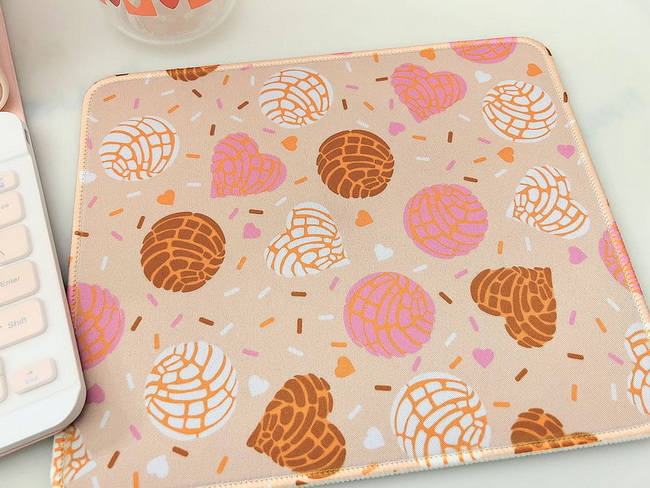
Oversized or gaming mouse pads introduce extra challenges, especially if your printer is smaller than the pad or your press area is limited. Careful planning and setup help you deliver premium results for demanding users such as gamers, designers, and streamers.
- For pads larger than your maximum print width, use carefully overlapped or tiled prints instead of butt-joint seams that can show through the final design.
- Apply a light coat of sublimation adhesive spray to the mouse pad and place the main design area first, then build supporting graphics or backgrounds around it.
- Avoid placing tape or paper overlaps directly under high-visibility areas, because these thickness changes can leave visible seam lines.
Where seams cannot be avoided, use layout strategies that hide them within natural design breaks like borders, textures, or darker color blocks.
- Use a larger, well-calibrated heat press so the entire pad surface receives uniform heat and pressure, including corners and edges.
- Start with medium pressure and visually check test pieces to confirm that the foam or rubber is not being overly compressed or permanently marked.
- If your press is smaller than the pad, press in two sections, adding a slight overlap and carefully aligning the second press to avoid visible transition lines.
Thoughtful management of pressure and press area helps you avoid press lines, uneven color, and permanent indentations across extended gaming mouse pads.
Even experienced decorators occasionally run into ghosting, dull colors, or seam marks, especially when working with new blanks or equipment. Understanding common issues and structured troubleshooting can save both time and materials.
Likely causes:
- Temperature set too low
- Press time too short
- Moisture trapped inside the pad
- Use of non-sublimation blanks or incompatible ink
Solutions:
- Increase time or temperature within the safe range and retest.
- Always pre-press pads that feel damp or are stored in humid environments.
- Verify that the mouse pad is explicitly labeled as sublimation-ready and that you are using sublimation inks.
Likely causes:
- Transfer moves when the press opens or while the pad is still hot
- Insufficient taping or adhesive
- Handling the pad too early after pressing
Solutions:
- Use additional heat-resistant tape or a light adhesive spray, especially near critical edges.
- Open the press smoothly, lifting straight up instead of sliding or shifting.
- Allow the pad to cool slightly before peeling away the transfer sheet.
Likely causes:
- Excessive pressure on the pad
- Sharp paper edges digging into the pad surface
- Uneven pressure from an uncalibrated press
Solutions:
- Reduce pressure slightly and test until pad edges no longer show heavy compression.
- Round or soften the corners of your transfer paper and ensure no thick tape ridges sit on print edges.
- Periodically check press calibration to maintain even pressure across the platen.
Likely causes:
- Gaps or overlapping areas where two sheets meet
- Tape ridges creating raised lines
- Seams positioned in prominent parts of the design
Solutions:
- Plan overlaps in lower-visibility areas and avoid direct seams across faces, logos, or key artwork.
- Minimize tape thickness over seam lines and use adhesive spray for flatter contact.
- Where possible, upgrade to wider-format printing and presses to avoid tiling for your most critical products.
Being systematic and changing only one variable at a time helps you quickly identify the ideal combination of time, temperature, and pressure for each specific mouse pad type.
Many creators wonder whether a flawed mouse pad can be saved by pressing another design on top of the original. While some issues can be partially hidden, results are not always predictable.
- Sublimation dyes become part of the coating, so they cannot simply be removed or fully covered as with standard inkjet prints or vinyl.
- Sometimes a darker or full-coverage design can visually hide lighter mistakes, but the underlying colors can still influence the final appearance.
- Severe problems such as reversed text, extreme ghosting, or scorched areas usually cannot be corrected for retail-quality products.
Misprinted pads can still be useful as internal samples, test pieces for new settings, or cut into smaller sections to serve as workbench mats or heat-resistant pads.
Consistent, commercial-grade mouse pad sublimation depends on stable heat, even pressure, and repeatable control, especially when you produce larger batches or manage different pad sizes and thicknesses.
Professional systems such as COLORFUL heat transfer presses and supporting equipment can enhance your mouse pad and gaming pad production in several key ways:
- Precise digital control of time, temperature, and pressure, helping you stay within optimal sublimation ranges for different mouse pad constructions.
- Larger platen sizes and swing-away or auto-open designs that deliver even pressure on thick neoprene and oversize gaming pads.
- Compatibility with a wide range of sublimation blanks, allowing you to expand from mouse pads into coasters, textiles, phone cases, and aluminum panels using similar workflows.
By choosing reliable, industrial-grade equipment, you reduce misprints, stabilize quality, and build a production environment that scales smoothly from hobby to professional sublimation business.
If you want your mouse pad sublimation projects to move beyond trial and error and into stable, profitable production, now is the time to upgrade your workflow. Choose professional COLORFUL heat presses and related sublimation equipment to gain precise control of temperature, time, and pressure, reduce misprints, and unlock consistent, vivid results across standard and gaming mouse pads. Visit COLORFUL today to explore our latest heat transfer machines, sublimation solutions, and support services, and start building a more efficient and scalable custom printing business.
Contact us to get more information!
Most sublimation mouse pads work well at temperatures between 375 and 400°F with a pressing time between 40 and 70 seconds, using medium pressure. The exact combination depends on pad thickness and the coating used, so always consult the blank manufacturer's guidance and perform small test pieces before running full batches.
Faded or washed-out prints are usually caused by low temperature, short pressing time, moisture in the pad, or the use of non-sublimation-compatible blanks or inks. Increasing time and temperature within the recommended ranges, pre-pressing the pad, and confirming the correct materials typically solves this problem.
Ghosting happens when the transfer moves while the ink is still hot. To prevent it, secure the transfer with sufficient heat-resistant tape or adhesive spray, open the press in a smooth, controlled motion, and allow the pad to cool slightly before removing the paper. These steps keep the design crisp and free of double images.
Only mouse pads with a polyester or sublimation-ready coating can accept sublimation dyes properly. Regular retail mouse pads that do not include this surface usually produce dull, uneven results or may not show the print clearly. For reliable quality, always purchase blanks that are specifically labeled for sublimation.
To minimize seam marks on large gaming mouse pads, use tiled prints with smart overlaps instead of hard butt seams, and rely on adhesive spray for smooth contact rather than heavy tape lines. Whenever possible, position any unavoidable seams in low-visibility areas or natural design breaks such as borders or textured backgrounds.
1. https://www.heatpressnation.com/blogs/blog/how-to-sublimate-a-mouse-pad
2. https://www.thecountrychiccottage.net/sublimation-mouse-pads/
3. https://michellespartyplanit.com/2023/02/how-to-sublimate-a-mouse-pad/
4. https://jennifermaker.com/sublimation-heat-press-settings/
5. https://jennifermaker.com/sublimation-mistakes/
6. https://coloradoleen.com/blog/how-to-sublimate-a-mouse-pad/
7. https://www.htvront.com/pages/sublimation-guide
8. https://www.zhiyudgtech.com/news/common-sublimation-mistakes-to-avoid/
9. https://www.facebook.com/groups/1655261694953377/posts/2109887796157429/


