If you have any questions, please feel free to contact us.| Email Us: info@dcheatpress.com


Views: 222 Author: Amanda Publish Time: 2026-01-21 Origin: Site


Content Menu
● What Is White Toner Printing?
● Why Choose a Crio White Toner Printer?
● Tools and Materials You Need
>> Essential printing and pressing equipment
>> Transfer papers and consumables
>> Design and file preparation tools
● Design Preparation: Setting Up Your Artwork
>> Choose the right size and resolution
>> Use the correct file format and background
● Importing Files into Digital Factory RIP
>> Choosing the correct print mode
● Printer and Paper Setup for Crio White Toner
>> Loading transfer paper correctly
● Optimizing Color, Ink Removal, and Underbase
>> Ink Removal and raster settings
>> Using the KnockMeBlackOut plugin
● Understanding Rasterization and Previewing the Print
>> Viewing rasterization in Digital Factory
>> Fine‑tuning for better results
● Printing Your Crio White Toner Transfer
>> Sending the job to the printer
● A‑B Marriage: Bonding Toner to Adhesive Sheet
>> Heat press settings for A‑B marriage
>> Performing the A‑B marriage
● Applying the Transfer to a T‑Shirt
>> Adjusting press settings for final application
>> Positioning and pressing the design
● Pro Tips for Better Durability and Hand Feel
● Where to Use Crio White Toner Transfers
● Take the Next Step with Crio and COLORFUL
● Frequently Asked Questions (FAQ)
>> FAQ 1: Is a Crio white toner printer beginner‑friendly?
>> FAQ 2: Why do I see small dots and holes in my design after RIP?
>> FAQ 3: What are the recommended heat press settings for Forever Laser Dark?
>> FAQ 4: How do I fix missing inner white areas in my print?
>> FAQ 5: Can I use one Crio white toner printer for multiple materials?
Crio white toner printers make it surprisingly easy to launch or upgrade a custom T‑shirt business, even if you are new to digital garment printing. This enhanced guide explains white toner printing basics, walks through a complete production workflow(including heat press), and shares pro tips on press settings, rasterization, and troubleshooting to help you get professional results from day one.

White toner printing is a digital process where a CMY+White LED printer uses white toner as an additional channel to create opaque, full‑color transfers for dark or light garments and other substrates. With compatible transfer papers, this process produces self‑weeded transfers that do not require cutting or weeding, saving significant time compared to vinyl.
White toner is especially useful when:
- Printing on black or dark cotton and blends
- Producing short runs with many colors or gradients
- Personalizing on demand, such as names, numbers, and small logos
Crio's 8432WDT and similar models are powered by a proven LED engine designed to deliver high‑resolution, durable prints on a wide range of white toner transfer papers. The 8432WDT supports up to 11‑inch‑wide transfer sheets and is optimized for popular transfer paper brands used in the custom garment industry.
Key advantages include:
- OKI‑powered print engine for reliable, sharp, full‑color output
- Industry‑level Digital Factory RIP software included for precise color and underbase control
- Remote support tablet with tutorials and guides to shorten your learning curve
For shops that already use professional heat transfer equipment from COLORFUL, pairing a Crio white toner printer with a stable, even‑heating press helps ensure consistent results on T‑shirts and other garments.
To support search visibility, this article naturally targets the following main and long‑tail phrases:
- Crio white toner printer
- Crio 8432WDT white toner printer
- How to make your first T‑shirt with a Crio white toner printer
- White toner transfer printing guide
- Forever Laser Dark white toner transfer settings
These phrases are integrated into the title, introduction, headings, and relevant sections in a natural way without keyword stuffing, helping both search engines and readers understand the topic and intent.
Before printing your first shirt with a Crio white toner printer, prepare a complete, reliable setup so you can work efficiently and avoid avoidable mistakes.
- Crio 8432WDT white toner printer, or a similar Crio white toner model
- Professional heat press with accurate temperature, pressure, and time control, such as a COLORFUL flat heat press
- Computer with Digital Factory RIP software installed and configured for Crio printers
- Remote support tablet supplied with the printer for on‑demand help and guided setup
- Forever Laser Dark two‑step transfer paper set: A‑sheet (print sheet) and B‑sheet (adhesive sheet)
- Parchment paper or suitable non‑stick cover sheet
- Heat‑resistant tape to secure the transfer during pressing
- Lint‑free cloth for rubbing during A‑B “marriage” and for surface preparation
- Graphics software such as Adobe Photoshop or GIMP for creating and scaling artwork
- High‑resolution source artwork at 300 DPI for crisp, professional prints
Good output starts with properly prepared artwork. Taking a few extra minutes here saves wasted transfers and reprints later.
- Measure your shirt and decide where the design will sit, such as chest, center, or oversized placement.
- For a typical adult medium T‑shirt, a width around 8–9 inches works well for a standard chest print.
- In Photoshop or GIMP, set the document resolution to 300 DPI to maintain detail and sharp edges.
- Match the document dimensions to the preset you plan to use in Digital Factory so scaling stays consistent.
- Keep your background transparent for white toner transfers, especially when using dark garments.
- Export the final design as a PNG file with transparency preserved.
- Digital Factory also supports JPEG, PDF, SVG, and EPS vector formats, but PNG is often preferred for maintaining clean edges with transparent backgrounds.
At this stage, consider adding a thin keyline or subtle shadow to help the design stand out on dark garments without looking bulky or heavy.
Digital Factory RIP controls how your Crio white toner printer lays down color and white toner, so configuration in this step is critical.
- Open Digital Factory RIP and verify that you are in the correct queue, such as Photo or Graphics, depending on your file type and quality requirements.
- Go to “File → Import File” and navigate to your exported artwork.
- Double‑click a single file to import, or use “Ctrl + click” to select multiple files, or “Ctrl + A” to import all files in a folder.
- Click “Open” to add your designs to the print queue.
- Select your design in the queue and set the print mode according to your transfer paper.
- For a black T‑shirt using Forever Laser Dark, choose the mode labeled for dark shirts with that paper.
- Confirm the print mode change in the dialog box.
- If you enable a “Remember this selection next time” option, keep in mind that switching modes later can reset some image properties.
At this step, it is helpful to include a simple flow diagram on your page showing the path from design creation to final press: design creation, RIP queue selection, print mode selection, printing, A‑B marriage, and final garment pressing.
Proper paper loading and basic printer setup are essential to avoid jams, misprints, and wasted media.
- Load Forever Laser Dark A‑sheets matte side up in either the multipurpose tray or the main tray.
- Verify that the printer tray settings match the correct media size and type.
- Store paper flat and protect it from humidity to maintain consistent toner adhesion.
- Confirm that CMY and white toner cartridges are properly installed and have sufficient remaining toner.
- Run a quick test print if the printer has been idle to check color, registration, and coverage.
- Keep the surrounding environment as dust‑free as possible to avoid specks in solid color areas.
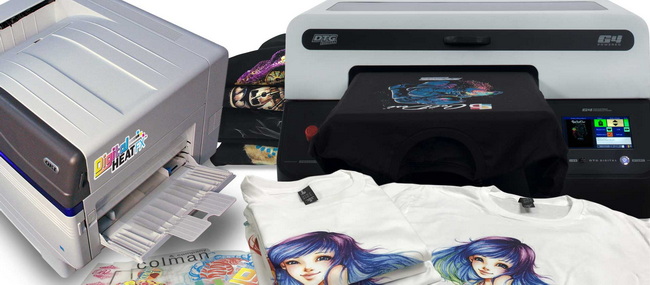
Crio white toner printers rely on RIP‑level control to manage how much white toner sits under the colors and how rasterization is applied.
- Right‑click your image in Digital Factory and select “Properties,” or use the Alt + Enter shortcut.
- Expand the “Color Layer” section and click “Ink Removal.”
- Set the frequency to 30 and the angle to 52.5 degrees as a proven starting point for Forever Laser Dark.
- Click “OK” to save your settings.
These settings create small gaps in the toner pattern that improve flexibility and wash durability without visibly degrading the design.
- Right‑click your artwork, go to “Production Plugins,” and choose “KnockMeBlackOut.”
- Adjust the underbase, which is the amount of white toner behind your colors, to roughly 30–40 as an initial value.
- Click “OK,” then right‑click the image again and choose “RIP Only,” or use the Alt + S shortcut.
If your design includes small white details, such as fine text or highlights, you can increase the underbase slightly to prevent them from disappearing during rasterization.
Rasterization is a core technique in white toner printing that breaks solid areas into fine dots and gaps to increase flexibility and wash resistance.
- After ripping, right‑click the job and select “View Raw Data,” or press Alt + V.
- Zoom in to inspect the raster pattern; you will see small dots and holes in parts of the image.
- Click “View all colors as black” in the top toolbar to see which areas will print as fully opaque coverage.
- If important inner white areas are missing, re‑import the file, increase the underbase value in KnockMeBlackOut, and RIP again.
- If the image appears too washed out, return to “Properties → Processing Options” and raise the color boost value to intensify colors.
- Experiment with different raster types when available to balance softness, coverage, and design style.
On your final web page, you can add visual examples to compare heavy versus light rasterization so beginners can understand how these settings affect hand feel and durability.
Once your settings look correct in the RIP preview, you are ready to print the transfer.
- Right‑click the ripped artwork and select “Print,” or press Alt + P.
- Confirm that the tray loaded with Forever Laser Dark A‑sheets is selected.
- Allow the transfer to exit the printer completely before handling to avoid smudging or scratching the toner.
- Handle the printed A‑sheet by the edges to avoid fingerprints and damage.
- Place the sheet on a clean, flat surface, toner side up, and check for banding, missing areas, or color shifts.
- If you see obvious defects, adjust printer or RIP settings and reprint before moving to the A‑B marriage step.
Forever Laser Dark is a two‑step system. The first step is to transfer adhesive from the B‑sheet onto the toner on the A‑sheet.
- Turn on your heat press and set it to 320°F, or about 160°C, with medium to light pressure.
- Set the timer to 90–120 seconds, depending on your press and the transfer paper manufacturer's recommendations.
- Preheat the lower platen for about 100 seconds to ensure an even working temperature.
- Place the printed A‑sheet ink‑side up on the lower platen.
- Position the B‑sheet on top of the A‑sheet with the adhesive side facing the toner.
- For an easier peel, insert a small piece of paper in a bottom corner between A and B sheets.
- Cover with parchment paper and press for the full time.
- When the timer reaches zero, open the press and carefully remove the parchment.
- Rub the top of the B‑sheet with a cloth for about 5 seconds to help the adhesive bond.
- Start peeling the B‑sheet slowly from the corner with the small paper, keeping the sheet as flat as possible.
- Avoid lifting the transfer off the lower platen; keep the A‑sheet flat to prevent distortion.
- A successful A‑B marriage leaves the toner on the A‑sheet fully covered with a thin white adhesive layer.
If parts of the design do not receive adhesive, increase dwell time slightly or ensure that pressure is even across the platen.
Now you are ready to apply your married transfer to a T‑shirt and complete your first Crio white toner project.
- Reset the press time to 30 seconds while keeping the temperature at 320°F and pressure at medium to light.
- Pre‑press the shirt for 2–3 seconds to remove moisture and wrinkles and to improve adhesion.
- Place the shirt flat on the lower platen, keeping seams and collars away from the pressing area when possible.
- Align your transfer in the desired position, such as 2–3 inches below the collar for a chest print.
- Use heat‑resistant tape on all four corners of the transfer to prevent shifting during pressing.
- Cover the transfer with parchment paper and press for the full 30 seconds.
- After pressing, open the press and allow the transfer to cool completely before peeling.
- Once cool, gently remove the heat tape and peel away the carrier sheet to reveal the finished print.
- If the garment surface looks too glossy, repress with parchment paper using the same settings to reduce gloss and improve the soft hand.
On your content page, a small comparison table between hot‑peel and cold‑peel white toner systems, with notes on finish and recommended uses, can further help readers pick the right paper type.
Improving durability and comfort is essential for customer satisfaction and repeat orders.
- Use rasterization thoughtfully: lighter patterns improve flexibility but may reduce opacity, while heavier patterns add opacity but can feel stiffer.
- Follow the transfer paper brand's washing instructions, such as turning garments inside out, washing cold, and avoiding bleach.
- Always produce a few test shirts before full production runs, especially with new fabrics or different press models.
Once you master the Crio white toner printer workflow, you can expand well beyond basic black T‑shirts into a wide range of products.
Popular applications include:
- Custom streetwear and fashion T‑shirts
- Corporate uniforms and event apparel
- Photo gifts, merch, and fan shirts
- Mixed‑media designs combining white toner transfers with embroidery, rhinestones, or vinyl
For higher throughput or specialty workflows, combining Crio white toner printing with industrial‑grade heat presses, welding machines, and embossing equipment from COLORFUL helps shops scale efficiently and maintain consistent quality across product lines.
When you combine a well‑configured Crio white toner printer, optimized raster and underbase settings, and a stable, precise heat press, you can consistently produce professional T‑shirts with vibrant color and long‑lasting durability. To build a complete, scalable workflow, explore COLORFUL's range of flat, pneumatic, and specialty heat presses, along with complementary welding and embossing machines, and choose the equipment that fits your current volume and growth plans. Visit dcsbheatpress.com to get tailored guidance on selecting the right press for white toner transfers and to start turning your designs into reliable, profitable apparel products.
Contact us to get more information!
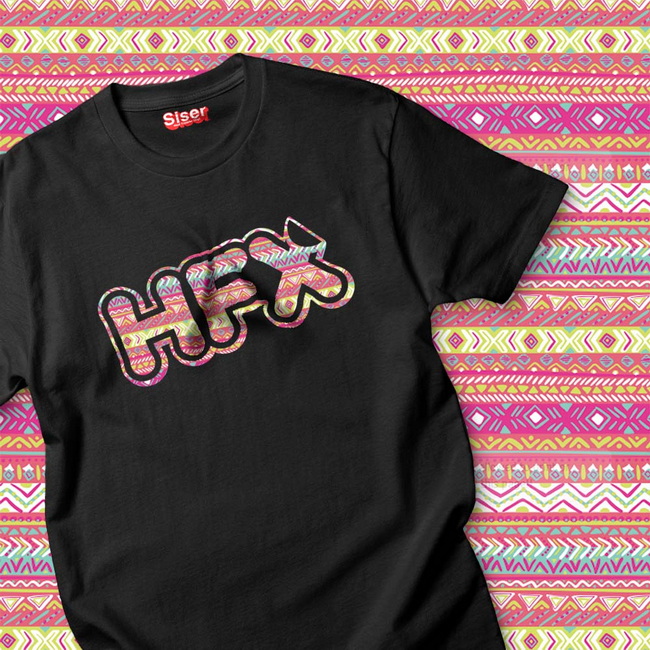
Yes, the Crio 8432WDT white toner printer is designed to be accessible to new users, thanks to its included Digital Factory RIP software and remote support tablet filled with tutorials and setup videos. With clear presets for popular transfer papers and guided workflows, beginners can quickly learn to create high‑quality T‑shirt transfers.
Those small dots and holes are part of the rasterization process, which improves flexibility and washability by breaking up solid toner areas. This is normal for white toner transfers; you can adjust raster frequency, angle, and color boost in Digital Factory to find the best balance between softness and opacity.
For the A‑B marriage step, a common starting point is 320°F for 90–120 seconds at medium to light pressure, with the lower platen preheated for roughly 100 seconds. For final application to the garment, 320°F for about 30 seconds at similar pressure is typically recommended, followed by a full cool‑down before peeling.
If inner white details are missing, they are likely being removed by the current combination of rasterization and underbase settings. Re‑import your file, increase the underbase value in the KnockMeBlackOut plugin, RIP again, and verify in the Raw Data preview that your inner whites are visible before you print.
Yes, Crio white toner printers can work with various transfer papers that adhere to cotton, polyester, blends, and many hard substrates. By selecting the correct print mode in Digital Factory and following the paper manufacturer's pressing instructions, you can expand from T‑shirts into other profitable products such as hoodies, bags, and promotional items.


