If you have any questions, please feel free to contact us.| Email Us: info@dcheatpress.com


Views: 222 Author: Amanda Publish Time: 2026-01-16 Origin: Site


Content Menu
● Why Immediate Export Matters
● Key Changes in the Sawgrass Ecosystem
● Preparing Your Library Before Export
>> Audit and Prioritize Designs
>> Build a Local Folder Structure
● Step‑by‑Step: Exporting Projects from CreativeStudio
>> Log In and Locate Creations
>> Import SGZ into Sawgrass Print Utility
● Converting Designs into PNGs for Future Use
>> Export PNG from Sawgrass Print Utility
● Moving Designs into the MySawgrass Design Tool
>> Upload PNG Files to MySawgrass
>> Organize Projects within MySawgrass
● Efficient Workflows for Large Design Libraries
>> File Naming and Documentation
● Technical Considerations for Print Quality
>> Image Resolution and Color Management
>> Matching Files to Substrates and Presses
● When to Reevaluate Heat Press Equipment
>> Signs That Equipment Is Holding You Back
>> Role of Professional Heat Press Solutions
● Secure, Convert, And Optimize Your Workflow
● Frequently Asked Questions (FAQ)
>> (1) When is the final deadline to export designs?
>> (2) Is there a way to export all projects from CreativeStudio at once?
>> (3) What format does CreativeStudio use when exporting, and how is it reused?
>> (4) Can exported designs still be edited like original CreativeStudio projects?
>> (5) Is new heat press equipment required in order to work with MySawgrass?
Sawgrass CreativeStudio is scheduled to shut down on February 1, 2025, which means cloud‑stored designs will no longer be accessible after January 31, 2025. This guide explains how to secure your existing projects, convert them for future use when heat and press, and integrate them into your updated workflow without interrupting production.[1][2][3]
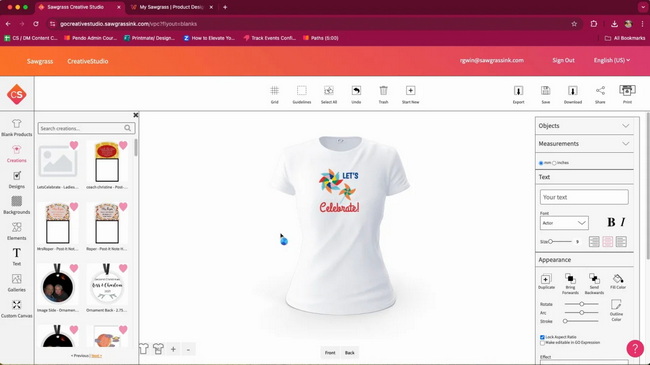
MySawgrass and the new Sawgrass Print Utility replace older tools and introduce a different way to manage print jobs and design files. Users can now export existing CreativeStudio projects, send them through Sawgrass Print Utility, and turn them into PNGs that are compatible with the MySawgrass design tool.[2][3]
A short preparation phase helps avoid missing important files and keeps your exported designs organized. Work through your CreativeStudio library methodically so that priority designs are secured first and categorized in a way that mirrors your real production workflow.[1][2]
- Review every folder under the “Creations” section and list the projects that are used regularly or generate the most orders.[2][1]
- Mark seasonal bestsellers, evergreen templates, and customer‑specific artwork that must be preserved for repeat jobs.[2]
- Remove or hide personal data such as names, phone numbers, and dates that you might want to change in future orders.[1][2]
- Treat each design as a reusable master version so it can serve multiple customers or occasions.[1]
- Create a main folder on your computer, for example “Sawgrass CreativeStudio Exports,” and inside add subfolders like “Mugs,” “Garments,” “Photo Gifts,” and “Clients.”[2]
- Use these folders as the default save locations when exporting SGZ files and later when saving PNGs from Sawgrass Print Utility.[2]
The following steps describe the standard export route from CreativeStudio into Sawgrass Print Utility. Keeping to this sequence reduces errors and ensures every project can be reused in your future setup.[1][2]
- Visit the CreativeStudio login page and sign in with your Sawgrass account credentials.[1][2]
- After login, open the “Creations” section, where all saved designs and folders are stored.[1]
- Click into the relevant folder and select the design you want to secure.[2][1]
- Confirm that all visible elements are correct, and that personalization layers have been adjusted or removed if necessary.[1]
- With the project open, click the Export button located in the top‑right area of the interface.[2][1]
- Choose a destination folder on your computer and save the file, which will be stored as an SGZ (Sawgrass print file).[2][1]
Naming tips:
- Use descriptive names such as “Birthday‑Mug‑Blue‑11oz.sgz” instead of generic terms.
- Include product type and size in the file name so different print templates can be identified quickly.
- Open Sawgrass Print Utility on your computer and select Create → Add File(s).[1][2]
- Browse to the SGZ file you exported, select it, and allow the utility to load it as a print job at its original dimensions.[2]
Once the job appears in Sawgrass Print Utility, it can be printed immediately or converted into a PNG for use in other software, including the MySawgrass design tool.[3][2]
Converting SGZ print files into PNG images gives you long‑term flexibility across multiple design platforms. PNGs retain quality and support transparent backgrounds, which is especially important for sublimation and heat transfer applications.[1][2]
- With the print job open in Sawgrass Print Utility, click the export or save icon in the interface.[2]
- Choose a dedicated PNG subfolder inside your main export directory and assign a clear file name, then save the PNG file.[2]
Advantages of PNG:
- Transparent backgrounds make it easier to place designs on colored garments or substrates.[2]
- Image quality remains high enough for professional heat transfer printing if resolution is maintained.[2]
The MySawgrass design tool is built to replace in‑browser creation workflows while remaining connected with Sawgrass printers. By uploading PNGs into its interface, you can keep using familiar designs inside the updated environment.[3][2]
- Access the MySawgrass design tool from your account dashboard and select a product template, such as a mug, T‑shirt, or panel.[2]
- In the right‑hand panel, click “Upload file,” then “Upload image,” and select the exported PNG file from your folder.[2]
After upload, the image appears on the canvas and can be resized or positioned according to the chosen product layout.[2]
- Use the Gallery feature to save projects and assign them to specific folders or categories that match your product lines.[2]
- If a white background needs to be removed, use the “Remove Color” tool in the design interface, then save the updated project.[2]
These steps should be repeated for each design you intend to reuse after CreativeStudio is sunset.[3][2]
Creators with extensive design catalogs must work strategically because each project requires individual export. A structured approach turns a time‑consuming task into a manageable routine.[4][2]
- Set a daily target, such as exporting 20–50 key designs, and mark completed folders on a tracking sheet or spreadsheet.[4][2]
- Begin with your most valuable products, such as top‑selling bundles, corporate client projects, and evergreen seasonal designs.[2]
- Apply a consistent naming pattern, for example “ProductType_Material_Occasion_Year,” so a file's purpose is clear at a glance.
- Maintain a simple log that notes which folders and designs have already been exported and converted into PNGs.
- Store master artwork files (such as PSD, AI, or SVG) in local or cloud archives independent of any printer‑specific platform.
- Treat online tools primarily as front‑end design and print workflows rather than sole storage locations for original assets.
Reliable printing depends on more than just the design file; it also involves color control, resolution, and compatible equipment. Ensuring consistency across software and machinery leads to fewer misprints and better use of exported designs.[5][6][2]
- Keep design resolution suitable for print, commonly 300 dpi at final output size, to preserve sharp graphics and text.[5]
- Where available, standardize color profiles and printer settings across MySawgrass and other design tools to reduce color shifts between jobs.[2]
- Confirm that file dimensions in MySawgrass match the live print area of the substrate, especially on large or shaped products.[5][2]
- Record recommended time, temperature, and pressure settings for each substrate alongside the corresponding design folder so operators can repeat successful results.[6][5]
An optimized digital workflow reveals whether existing hardware still supports production targets. If exports, file organization, and design quality are under control but output remains inconsistent or slow, equipment may be the limiting factor.[7][6][5]
- Irregular temperature or pressure leading to fading, banding, or incomplete transfers even with correct artwork.[5]
- Production bottlenecks caused by manual single‑station presses in high‑volume environments.[6][7]
- New product lines that require larger platens, special shapes, or higher pressure than current presses can deliver.[8][7]
- Industrial presses, hydraulic dual‑station machines, and specialized embossing or fusing systems are designed for stable, repeatable results across many substrates.[7][6]
- Manufacturers such as COLORFUL provide heat transfer machines, roll‑to‑roll presses, fusing machines, and embossing equipment suitable for textiles, leather, footwear, and advertising products.[8][6][7]
An upgraded press line can maximize the value of well‑organized digital designs by delivering more consistent output with less rework.[6][7]
To protect design assets and keep production running smoothly, immediate action is essential. Log in to CreativeStudio now, export all critical projects as SGZ files, move them through Sawgrass Print Utility to generate reusable PNGs, and upload them into the MySawgrass design tool to rebuild a reliable, future‑ready library. As your organized designs start driving consistent orders again, evaluate whether upgrading to professional heat press, fusing, or embossing equipment from specialized manufacturers such as COLORFUL will help you handle new demand with better efficiency and stability.[7][8][6][3][1][2]
Contact us to get more information!
The last day to export designs stored in CreativeStudio is January 31, 2025, because the platform is scheduled to go offline on February 1, 2025. After that date, any projects that remain only in the CreativeStudio cloud can no longer be accessed.[3][1]
At present there is no complete bulk export option, so each project must be opened and exported individually through the interface. This makes starting early particularly important for users with large design libraries.[4][2]
CreativeStudio exports projects as SGZ files, which can then be imported into Sawgrass Print Utility. From there, designers can either print directly or export the design as a PNG for use in the MySawgrass design tool or other compatible software.[1][2]
Once a project is exported and converted into a PNG, it becomes a flat image rather than a layered CreativeStudio design. It can still be scaled, positioned, and combined with other elements in MySawgrass or third‑party software, but original layer editing is no longer available.[2]
Existing presses can continue to be used with the new workflow as long as they meet temperature and pressure requirements for your substrates. However, businesses expanding into higher volumes or more demanding applications may benefit from upgrading to professional or hydraulic presses, fusing machines, or embossing systems to enhance consistency and throughput.[8][6][7][5][2]
[1](https://www.heatpressnation.com/blogs/blog/how-to-export-your-designs-from-sawgrass-creative-studio)
[2](https://www.sawgrassink.com/blog/bringing-your-creative/)
[3](https://www.sawgrassink.com/sunset/)
[4](https://www.silhouetteschoolblog.com/2024/10/how-to-export-files-from-sawgrass.html)
[5](https://makerflo.com/blogs/craft-library/best-sublimation-heat-press)
[6](https://www.dcsbheatpress.com)
[7](https://www.dcsbheatpress.com/top-10-heat-press-machine-manufacturers-in-china.html)
[8](https://www.dcsbheatpress.com/Hydraulic-dual-station-heat-press-machine-60-120cm-horizontal-transfer-printing-machine-for-jeans-pd564378938.html)
[9](https://www.youtube.com/watch?v=W-qDGT_fkMk)
[10](https://www.instagram.com/reel/DEyMjPKy1ul/?hl=en)
[11](https://www.youtube.com/watch?v=LiB4Kr525lY)
[12](https://www.sawgrassink.com/de/blog/bringing-your-creative/)
[13](https://www.mecolour.com/the-ultimate-guide-to-combo-heat-press-machine/)
[14](https://www.heatpressnation.com/blogs/blog?page=2)
[15](https://www.dyesubforum.co.uk/vbforum/showthread.php?19064-Discontinuation-of-CreativeStudio-and-Sawgrass-Print-Manager)
[16](https://www.supacolor.com)
[17](https://www.facebook.com/heatpressnation/videos/urgent-export-your-designs-before-sawgrass-creative-studio-shuts-down/584671561120803/)
[18](https://www.heatpressnation.com)


