If you have any questions, please feel free to contact us.| Email Us: info@dcheatpress.com


Views: 222 Author: Amanda Publish Time: 2026-01-16 Origin: Site


Content Menu
● Understanding Sawgrass Paper Capacity
● How To Expand the Sawgrass SG500 Paper Tray
>> Step-by-Step: Adjusting SG500 Tray Height
● How To Expand the Sawgrass SG1000 Paper Tray
>> Adjusting SG1000 Tray Height and Width
● Using the Multi-Bypass Tray Effectively
>> Supported Sizes and Applications
● How To Install the Multi-Bypass Tray
>> Installation Steps for SG500 and SG1000
● Practical Paper Size and Product Ideas
● Recommended Workflow for Larger Prints
● Troubleshooting Common Paper Tray Issues
>> Paper Jams After Tray Expansion
>> Off-Center or Cropped Prints
● Expert Tips for Consistent Sublimation Results
>> Professional Handling and Maintenance Tips
● Important Note: SG500 vs SG1000 Compatibility
● Take the Next Step With Your Sublimation Setup
● FAQ
>> 1. What is the maximum paper size for the Sawgrass SG500 tray after expansion?
>> 2. How large can the Sawgrass SG1000 print using the main tray?
>> 3. What sizes are supported by the SG500 Multi-Bypass Tray?
>> 4. How large can the SG1000 Multi-Bypass Tray print?
>> 5. Can a Sawgrass SG500 be converted into an SG1000?
Did you know your Sawgrass SG500 and Sawgrass SG1000 sublimation printers can handle much larger paper sizes than the default setup suggests? By correctly expanding the paper tray and using the Multi-Bypass Tray, you can unlock longer and wider prints for socks, tote bags, photo panels, signs, puzzles, and more. This guide walks through each adjustment in clear steps and explains how to avoid common feeding and alignment issues when printing on extended media.
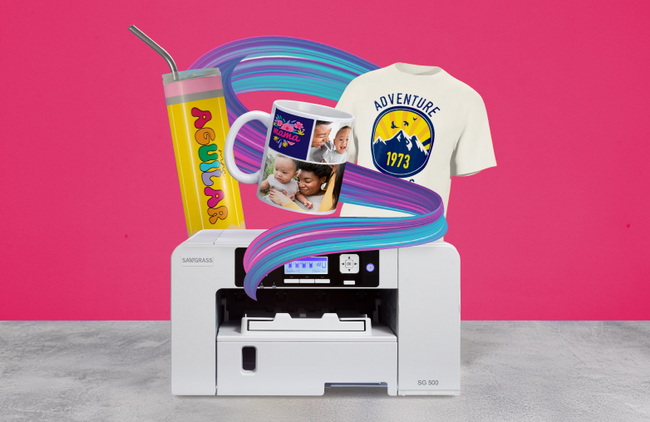
The Sawgrass SG500 and SG1000 are compact desktop sublimation printers with different maximum media widths and tray configurations. Knowing these limits and how to extend them safely is essential before loading larger paper.
- SG500 main tray maximum after expansion: 8.5" x 14"
- SG1000 main tray maximum after expansion: 11" x 17"
- SG500 Multi-Bypass Tray maximum: 8.5" x 51"
- SG1000 Multi-Bypass Tray maximum: 13" x 51", including support for 13" x 19" sheets
These expanded sizes make it possible to handle high-value sublimation products such as long socks, tall photo panels, clipboards, tote bags, keychains, coasters, signs, and jigsaw puzzles.
The SG500 paper tray can be extended to accommodate legal-size media up to 8.5" x 14", which significantly increases the length of your sublimation transfers. Proper adjustment helps prevent misfeeds and skewed outputs.
1. Power down or pause any active print job so the printer does not attempt to feed paper during adjustment.
2. Pull the SG500 paper tray straight out from the front of the printer until it is fully removed.
3. Locate the green tabs on the left and right inside the tray near the rear; these control the extension of the tray bottom.
4. Press or release the green tabs to unlock the tray bottom and allow it to slide outward.
5. Pull the bottom section of the tray until it reaches the position labeled for 8.5" x 14" paper.
6. Push the green tabs firmly into their matching slots so the tray locks securely in the extended height.
7. Load a neat stack of 8.5" x 14" sublimation paper, keeping the paper within the recommended fill line and aligning edges cleanly.
For best results, keep the side guides close enough to prevent side-to-side movement while still allowing the paper to feed smoothly.
The SG1000 paper tray supports larger formats, and correctly adjusting both height and width enables printing on 11" x 17" sheets for bigger projects or gang sheets.
1. Pull the SG1000 tray completely out of the printer and place it on a flat surface.
2. Identify the green height tabs along the sides of the tray, similar to those on the SG500.
3. Release these tabs and slide the tray bottom outward until it aligns with the 11" x 17" markers.
4. Press the green tabs into the corresponding slots so the tray is firmly locked at the extended length.
5. Find the green width-adjustment button near the top of the tray and hold it to slide the side guides in or out.
6. Set the guides inwards for smaller sheets such as narrow mug-sized paper, or outwards for full-width 11" x 17" media.
7. Pull out the built-in paper tray shield located above the tray; this sliding shield helps protect 11" x 17" sheets from dust and residue while loaded.
Running a quick nozzle check and alignment whenever you switch to a new paper size or type can help maintain color accuracy across larger prints.
For media that exceeds the practical limits of the main tray, the optional Multi-Bypass Tray is the recommended solution. This accessory is designed for extended and heavier media that must travel more directly into the printer.
Printer model | Main tray max size | Multi-Bypass max size |
SG500 | 8.5" x 14" | 8.5" x 51" |
SG1000 | 11" x 17" | 13" x 51" |
On the SG1000, the Multi-Bypass Tray also makes it possible to print on 13" x 19" paper, covering many popular large desktop sublimation products.
Installation of the Multi-Bypass Tray is simple and requires no tools, but correct connection and setup are important for reliable recognition and feeding.
1. Turn off the printer to prevent connection errors.
2. Move to the back of the printer and locate the dedicated slot for the Multi-Bypass Tray.
3. Align the tray with the rear slot and slide it in gently until it seats firmly in place.
4. Power the printer back on so the device and your computer can detect the newly attached tray.
5. Open your print driver or Sawgrass Print Manager and select the Multi-Bypass Tray as the active source, choosing the correct paper size and type.
The bypass path is especially useful when feeding thicker or much longer media, as the straighter route can reduce curling and smudging on extended sheets.
Expanded paper options directly relate to new product opportunities, especially when combining legal or tabloid sheets with appropriate substrates.
- 8.5" x 11": Mugs, coasters, small photo panels, keychains, phone cases.
- 8.5" x 14": Long socks, slim door hangers, tall photo panels, bookmarks.
- Up to 8.5" x 51" via Multi-Bypass: Extra-long vertical designs for specialty panels or elongated decorative pieces.
- 11" x 17": Large clipboards, tote bags, pillow covers, gang sheets for small items such as coasters and patches.
- 13" x 19" to 13" x 51": Signs, large metal or MDF panels, jigsaw puzzles, multi-panel wall art, and high-capacity gang sheets.
A clear chart or diagram showing which paper sizes match typical product categories can be placed near this section to help readers quickly choose the correct format.
Larger formats demand a bit more preparation to ensure sharp detail and accurate alignment across the entire sheet. A consistent workflow reduces wasted blanks and reprints.
1. Set your design canvas to match the exact paper size (for example, 11" x 17" or 13" x 19").
2. Use high-resolution artwork, ideally around 300 dpi at the final print size, to preserve detail on large panels.
3. In Sawgrass Print Manager or the print driver, choose the correct paper type, tray (main or bypass), and size.
4. Run a scaled-down test print on a smaller sheet to confirm colors and layout before using expensive large blanks.
5. Handle long sheets carefully, avoiding bends or creases, especially when loading through the bypass tray.
Even with the tray correctly expanded, a few small errors can cause jams or misalignment. Identifying these quickly keeps production smooth.
- Confirm that all green height tabs are fully locked into their slots so the tray does not shift during feeding.
- Make sure the side guides are snug against the paper without compressing the stack.
- Check that the tray is not overfilled and that the stack remains below the maximum load line.
- Verify that the paper size selected in your software matches the actual media in the tray.
- Ensure the correct tray (main or Multi-Bypass) is selected in the driver.
- Remove and reinsert the tray or bypass unit if there is any doubt about proper seating.
- Store sublimation paper in a cool, dry environment, keeping it sealed until use to minimize moisture absorption.
- Use the bypass tray for extra-long pieces to reduce stress on the paper path, which can help limit curling.
Small process improvements can have a noticeable impact on image sharpness, color consistency, and production speed.
- Choose high-quality sublimation paper compatible with your printer and substrates to ensure reliable ink release.
- Keep the printer in a clean, relatively dust-free workspace, especially when working with large, fully exposed sheets.
- Inspect and clean feed rollers periodically if you begin seeing increased misfeeds or uneven pulls on extended media.
- Create and save standard templates for your most-used paper sizes and product types to streamline setup and reduce mistakes.
Some users wonder whether a Sawgrass SG500 can be converted or upgraded to function like an SG1000 simply by changing trays or accessories. These models, however, are built on different hardware platforms and support different maximum media widths, so conversion is not supported or advisable.
The SG500 is designed for media up to 8.5" wide, even when using the Multi-Bypass Tray, while the SG1000 supports 11" in the main tray and up to 13" via the bypass tray. To gain true wide-format capabilities, upgrading to a larger printer model is the appropriate route rather than modifying a smaller unit.
You now have everything needed to safely expand your Sawgrass SG500 and SG1000 paper trays, install the Multi-Bypass Tray, and confidently print on larger formats without sacrificing quality or reliability. Put these adjustments into practice on your next batch of socks, panels, tote bags, or signs, and then evaluate which paper sizes give you the best results and profits. When you are ready to push your production further, pair your Sawgrass printer with a stable, high-pressure heat press and premium sublimation blanks from COLORFUL (dcsbheatpress.com) so your upgraded paper capacity is fully matched by professional-grade finishing equipment.
Contact us to get more information!
After properly extending the tray, the SG500 main tray supports up to 8.5" x 14" paper, which works well for long socks and tall photo panels.
With the tray height and width correctly adjusted, the SG1000 main tray can handle 11" x 17" media for larger designs and gang sheets.
The SG500 Multi-Bypass Tray allows printing on media up to 8.5" x 51", making it suitable for very long vertical designs and specialty projects.
The SG1000 Multi-Bypass Tray supports media up to 13" x 51" and also accommodates popular 13" x 19" sheets for bigger desktop sublimation jobs.
No. The SG500 and SG1000 are different models with distinct hardware, tray widths, and supported accessories, so converting an SG500 into an SG1000 is not supported or recommended.


