If you have any questions, please feel free to contact us.| Email Us: info@dcheatpress.com


Views: 222 Author: Amanda Publish Time: 2026-01-16 Origin: Site


Content Menu
● Materials, Equipment, And Notebook Types
>> Choosing Sublimation Notebook Blanks
● Design Preparation And Canvas Setup
>> Setting Up The Design Canvas
>> Design Considerations For Different Uses
● Printing Settings And Transfer Preparation
>> Configuring Printer Settings
● Heat Press Settings For Notebook Covers
>> Baseline Temperature, Time, And Pressure
● Pressing Workflow And Handling
>> Preparing The Notebook And Transfer
● Advanced Design And Product Strategies
>> Full Bleed And Wrap Concepts
>> Collections, Bundles, And Personalization
● Troubleshooting And Quality Control
>> Common Print And Press Issues
● Safety, Maintenance, And Production Efficiency
>> Operator Safety And Equipment Care
>> Batch Production And Workflow
● FAQ
>> Q1. What temperature is commonly used for sublimation notebook covers?
>> Q2. Can ordinary store bought notebooks be used?
>> Q3. Why do some notebook prints appear faded or patchy?
>> Q4. How can ghosting or blurred edges be reduced?
>> Q5. Are sublimation notebooks suitable for small business production?
Custom sublimation notebooks are one of the most versatile and profitable personalization products for both beginners and experienced print studios, especially when supported by a clear, repeatable workflow. [1][2][3]
This enhanced guide focuses on structure, clarity, and real production conditions, so readers can quickly understand the process, avoid common mistakes, and scale from single gifts to small business batches. [3][4][1]

Successful production depends on choosing the right combination of printer, ink, paper, and notebook blanks that are compatible with sublimation. [5][3][1]
Using non sublimation notebooks or unstable heat press settings often leads to faded colors, incomplete transfers, or warped covers that feel unprofessional. [2][3]
- Sublimation printer with dedicated sublimation inks, such as a Sawgrass unit or similar solution approved for sublimation printing. [5][1]
- Flat heat press with reliable temperature and time control, capable of operating within roughly 180–200 °C (356–392 °F). [3][1]
- Heat resistant tape to prevent the print and notebook from shifting during pressing. [1][2]
- Parchment or protective paper to keep ink and adhesive off the platens. [2][1]
- Heat resistant mat or pad to support even pressure across the cover. [3]
Notebook covers must have a polyester, PET, fabric, or coated surface that can bond with sublimation dyes under heat and pressure. [6][2][3]
Standard cardboard or uncoated paper based covers generally do not produce vibrant or durable results, even if pressed with correct settings. [2][3]
- Suitable covers: polyester coated boards, PET coated surfaces, sublimation ready fabric covers, or coated MDF covers marketed as sublimation blanks. [6][3][2]
- Risky covers: plain chipboard, uncoated faux leather, or notebooks without any mention of sublimation compatibility. [3][2]
- Format options: small, medium, and large notebooks or planners with front covers designed specifically for heat transfer. [1]
Design preparation determines whether the notebook has clean edges, centered elements, and the right balance between artwork and functional writing space. [5][1]
Accurate measurements and bleed margins reduce the risk of white borders or clipped patterns around the cover edges and spine. [1][2]
- Measure the width and height of the printable front cover, excluding any metal spirals, elastic bands, or closures. [1][2]
- Add a small bleed, often around 0.25 inch (3–5 mm) on each edge, so background artwork extends beyond the final trim or fold. [1]
- Record separate values if medium and large notebook formats share different cover proportions and paper size requirements. [1]
Design platforms such as CreativeStudio, Canva, or image editors allow custom canvas sizes that can match each notebook's imprint area. [7][1]
Creating a reusable template with guides for the spine, safe text area, and bleed helps maintain consistency when producing multiple designs. [7][1]
- Use the measured imprint dimensions plus bleed to create a custom canvas for each notebook size. [1]
- Work at 300 DPI in RGB color mode to achieve sharp, vibrant prints compatible with sublimation workflows. [3][1]
- Place important text and logos inside a safe area inset from edges and the spine curve, avoiding holes or rounded corners. [7][1]
Notebook projects can target corporate branding, educational use, journaling, or gifts, and each purpose benefits from a slightly different design approach. [4][2]
Using themed collections and consistent visual systems makes the product line feel more cohesive and premium. [4][2]
- Business notebooks: logo prominence, color palette alignment, subtle background textures that support professional use. [2]
- Personal notebooks: travel themes, motivational phrases, monograms, or illustrations that reflect the owner's personality. [4][2]
- Series and sets: coordinated designs across multiple notebooks labeled for planning, goals, notes, or specific subjects. [4][2]
Proper printing settings are critical because they influence color depth, edge sharpness, and how well the design aligns with the notebook during pressing. [5][1]
Printer profiles and media types directly affect how much ink is laid down and how it behaves when heated on the coated surface. [3][1]
- Select an appropriate media or product profile, such as polyester, when available in the sublimation software. [8][1]
- Enable mirroring so text and graphics appear correctly on the final notebook cover. [5][1]
- Choose high quality or photographic color modes when detailed images or gradients are used, while still respecting the printer's recommended profiles. [5][1]
Small pre print checks can avoid wasted blanks and ensure reliable outcomes for both single gifts and production batches. [5][1]
Once fine adjustments are saved within the software, operators can reproduce consistent results across repeated orders. [8][3]
- Confirm that the document size matches the notebook imprint area plus bleed and that margins are correct. [1]
- Review the layout for spelling, logo placement, and any elements close to the edges or spine line. [7][1]
- Allow the printed transfer to dry fully before handling, taping, or stacking to avoid smudging or contamination. [5][1]
Heat press settings should be tuned to the notebook material, thickness, and coating type rather than using a single fixed value for every project. [6][3]
Using material specific baselines combined with small test runs reduces rejects and helps maintain predictable quality. [3]
For many PET and coated notebook covers, a moderate temperature and time combination provides vivid color without excess warping or scorching. [6][3]
Fabric style notebook covers or different coatings may require slightly higher temperatures or longer pressing times to reach full color development. [9][10][5]
- PET or coated hard cover: around 180 °C (356 °F) for approximately 50–60 seconds with medium pressure, depending on the supplier's recommendation. [6][3]
- Fabric style sublimation covers: roughly 180–204 °C (356–400 °F) for 60–90 seconds, often at light to medium pressure. [10][9][5]
- Always treat supplier instructions as the primary reference and use charts only as starting points for fine tuning. [8][6][3]
Notebook cover type | Temp (°C) | Time (s) | Pressure | Notes |
PET or coated hard cover | 180 | 50–60 | Medium | Common baseline for PET notebook blanks. |
Fabric sublimation cover | 190–200 | 60–80 | Medium | Useful for textile like covers; confirm manufacturer data. |
Example A5 coated notebook | 180–190 | 40–50 | Medium | Often pressed face up on flat presses. |
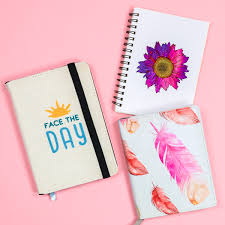
A consistent pressing routine ensures good contact between the transfer and the notebook cover while protecting the heat press from ink residue. [2][1]
Each step from placement to cooling can influence final print quality, especially with larger covers or thicker notebook constructions. [2][1]
- Place protective paper on the lower platen before positioning the printed transfer face up. [2][1]
- Align the notebook cover with the printed image and secure it with heat resistant tape along multiple edges, particularly near the spine. [2][1]
- Remove or secure loose contents and inserts so they do not shift during pressing and affect pressure distribution. [1]
Careful handling during pressing and cooling helps avoid ghosting, blurred edges, and unnecessary deformation of the cover. [3][1]
Operators benefit from repeating the same routine for each notebook format to limit variability between units. [4][3]
- Cover the back side of the notebook with a second sheet of protective paper before closing the press. [2][1]
- Press at the chosen settings without sliding the platen, lifting and lowering it in a controlled manner. [3][1]
- Allow the notebook to cool briefly, then remove the tape and transfer paper in a smooth motion to reveal the finished surface. [1][2]
Beyond basic production, advanced design strategies can increase perceived value, support higher price points, and create more distinctive product offerings. [4][2]
Aligning artwork with target audiences and bundling related products encourages larger orders and recurring business. [4][2]
- Extend backgrounds and patterns over the entire cover and slightly around the spine for a visually continuous result. [2][1]
- Leverage textures and repeating motifs that tolerate small alignment variations yet still look intentional and polished. [1][2]
- Highlight unique design elements such as gradients, illustrated borders, or subtle frames around key text. [7][5]
Well structured collections, gift sets, and personalization options help transform individual notebooks into scalable product lines. [4][2]
Templates that support fast customization reduce production time per order while maintaining a premium user experience. [7][5]
- Create themed sets for planners, students, events, or professional roles using consistent design systems. [4][2]
- Offer name, title, and short phrase personalization, ensuring editable text areas are clearly defined in your design templates. [4][2]
- Bundle notebooks with complementary products such as mugs, keychains, or bags that feature coordinated graphics. [8][3]
Real world production often reveals issues that are not obvious during initial test runs, so having a troubleshooting framework is important for maintaining quality. [3][2]
Structured checks reduce waste, save time, and maintain consistency across batches and different staff members. [8][3]
- Faded or dull color: may relate to low temperature, short press time, insufficient pressure, or incompatible notebook coating. [3][2]
- Ghosting or blurred edges: often tied to movement between the transfer and cover or peeling the paper while the cover is extremely hot. [3][1]
- Warped or bent covers: can result from excessive heat, long press times, or too much pressure on thin or cardboard core covers. [6][3]
Adjusting only one parameter at a time and documenting results helps move from inconsistent outcomes toward stable, repeatable settings. [3]
Calibration records can then become reference standards for future orders and for training new staff. [8][3]
- Increase or reduce temperature and time in small increments, monitoring color and surface shape after each test. [6][3]
- Modify pressure gradually and confirm whether the entire cover receives even contact during pressing. [3]
- Standardize taping points and handling routines to minimize movement that causes ghosting. [2][1]
Safe and efficient workshop practices protect staff, equipment, and finished notebooks while enabling higher throughput for commercial use. [8][3]
Routine maintenance and organized workflows can significantly reduce downtime and reprint rates. [8][3]
- Use heat resistant gloves or tools when working near platens operating around 180–200 °C. [3]
- Keep the pressing area free of loose paper or plastics that could accidentally contact hot surfaces. [8][3]
- Replace protective paper frequently and clean the platen as recommended by the manufacturer to prevent ink buildup. [1][2][3]
Batching similar notebooks together and standardizing settings for each cover type helps streamline operations in busy shops. [4][3]
Separating design preparation, printing, taping, and pressing into clear stages supports better time management. [3]
- Organize production runs by notebook size and cover material so fewer setting changes are needed. [3]
- Prepare multiple printed and taped covers before starting the pressing cycle to minimize idle time. [4][3]
- Store documented settings so that multiple operators can achieve uniform quality using the same baseline parameters. [8][3]
Readers who have explored the concepts, settings, and troubleshooting strategies above now have a solid foundation for confident, consistent production. [1][3]
To move from theory into reliable day to day output, consider standardizing notebook materials, documenting successful settings, and adopting precise, well maintained heat press equipment that supports repeatable, high quality sublimation results. [8][2][3]
Review existing notebooks, equipment, and workflows, then define one or two standard notebook formats and preferred coatings, establish tested settings for each, and implement a clear batch production routine so future sublimation notebook orders can be fulfilled faster, more reliably, and with consistently professional print quality. [6][4][3]
For many PET or coated notebook covers, a common baseline is around 180 °C (356 °F) for roughly 50–60 seconds at medium pressure, adjusted according to manufacturer guidance. [6][3]
Most general stationery notebooks lack a polyester or sublimation compatible coating, so even with correct settings the colors often appear dull and are not fully bonded to the surface. [2][3]
Faded or patchy areas can indicate low temperature, short pressing time, uneven pressure, or incompatible cover materials that do not accept sublimation dyes properly. [2][3]
Improving tape placement, preventing the cover from shifting, and allowing a brief cooling period before peeling the transfer can significantly reduce ghosting and blurred edges. [1][3]
With standardized blanks, documented settings, and organized batch workflows, sublimation notebooks can become a high margin, repeatable product line for small workshops and online stores. [4][2][3]
[1](https://www.heatpressnation.com/blogs/blog/how-to-customize-a-notebook-with-sublimation)
[2](https://www.thecountrychiccottage.net/sublimation-notebooks/)
[3](https://galaxy-press.com/sublimation-heat-press-settings/)
[4](https://www.youtube.com/watch?v=tIPruOPuJEQ)
[5](https://artbubbles.com/blogs/how-to-customize-a-notebook-with-sublimation-files)
[6](https://www.ceramicraft.com.au/learning/ceramicraft-sublimation-pressing-instructions.pdf)
[7](https://www.youtube.com/watch?v=39-PYvF1CFw)
[8](https://care.sawgrassink.com/hc/en-us/articles/10587333978011-Sublimation-Heat-Press-Settings)
[9](https://www.youtube.com/watch?v=p_Tawv4f324)
[10](https://www.facebook.com/groups/1655261694953377/posts/2264515390694668/)
[11](https://www.youtube.com/watch?v=iZQcv78VjnI&vl=en)


