If you have any questions, please feel free to contact us.| Email Us: info@dcheatpress.com


Views: 222 Author: Amanda Publish Time: 2026-01-05 Origin: Site


Content Menu
● What Is Contour Cutting in SignMaster Pro
● Required Software, Cutters, and Materials
● Preparing Your Artwork for Contour Cutting
● Setting Up Your Document in SignMaster Pro
● Building Contour Lines with the Contour Cut Wizard
● Configuring Cutting Device and ARMS Settings
● Setting Up the Printing Device and Print Options
● Printing and Loading the Sheet
● Aligning Registration Marks and Starting the Cut
● Pro Tips for Accurate and Clean Contour Cuts
● Troubleshooting Common Contour Cutting Issues
● Advanced Applications for Contour Cutting
● Recommended Workflow with Heat Transfer Equipment
● Strong Call to Action for Growing Print‑and‑Cut Workflows
● FAQs About Contour Cutting with SignMaster Pro
>> FAQ 1. Do I need SignMaster Pro specifically for contour cutting?
>> FAQ 2. Why are my contour cuts not lining up with the print?
>> FAQ 3. What blade settings should I start with for Vinyl Systems Edge or Evo?
>> FAQ 4. Can I contour cut non‑vector images like JPG or PNG files?
>> FAQ 5. What should I do if the cutter fails to detect the registration marks?
Contouring cutting in SignMaster Pro lets you cut precisely around printed designs using registration marks and ARMS sensors on compatible vinyl cutters, creating professional stickers, decals, and heat transfer graphics with clean outlines. This expanded guide focuses on practical setup, software workflow, troubleshooting, and pro tips so beginners and small businesses can get reliable contour cuts consistently.[1][2]

Contour cutting is the process of printing a design with registration marks and then cutting around that print with a vinyl cutter guided by software and optical sensors. In SignMaster Pro, this workflow is handled by the Contour Cut Wizard, which creates vector cut paths around your artwork and aligns them to the printed marks.[2][1]
Key concepts:
- The design is printed first, then cut second to follow the printed artwork.
- The contour path defines where the cutter blade travels around the image edges.
- Registration or ARMS marks allow the cutter to align the cut to the print with high accuracy.[1][2]
SignMaster is available in different editions, but contour cutting is only available in SignMaster Pro, which includes the tools needed for registration marks and ARMS‑based alignment. Pairing this edition with supported cutters such as Vinyl Systems Edge or Evo allows full print‑and‑cut integration.[2][1]
You typically need:
- Software: SignMaster Pro with contour cutting capability.
- Cutter: A compatible vinyl cutter with Automatic ARMS registration, such as Vinyl Systems Edge or Evo.[1]
- Printer: A reliable inkjet or laser printer suitable for your chosen media, including transfer papers.
- Media: Plain paper for testing and suitable printable media such as heat transfer paper or printable vinyl for production.[1]
For heat transfer workflows, combining accurate contour cutting with a stable heat press ensures consistent pressure, temperature, and time when applying designs to garments or hard goods.
High‑quality artwork makes the contour building and tracing process smoother and reduces cleanup work later. SignMaster Pro can create contour paths around vector art or auto‑trace high‑resolution bitmap images with white or transparent backgrounds.[2][1]
Recommended artwork practices:
- Use high‑resolution images (around 300 dpi) to help the tracer detect edges cleanly.[2]
- Prefer transparent PNGs or simple white backgrounds so the software can separate the subject from the background effectively.[1][2]
- Avoid noisy or low‑contrast edges that make it harder to generate smooth contour lines.[2]
Before importing, you can also size the artwork close to the target print dimensions so only minor adjustments are needed inside SignMaster.
Document setup affects how the design prints and how the cutter reads registration marks. SignMaster Pro commonly defaults to U.S. Letter (8.5" x 11"), which works well for test sheets and many everyday jobs.[1]
Basic document setup:
- Open SignMaster Pro and confirm the page size is set to Letter (8.5" x 11") in the Pages panel; change it if required.[1]
- Import your design by dragging the file into SignMaster or using File → Import → File.[1]
- Position and scale the graphic so it fits comfortably within page borders, leaving channels around the edges for registration marks and roller grip.[1]
For multi‑part layouts, maintain enough spacing between items to keep separate contours and avoid overlapping cut paths.
The contour path defines where the blade will travel, so it must be built and refined before printing. SignMaster Pro's Contour Cut Wizard centralizes the key options and provides a structured sequence for creating these outlines.[2][1]
Main contour‑building steps:
- Select the target artwork, click the apple icon on the top toolbar, and choose Contour Cut Wizard.[1]
- In the wizard, under Source Options, ensure Selected Objects and Include Full Bounds are checked so contours fully wrap the selected design area.[1]
- Click Build Contours to generate initial contour paths.[1]
When working with non‑vector images, SignMaster will launch the Image Contour Tracer so the artwork can be traced into vector outlines.[2][1]
Inside the Image Contour Tracer:
- Adjust tolerance to control how much of the background or internal areas are included or ignored during tracing.[2][1]
- Use the opacity slider to compare the trace overlay with the original image.
- Click Trace, then refine smoothing and contour size (offset) to tighten or loosen the cut line around the design.[2][1]
Once the contours look clean and smooth, click Apply, then Accept to return to the main document with the new path attached to the artwork.[1]
Correct cutter configuration ensures that registration marks are detected reliably and contours follow the print precisely. Vinyl Systems Edge and Evo cutters use Automatic ARMS to scan and align the job.[3][1]
Core cutting device setup:
- In the Output Options tab of the Contour Cut Wizard, set the Cutting Device to the connected Vinyl Systems Edge or Evo model.[1]
- Ensure Automatic ARMS is enabled for that device so the cutter can locate the registration marks automatically.[1]
- Click Spooler to open the Vinyl Spooler interface.[1]
In the Vinyl Spooler:
- Go to the Cut Options tab.
- Set Media Width to about 12 inches, or to match the actual sheet or roll width being used.[1]
- Set Blade Offset to 0.45 mm as a recommended starting point for many standard blades.[3][1]
- Click Done to confirm the settings and return to the wizard.[1]
On the cutter control panel, use a moderate test configuration such as around 80 g of force and 400 mm/s speed when working with plain paper, then fine‑tune those values for thicker or more delicate media.[3][1]
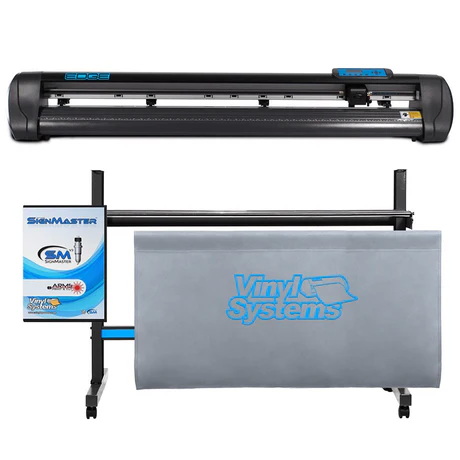
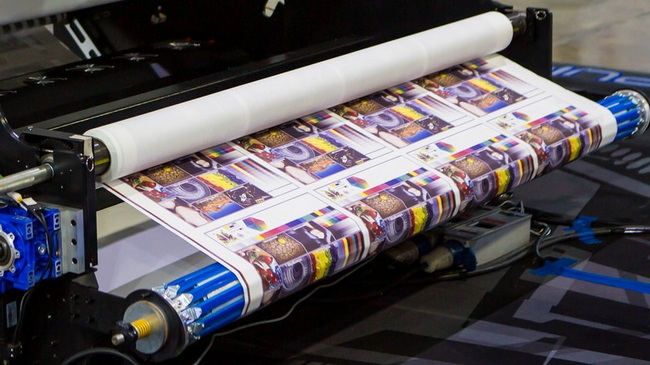
Contour cutting requires a correctly printed sheet with registration marks before any cutting can occur. SignMaster Pro can send this job directly to your chosen printer through the Print Direct output.[2][1]
Print setup steps:
- In the Contour Cut Wizard, set the Printing Device to Print Direct.[1]
- Choose the target printer from the list to ensure the job goes to the correct device.[1]
Additional printing considerations:
- Confirm the paper type and quality options in the printer driver so they match your media, such as plain paper, photo paper, or heat transfer paper.[2]
- Make sure the orientation (portrait or landscape) aligns with the layout in SignMaster to avoid partial prints or clipped marks.[1]
- Run a test print on plain paper first to verify mark position and design placement before using heat transfer or specialty media.[1]
When using light transfer paper, remember that designs are often mirrored before printing, because the sheet is pressed face down onto fabric; for many dark transfer papers and printable vinyl used face up, mirroring is typically not applied.[1]
After configuring the devices, the next phase is to print the marked page and load it into the cutter. Consistent handling here helps maintain alignment and reduces tracking problems.[1]
Printing and handling steps:
- In the wizard, verify the preview with artwork and marks, then send the job to the printer.[1]
- Allow the printed sheet to dry fully, especially on coated or glossy media, to prevent smearing when loading it into the cutter.
- If needed, place the print on a carrier sheet or cutting mat to increase rigidity and maintain flatness during cutting.[1]
When loading into the cutter:
- Position the sheet near the center or right side of the cutter, matching the orientation shown in SignMaster's on‑screen instructions.[1]
- Set pinch rollers over the media edges and lock the lever so the sheet is held firmly without distortion.
Correct origin placement and mark scanning ensure that the contour path follows the printed design with minimal offset. Proper positioning is especially important when running detailed stickers or tight outlines.[1]
Alignment process:
- On the cutter, use Offline or Pause mode to move the carriage safely.[1]
- Move the blade to the bottom‑right registration mark and position the tip so the blade holder closely approaches the mark corners without piercing the sheet.[1]
- Press Origin to store this point as the job's starting reference.[1]
In SignMaster Pro:
- Click Cut or Next in the contour cutting workflow.[1]
- The cutter will scan for all registration marks using ARMS, moving across the sheet to confirm their locations.[1]
- If detection succeeds, you will see a confirmation; proceed to cut to start the contour job.[1]
- If detection fails, reset the cutter, adjust the sheet position or orientation, and retry using the software option for unsuccessful mark detection.[1]
Small refinements in setup and maintenance help maintain consistent alignment and smooth cutting over many jobs. Paying attention to blade condition, media handling, and environment reduces troubleshooting time.[3][1]
Practical tips:
- Set blade depth so only the necessary tip extends beyond the holder; excessive depth increases the risk of cutting through backing materials.
- Run frequent test cuts on off‑cut pieces or margins to confirm the force and speed settings before cutting full sheets.[3]
- Keep pinch rollers and grit rollers clean to avoid skew and slipping as the media advances.[3]
- Control glare and reflections on glossy media since some optical sensors work more reliably with even, diffused lighting.[2]
- Store printed sheets flat until cutting to prevent curling that can affect tracking or mark detection.
For heat transfer applications, test press a small piece before full production to review color, adhesion, and wash performance.
When results are not as expected, structured troubleshooting can quickly identify whether the problem lies in software settings, media handling, or hardware configuration.[2][1]
Issue | Likely Cause |
Cut line does not match print | Origin set incorrectly or media skewed during loading, causing the cutter path to shift relative to the print. |
Cutter cannot detect marks | Incorrect orientation, partial marks near the page edge, or light reflections interfering with optical sensors. |
Cuts too deep through backing | Force set too high or blade depth extended too far from the holder. |
Incomplete cuts or hard weeding | Force too low, dull blade, or unsuitable speed for the chosen media. |
Jagged or rough contour edges | Low-resolution artwork, excessive noise around edges, or insufficient smoothing during tracing. |
If repeated issues occur, verify that page size, print scaling, and media width settings match, and consider reprinting if marks or artwork have been clipped or resized unexpectedly.[2][1]
After establishing a reliable basic workflow, contour cutting can support a broad range of products and services. Many shops use the same setup to handle both promotional items and apparel decoration.[2][1]
Typical applications:
- Stickers and labels produced on adhesive vinyl with kiss‑cuts for easy peeling.
- Heat transfer graphics for T‑shirts, hoodies, and tote bags using compatible transfer papers.
- Custom decals for hard surfaces, including drinkware, laptops, and promotional items.
Combining precise contour cutting with consistent pressing temperature and pressure makes it easier to maintain color accuracy, registration, and durability across varied product lines.
For shops that use contour cutting alongside heat transfer equipment, aligning the print‑and‑cut process with pressing steps helps maintain predictable results. A clear, repeatable workflow is especially important for small businesses scaling their production.[2][1]
Example integrated workflow:
- Prepare and import artwork, then create contours in SignMaster Pro.
- Print with registration marks on the selected media and allow sufficient drying time.
- Contour cut and weed the design, checking alignment before pressing.
- Press transfers using defined temperature, pressure, and time settings suitable for the media and fabric type.
- Inspect finished items and, when needed, perform wash or wear tests before full‑scale production.
Reliable presses and related equipment help transform accurate contour‑cut prints into consistent final products ready for sale.
If your business is planning to upgrade from basic cutting to a professional print‑and‑cut plus heat transfer workflow, this is the ideal moment to evaluate not only software and cutters, but also the stability and capacity of your pressing equipment. By combining SignMaster Pro and compatible vinyl cutters with high‑quality heat transfer, welding, and embossing machines from COLORFUL, you can build a production line that supports precise contour cutting, consistent pressing, and scalable fulfillment for global custom printing orders. Visit COLORFUL's product pages or contact the sales team to discuss a tailored equipment combination that matches your contour cutting volume, substrate mix, and long‑term business goals.
Yes, contour cutting features such as the Contour Cut Wizard and integrated ARMS support are provided in the Pro edition of SignMaster, which is designed for advanced print‑and‑cut workflows. Using editions without contour tools limits you to basic cutting functions and prevents accurate registration‑based alignment.[2][1]
Misalignment often results from an incorrect origin point, skewed media loading, or mismatched document and media sizes. Recheck the origin mark position on the bottom‑right registration mark, confirm that the sheet is straight under the pinch rollers, and ensure the page size in SignMaster matches the printed sheet.[2][1]
A practical starting point is a blade offset of about 0.45 mm with moderate force and speed, such as roughly 80 g of force and 400 mm/s speed for test cuts on plain paper. From there, you can adjust force and speed depending on whether you are cutting thin paper, thicker transfer sheets, or self‑adhesive vinyl.[3][1]
Yes, SignMaster Pro can contour cut raster images by using the Image Contour Tracer to convert edges into vector paths suitable for cutting. Higher‑resolution files with clean, simple backgrounds usually yield smoother traces and more accurate contours.[2][1]
When mark detection fails, reload the sheet, check orientation, and verify that all marks are fully within the page area, then repeat the detection process. Reducing glare on glossy media, confirming the correct page size, and reprinting if marks are clipped or distorted can greatly improve ARMS scanning reliability.[2][1]
[1](https://www.heatpressnation.com/blogs/academy/learn-how-to-contour-cut-with-signmaster-pro)
[2](https://www.signmaster.software/products/product_feature/vinyl-cutting/contour-cutting-wizard/)
[3](https://www.youtube.com/watch?v=zH5x_LZ7qP4)


