If you have any questions, please feel free to contact us.| Email Us: info@dcheatpress.com


Views: 222 Author: Amanda Publish Time: 2025-12-31 Origin: Site


Content Menu
● Key Features of the Epson SureColor F170
● What's in the Box and How to Prepare
● Step 1 - Unboxing and Removing Packaging
● Step 2 - Filling the Sublimation Ink Tanks
● Step 3 - Initial Power-On and Ink Charging
● Step 4 - Loading Sublimation Paper Correctly
● Step 5 - Running Nozzle Check and Print Head Alignment
● Step 6 - Installing Drivers and Utilities on Your Computer
● Step 7 - Connecting via Wi-Fi, USB, or Ethernet
● Step 8 - Printing Your First Sublimation Test Page
● Troubleshooting Common Epson F170 Setup Problems
● Maintenance Best Practices for Long-Term Reliability
● Safety and Warranty Considerations
● Quick Reference - Setup Summary
● Take the Next Step in Your Sublimation Workflow
● FAQs About the Epson SureColor F170 Setup
>> 1. Can I use regular ink instead of sublimation ink in this printer?
>> 2. How long does the initial ink charging take, and can I print during it?
>> 3. Which operating systems can I use for driver installation?
>> 4. Do I need to mirror my designs before printing for sublimation?
>> 5. How often should I perform nozzle checks and cleanings?
Getting the Epson SureColor F170 set up correctly on day one is the fastest way to start producing sharp, vibrant sublimation prints on tumblers, mugs, keychains, and other blanks. This updated step-by-step guide walks through the entire process from unboxing to your first test print, with pro tips to avoid banding, color issues, and Wi-Fi headaches.
The Epson SureColor F170 is a compact dye-sublimation printer designed for crafters, small businesses, and studios that need reliable, high-quality prints on coated substrates. It ships with genuine Epson sublimation inks and is optimized for easy wireless setup, making it ideal for home and small-shop environments.
Core specifications and benefits:
- Designed specifically for dye-sublimation, not regular office printing.
- Uses genuine Epson CMYK sublimation inks in refillable tanks for consistent color and reliability.
- Supports Wi-Fi, USB, and Ethernet connectivity for flexible placement in your workspace.
- Ideal for printing on sublimation paper for mugs, tumblers, keychains, coasters, and more when used with a compatible heat press.
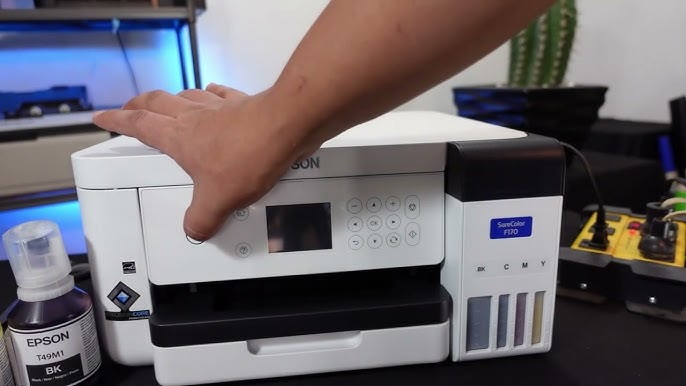
Before powering on the printer, confirm that all components are present and your workspace is ready. This reduces setup errors, minimizes the risk of ink spills, and prevents early paper jams.
Included items:
- Epson SureColor F170 sublimation printer.
- Complete set of Epson CMYK sublimation ink bottles (black, cyan, magenta, yellow).
- Power cord (region-specific).
- Printed “Start Here” installation guide and safety instructions.
Recommended workspace checklist:
- A stable, flat surface with enough room for paper feed and cable management.
- Access to a computer (Windows or macOS) and a Wi-Fi network if using wireless printing.
- Sublimation paper and suitable heat press equipment for transferring designs.
Careful unboxing ensures no packing materials remain inside the printer, which is a common cause of initial setup problems. Taking a few extra minutes here avoids unnecessary troubleshooting later.
Unboxing steps:
1. Lift the printer out of the box and remove all external plastic bags.
2. Remove every visible piece of blue or orange tape from the exterior, scanner cover, and paper tray.
3. Open the scanner lid and access panels to remove any internal cardboard or protective inserts.
4. Place the printer on your prepared surface with easy access to the power outlet and ventilation.
The F170 uses a refillable ink tank system with keyed bottles that only fit their matching color. Filling carefully and correctly helps ensure stable ink flow and accurate level readings.
Ink-filling instructions:
1. Open the top cover, then open the ink tank cover and individual color tank lids.
2. Gently shake each ink bottle several times to mix the contents.
3. Start with one color, such as black; remove the bottle cap while keeping the bottle upright.
4. Insert the bottle nozzle into the matching tank opening; the keyed design prevents incorrect placement.
5. Let ink flow automatically until it reaches the upper fill line; do not squeeze the bottle.
6. Remove the bottle, close the tank lid, and repeat for yellow, magenta, and cyan.
7. Close the ink tank cover and the top cover once all tanks are filled.
Ink charging draws ink from the tanks into the lines and print head. This is a one-time, essential process, and interrupting it can cause poor print quality or incomplete charging.
Ink-charging process:
1. Connect the power cord to the printer and then to a grounded wall outlet.
2. Press the power button and wait for the LCD screen to display initial setup prompts.
3. Choose your language, date, and region using the control panel.
4. When prompted, confirm that the ink tanks are full.
5. Start the ink charging sequence according to the on-screen instructions.
6. Wait about 10-15 minutes for the process to complete, without turning off or unplugging the printer.
After ink charging finishes, the printer is ready for paper loading and connection setup.
Correct loading of sublimation paper is important for avoiding jams and ensuring that prints appear on the proper side. Most sublimation papers have a single printable surface and a branded back.
How to load paper:
1. Pull out the rear or main paper tray according to the printer's design.
2. Adjust the paper width guides to match the sheet size, often 8.5" x 11".
3. Place sublimation paper so that the printable side faces down in a cassette tray or as specified in the printer's guide.
4. Align the stack neatly and avoid exceeding the maximum capacity mark.
5. Reinsert the tray and confirm the paper size and type on the LCD when prompted.
Running a nozzle check and print head alignment ensures that ink is flowing correctly and that lines are straight and sharp. Neglecting this may result in banding or blurred edges in your prints.
Nozzle check and alignment:
1. Open the printer's Maintenance menu and choose “Nozzle Check.”
2. Print the test pattern and inspect it for gaps, missing lines, or streaks.
3. If lines are missing, run a Head Cleaning cycle and repeat the nozzle check until the pattern appears complete.
4. Select Print Head Alignment from the maintenance menu.
5. Print the alignment patterns and select the samples that look most even and clean.
6. Confirm these selections so the printer stores the optimized alignment settings.
Once this is done, the printer is mechanically ready for routine sublimation work.
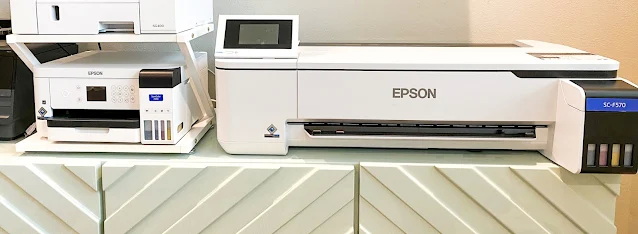
Installing the correct drivers ensures that your computer sends print data in the proper format. Using the latest official driver package provides better compatibility and smoother operation.
Driver installation (Windows and macOS):
1. On your computer, navigate to the official support page for the Epson SureColor F170.
2. Download the current Drivers and Utilities package for your operating system.
3. Run the installer and follow the on-screen prompts to install drivers and optional utilities.
4. Accept the license agreement, choose your language, and continue through each step of the wizard.
5. When asked, select Wi-Fi, USB, or Ethernet as the connection type.
6. After installation, confirm that the F170 appears in your operating system's printer list.
The printer supports wireless and wired connections, allowing you to choose the most stable and convenient method for your workspace. Wi-Fi offers flexibility, while USB and Ethernet tend to provide more consistent throughput.
Wi-Fi connection:
1. On the printer's LCD menu, open the Network or Wi-Fi settings.
2. Select your Wi-Fi network name and enter its password using the on-screen keypad.
3. Wait for the notification that the printer has successfully joined the network.
4. During driver installation on your computer, choose “Wireless connection” and allow the installer to detect the printer.
USB or Ethernet connection:
- For USB, connect the cable only when the installer asks you to, then confirm detection.
- For Ethernet, connect the printer to the router or switch and let the installer search for the device on the network.
A controlled test print confirms that color, sharpness, and mirroring are all correct before you waste blanks or time on full projects. This is an essential part of a professional workflow.
Recommended first-print workflow:
1. Open a high-resolution sample design in your preferred graphics software.
2. Select the Epson SureColor F170 as your printer in the Print dialog.
3. Open Printer Properties or Preferences and set:
- Media type to a suitable sublimation or presentation paper option.
- Print quality to High or Best Photo.
- Color management according to your workflow, either in the printer driver or design software.
4. Turn on mirror printing in the driver or software so the image appears correctly after pressing.
5. Print the test page and check for smooth gradients, solid color blocks, and absence of banding.
You can then press this test image onto a compatible coated blank at the recommended time, temperature, and pressure for your materials.
Even a straightforward setup can encounter occasional issues, and solving them early improves consistency and reduces wasted materials. Common problems often involve connectivity, ink flow, or color performance.
Typical issues and fixes:
1. Printer not found on Wi-Fi:
- Confirm that both printer and computer are on the same network and that Wi-Fi is enabled on the printer.
- Move the printer closer to the router or switch to USB or Ethernet for higher stability.
2. Banding or faint prints:
- Run a nozzle check and, if needed, a head cleaning cycle until patterns are clean.
- Verify that the ink tanks are adequately filled and that the initial ink charging was completed.
3. Dull or inaccurate colors after pressing:
- Make sure you are using sublimation paper and blanks designed for dye-sublimation.
- Confirm that media type, color management, and resolution settings are appropriate for sublimation work.
Regular maintenance keeps the F170 running smoothly and prevents clogs, color shifts, and premature wear. Simple weekly routines can significantly extend the life of the print system.
Ongoing maintenance tips:
- Print a small nozzle check pattern at least once a week if the printer is idle.
- Keep the printer in a clean, dust-free area away from extreme temperature and humidity.
- Replace the maintenance box when prompted by the printer.
- Avoid touching the nozzles of ink bottles and only open the tank covers when refilling.
Respecting safety and warranty guidelines protects both equipment and users. These recommendations also help keep the printer within the manufacturer's supported operating conditions.
Key points to remember:
- The printer is designed for approved sublimation inks; using other ink types may cause damage.
- Read and follow the Safety Instructions and “Start Here” documents included with the printer.
- Keep liquids away from vents and electronic components, and use power sources that meet local standards.
Step | Key Actions |
Unbox and prepare | Remove tape, place on stable surface, prepare paper and computer. |
Fill ink tanks | Shake bottles, insert into keyed tanks, fill to line without squeezing. |
Ink charging | Turn on printer, start charging, wait 10-15 minutes without interruption. |
Load sublimation paper | Adjust guides, orient printable side correctly, confirm size on LCD. |
Driver installation | Download and install the latest software package from support pages. |
Connect (Wi-Fi/USB/Ethernet) | Choose network type, connect, and confirm device on your computer. |
Nozzle check and alignment | Print patterns, clean head, and set optimal alignment values. |
First test print | Use high-quality, mirrored output with correct media and color settings. |
A correctly configured Epson SureColor F170 is only half of a successful sublimation setup; the other half is a dependable, precise heat press and compatible blanks. Once your printer is producing clean, vibrant test prints, upgrade your workflow with stable, even-pressure heat press equipment that helps you reproduce those colors consistently on mugs, tumblers, metal panels, and more. By pairing tuned print settings with high-quality pressing hardware, you can confidently move from test pages to profitable, repeatable production runs. Contact us to know more information!
No. This model is engineered for dye-sublimation ink, and substituting regular pigment or dye inks can cause clogs, poor color, and potential damage that is not supported by standard warranties.
The initial ink charging usually takes around 10-15 minutes, depending on conditions. Printing or powering off the device during this process is not recommended, because it can lead to incomplete charging and reduced print quality.
Current Windows and macOS versions are supported via downloadable drivers from official support pages. Checking for the latest driver package ensures the best compatibility and performance.
Yes. For nearly all sublimation projects, you should mirror the artwork before printing so that, after pressing, any text and images appear correctly oriented on the final product.
For frequent users, a nozzle check is recommended whenever there are signs of banding or missing lines. For occasional users, running a nozzle check about once a week and cleaning only if needed helps maintain smooth ink flow.


