If you have any questions, please feel free to contact us.| Email Us: info@dcheatpress.com


Views: 222 Author: Amanda Publish Time: 2025-12-24 Origin: Site


Content Menu
● What Is DTF Printing and Who Is It For?
● Key Features of the Prestige A4 DTF Printer
● Preparing Tools and Workspace
>> Inspecting and Removing the Printer
>> Identifying Documentation and Accessories
● Printer Assembly and Hardware Setup
>> Installing the Heated Exit Tray and Waste System
>> Mounting Roll Feeder Brackets
● Loading and Aligning DTF Film
>> Preventing Skew and Feed Errors
● Installing and Priming DTF Ink
>> Priming Dampers and Waste System
● Software Installation and Queue Configuration
>> Installing the Bundled Software
>> Setting Up the Printer Queue
● First-Time Setup, Head Cleaning, and Nozzle Check
>> Running Initial Head Cleaning
● Printing, Powdering, and Curing Your First Transfer
● Pressing DTF Transfers onto Garments
● Expert Tips for Color Accuracy and Print Quality
>> Maintaining Consistent Color
● Routine Maintenance and Longevity
>> Daily and Weekly Maintenance
>> Handling Downtime and Storage
● Integrating the Prestige A4 into a Professional Workflow
>> Workflow Ideas for Growing Shops
● Frequently Asked Questions (FAQ)
>> 1. Do I Need a Separate Heat Press to Use This Printer?
>> 2. Can This System Print on Dark Cotton Garments?
>> 3. How Often Should I Perform Head Cleaning and Nozzle Checks?
>> 4. What Software Is Required to Operate the Printer?
>> 5. Is This Printer Suitable for Small Businesses or Only Hobby Use?
The DTF Station Prestige A4 Direct To Film printer is a compact, high-resolution DTF solution designed for studios and businesses that want professional garment printing in a small footprint. This enhanced guide walks through unboxing, installation, and your first print, while adding expert tips, maintenance advice, and business-ready best practices.
Direct To Film (DTF) printing is a process where designs are printed onto a special PET film, coated with adhesive powder, cured, and then transferred to garments using a heat press. It works with cotton, polyester, blends, and many dark or light textiles, making it highly versatile for apparel decorators.

The Prestige A4 DTF printer is ideal if you:
- Need high-resolution color output in a compact form factor for home studios or small workshops.
- Run a startup or growing brand that wants short runs, on-demand printing, and quick design changes.
- Already own or plan to own heat presses, hot stamping machines, or embossing equipment to expand your product line.
For print shops using heat transfer presses and welding/embossing machines, adding a DTF workflow can unlock customized T-shirts, hoodies, bags, and more without screen setup or vinyl weeding.
The Prestige A4 offers performance and practicality designed for serious users who need efficient production.
- High print resolution suitable for detailed graphics, gradients, and small text on film.
- Strong print speed for an A4-format unit, supporting small-batch and on-demand production.
- Compatible with dedicated DTF inks, PET film, and adhesive powder workflows.
- Includes a heated exit tray, waste ink bottle system, and roll feeder brackets for continuous film printing.
- Ships with extra dampers, tubes, syringes, and a USB drive containing essential software and drivers.
- Designed to integrate smoothly with a RIP/software queue for production-ready print management.
Before unboxing, prepare a clean, ventilated, and stable workspace to protect both the printer and your prints.
- Philips head screwdriver for assembling brackets and tightening hardware.
- Blade or sharp edge to open packaging carefully without damaging components.
- Scissors for trimming films, tape, or packaging.
- Place the printer on a stable, level surface to prevent vibration and misalignment.
- Reserve a separate area for powder application and curing to keep fine adhesive particles away from printer internals.
- Ensure good ventilation when curing adhesive powder, and follow all safety and material guidelines.
The unboxing stage is about protecting components and organizing accessories for a smooth setup.
- Carefully lift the printer from the box, supporting it from below to avoid stress on the frame.
- Keep all original packaging and internal foam for possible future transport or warranty needs.
- Remove any shipping locks, foam inserts, and protective tapes according to the included documentation.
- Set aside the maintenance schedule and quick start guide and keep them within reach during installation.
- Lay out all accessories in one place, including:
- Extra dampers and ink tubes
- Syringes for priming ink lines
- Roll feeder brackets
- Waste ink bottle and holder
- USB drive with software and drivers
A correct mechanical setup ensures reliable feeding, accurate printing, and cleaner operation.
- Attach the heated tray to the front of the printer until it locks securely into place.
- Install the waste ink bottle holder, then connect the waste ink bottle to the assigned slot.
- Confirm that the waste tube is correctly routed into the bottle to prevent spills and overflows.
- Position the roll feeder brackets on both sides of the printer in the designated mounting locations.
- Use the supplied screws and a Philips screwdriver to secure each bracket firmly.
- Check that brackets are aligned and level, ensuring smooth film feeding without skew.
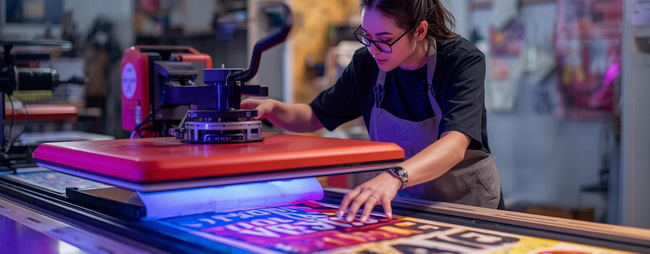
Proper film loading is critical for straight feeding and consistent registration.
- Slide the DTF PET film roll onto the roller bar and center it so both edges align evenly with the printer housing.
- Tighten the feeder wheels or knobs to lock the roll in place.
- Pull the film forward gently along the feeding path until it reaches the correct start position.
- Make small alignment adjustments and test that the roll spins smoothly with minimal resistance.
- Ensure there are no wrinkles, folds, or sharp bends in the film.
- Run a short test feed to confirm the film advances straight before printing your first job.
Ink installation and priming protect the printhead and ensure consistent color output.
- Gently shake each DTF ink bottle for about five seconds to re-suspend pigments.
- Verify that each bottle's color matches its assigned channel and dampers.
- Work on a protected surface and consider gloves to avoid ink stains.
- Attach a puncture tip to a syringe, draw ink, and connect it to each damper carefully.
- Slowly prime each damper until the ink lines are filled and free of visible air bubbles.
- Prime the waste collection tank using the provided syringe to ensure proper suction and flow.
Pro tip:
Use slow, steady pressure while priming to avoid leaks and excess ink buildup in the system.
Correct software setup is essential for color management and queue control.
- Insert the included USB drive into your computer and run the installer suited to your operating system.
- Follow on-screen prompts to install drivers and management tools.
- Register your product and activate either a trial or full license with your registration code.
- Launch the queue creation wizard within the installed software.
- Select the Prestige A4 device from the list and confirm connection via USB or network.
- Complete configuration of the control panel and verify that the printer appears in your RIP or print manager.
Before any production jobs, confirm that all nozzles are firing correctly.
- Navigate to the maintenance menu from the printer control panel and select head cleaning.
- Allow the cycle to finish completely before sending any prints.
- Avoid repeated, unnecessary cleanings to reduce ink waste and wear.
- From the same menu, run a nozzle check to print a test pattern on film or plain media.
- Inspect the pattern for missing lines, gaps, or banding that indicate clogs.
- Repeat head cleaning and nozzle checks as needed until the pattern appears complete and uniform.
This stage turns your digital design into a ready-to-press DTF transfer.
- Import a test design into your DTF RIP or print software.
- Confirm resolution, media size, and color profile settings are correct for film.
- Send the job to the Prestige A4 queue and monitor printing as the film exits onto the heated tray.
- While the printed film is still tacky, sprinkle DTF adhesive powder evenly over all printed areas.
- Tilt and gently shake the film so powder covers the ink uniformly, then remove excess material.
- Aim for a thin, even layer; heavy buildup creates stiff, raised transfers.
- Place the powdered film in a curing oven or under a heat press adjusted for hover curing.
- Cure according to your powder manufacturer's recommended time and temperature.
- Remove the film when the adhesive appears smooth and melted, then allow appropriate cooling if a cold or warm peel is required.
Proper pressing ensures durable, vibrant prints that withstand real-world use.
- Place the garment on the heat press and pre-press for a few seconds to remove moisture and wrinkles.
- Smooth the fabric so the print area is completely flat and stable.
- Position the cured DTF film design-side down on the garment in the desired location.
- Cover with parchment paper or a protective sheet, then press at the recommended temperature, time, and pressure.
- Peel the film according to your film and powder specifications (hot, warm, or cold peel).
- Optionally perform a second quick press with a protective sheet to enhance wash resistance and surface feel.
- Trim any visible film edges or residue for a clean, professional finish.
- Check color vibrancy, edge sharpness, and stretch performance of the final print.
Good practices here can significantly raise customer satisfaction and repeat business.
- Use calibrated monitors and stable RIP color settings to reduce differences between screen and print.
- Save preset profiles for common fabric types and frequently used print modes.
- Run small test swatches when switching inks, films, powders, or garment fabrics.
- Banding or faint lines often indicate clogged nozzles or incorrect feed settings.
- Rough or powdery surfaces usually point to uneven powder application or incorrect curing.
- Cracking after washing often results from low press temperature, insufficient pressing time, or incomplete curing.
Routine care protects your investment and keeps output consistent.
- Perform quick nozzle checks regularly, especially after idle periods.
- Clean the wiper, capping station, and nearby surfaces to prevent dried ink buildup.
- Empty the waste ink bottle before it fills completely and follow local regulations when disposing of waste.
- For extended downtime, follow manufacturer guidelines for long-term idle procedures, such as special cleaning cycles and secure capping.
- Store inks in a cool, dark place and gently shake them periodically to keep pigments suspended.
- Cover the printer when not in use to reduce dust and airborne contamination.
This printer can be the design engine for a wide range of heat transfer and finishing equipment.
- Use the printer to create full-color transfers, then apply them with flat heat presses for garments, tote bags, and fabric accessories.
- Combine DTF transfers with embossing or hot stamping to create layered, premium effects for fashion lines or corporate merchandise.
- Keep a library of pre-printed designs on film to enable fast, on-demand personalization.
- Eliminate screens, films, and weeding for short runs, making small-batch and custom orders efficient and profitable.
- Offer rapid design changes and test new concepts without large setup investments.
- Scale capacity by pairing the printer with reliable heat transfer, welding, and embossing machines as demand grows.
If you are ready to transform your apparel or customization business with reliable, high-quality DTF production, now is the right moment to act. Set up your DTF printer following this step-by-step guide, then connect it with robust heat transfer, welding, and embossing equipment to build a streamlined, scalable production line tailored to your brand. For your next upgrade, choose professional-grade machines and accessories that match this printer's capabilities so you can deliver consistent, premium results on every order.
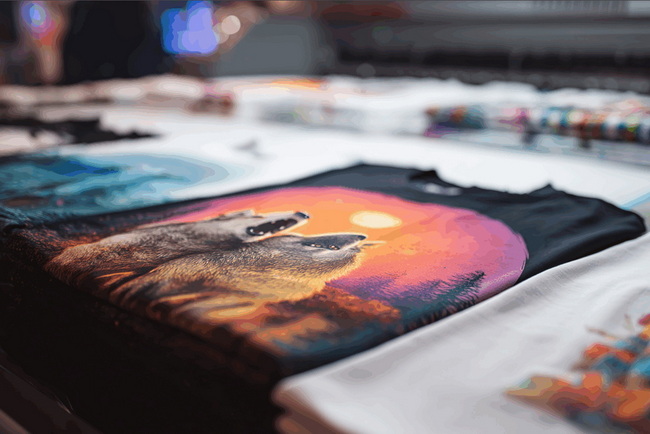
Yes. The printer outputs designs onto specialized film, and a heat press is required to transfer those designs permanently onto garments or compatible substrates.
Yes. Because the design is printed onto DTF film with appropriate white ink and adhesive powder, it works well on dark cotton, blends, and many other fabrics.
Run a nozzle check whenever the printer has been idle or you notice print quality issues, and perform head cleaning only as needed to clear missing lines and maintain a stable pattern.
You need compatible drivers and DTF-capable print management software. The bundled installer provides the core tools to create a printer queue, configure print settings, and manage daily jobs.
It is suitable for serious hobbyists and small to medium businesses, offering professional-level print quality and productivity in a compact footprint when combined with a quality heat press and finishing workflow.


