If you have any questions, please feel free to contact us.| Email Us: info@dcheatpress.com


Views: 222 Author: Amanda Publish Time: 2026-01-02 Origin: Site


Content Menu
● What Causes Sublimation Printing Problems
● Printer Connectivity, Drivers, and Setup Issues
>> Printer Will Not Connect or Show Up
>> Mobile, Tablet, and Chromebook Limitations
● Paper Handling: Jams, Pizza Wheels, and Alignment
>> Paper Jams and Skewed Feeding
>> Pizza-Wheel or Roller Marks on Prints
>> Blurry or Off-Center Images
● Color Problems: Dull, Wrong, or Inconsistent Colors
>> Colors Do Not Match the Screen
>> Transfers Look Faded Before Pressing
>> Finished Colors Still Dull or Too Dark
>> Black Appears Brown, Red, or Green
● Heat Press and Substrate Issues: Ghosting, Banding, and Dots
>> Banding and Horizontal Lines
>> Dots, Specks, and Patchy Areas
● Converted Printers Versus Dedicated Sublimation Printers
● Choosing Blanks, Inks, and Papers That Work
>> Substrates That Accept Sublimation
>> Ink Selection and Compatibility
>> Sublimation Paper Types and Weights
● Expert Troubleshooting Workflow
● Upgrade Your Sublimation Workflow Today
● FAQs About Sublimation Printing Problems
>> 1. Why do my sublimation prints look dull before pressing?
>> 2. How often should sublimation printer heads be cleaned?
>> 3. Can any inkjet printer be used for sublimation?
>> 4. Why is there a faint shadow around my design after pressing?
>> 5. What time and temperature settings work best for sublimation?
Sublimation printing can deliver professional-quality results, but even experienced creators struggle with banding, ghosting, faded colors, or clogged heads from time to time. This expanded guide walks through the most common sublimation printing problems, explains why they happen, and gives step-by-step fixes you can apply immediately for both true sublimation and converted printers.
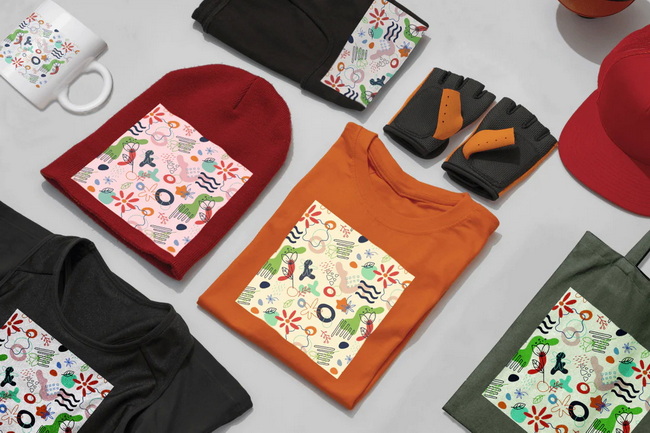
Sublimation printing uses special ink that turns into gas under heat and pressure, bonding permanently with polyester or polymer-coated surfaces. When any part of that process, such as the digital file, ink, paper, printer, press, or blank, is not properly controlled, visible issues like dull color, ghosting, pizza-wheel marks, or banding appear.
Key variables that strongly affect quality include:
- File quality and color mode (RGB vs CMYK) and use of ICC profiles.
- Printer condition, including nozzle health, ink type, and driver configuration.
- Heat press settings, especially time, temperature, and pressure uniformity.
- Substrate quality, such as polyester percentage and true sublimation coating.
High-quality presses and heat equipment from specialized manufacturers help maintain stable temperature and pressure across the entire design, which prevents many defects from appearing in the first place.
Many compact sublimation printers do not fully support phones, tablets, or Chromebooks and instead require a Windows or macOS computer to access all driver features. Even when the device is compatible, outdated or incorrect drivers often cause communication errors and poor print behavior.
Recommended steps to resolve connection and driver issues:
- Confirm that the printer model officially supports the operating system in use.
- Download and install the latest driver designed for that specific printer and OS.
- Use a direct USB or wired network connection for the initial setup, adding Wi-Fi later.
- If the printer previously worked, completely remove the driver, restart both devices, and reinstall it.
Some sublimation printers cannot receive jobs directly from mobile operating systems or browser-only environments. Even when mobile printing is technically possible, it is harder to manage color-critical settings from a small screen.
Best practices:
- Use a desktop or laptop to control color profiles, paper type, and print quality.
- Reserve mobile devices for previewing artwork, checking orders, or basic management tasks.
Paper jams usually result from incorrect paper thickness settings, curled sheets, overfilled trays, or sublimation paper affected by humidity. Jams can leave debris and ink residue inside the printer, which may cause color issues on subsequent prints.
How to reduce jams and misfeeds:
- Gently remove jammed pages using the recommended access points and avoid pulling paper backward.
- Open all relevant access doors to check for torn fragments before closing the printer.
- Match the media type or paper weight setting to the specific sublimation paper in use.
- Store paper flat in its original packaging in a dry, controlled environment.
Pizza-wheel marks show as fine repeated dots or tracks across areas with heavy ink coverage. This is more common on converted printers or when printing on heavier sublimation paper with very saturated artwork.
Practical solutions:
- Disable high-speed or bi-directional printing modes and enable quiet or high-quality settings to slow the print and improve ink handling.
- Use lighter-weight sublimation paper in converted printers to help rollers release more cleanly.
- Reduce overall ink saturation slightly for extremely dense designs.
Shifted, scaled, or off-page designs usually result from mismatched document and printer page sizes or incorrect orientation. Blurry output may be caused by driver conflicts, wrong resolution, or low-quality source artwork.
Steps to correct these issues:
- Ensure the document size in design software exactly matches the paper size selected in print settings.
- Disable automatic scaling or “fit to page” when precise dimensions are required.
- Maintain artwork at a minimum of 300 DPI at final print size to prevent pixelation.
- If problems persist, perform a clean driver reinstall to remove corrupt settings.
Monitor color is generated in RGB light, while printers use CMYK inks, so a flawless match is not possible without careful color management. Incorrect or generic ICC profiles, incorrect driver settings, or non-sublimation inks intensify mismatches.
Key corrective measures:
- Design in RGB color mode to align with most sublimation workflows.
- Install and select the recommended ICC profile that matches the specific combination of printer, ink, and paper.
- Avoid double color management by ensuring only either the software or the printer driver handles color adjustments.
- Reduce monitor brightness to bring the on-screen appearance closer to printed reality.
Sublimation transfers on paper almost always appear lighter and somewhat washed out before they are pressed. This is normal because the ink has not yet been activated by heat to bond with the polyester surface.
Effective practice:
- Evaluate color only after pressing and cooling the design on the final product.
- Use test presses on similar blanks before committing to expensive items.
If the final product looks dull or muted, common causes include low temperature, insufficient pressing time, poor-quality ink or paper, or a mismatched profile. Overheating can also cause certain colors, especially black, to appear muddy or shifted.
Recommended adjustments:
- Verify actual platen temperature using an independent thermometer or heat strips.
- Reference time, temperature, and pressure guidelines from both the blank and paper manufacturers.
- Avoid ultra-cheap inks that are prone to premature fading or color shifts.
- Run a small test grid with varying time and temperature to find the ideal parameters for the specific press and substrate.
Black designs that shift to brownish, reddish, or greenish tones are often being overcooked or processed under an unsuitable color profile. Excessive temperature or time breaks down black dye into component hues.
How to correct black tone:
- Lower pressing temperature slightly and increase time if necessary to maintain full transfer.
- Confirm that the correct ICC profile is applied, especially for designs heavy in black.
- Use black ink formulated specifically for sublimation, if available, to improve density.
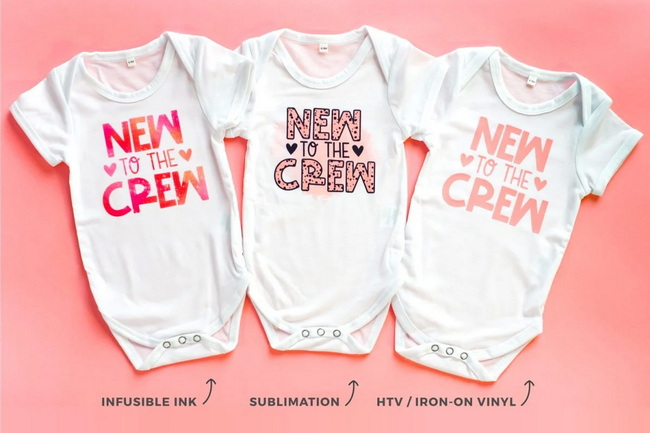
Ghosting appears as a light duplicate outline or shadow near edges of the design, typically in high-contrast areas. It usually occurs when the transfer paper moves while the ink is still hot and gasified or when excessive moisture and ink create soft edges.
Practical ways to eliminate ghosting:
- Secure transfer paper with heat-resistant tape as close to the design edges as possible.
- Open the press in one smooth motion instead of partially lifting and reclosing.
- On curved items such as mugs or tumblers, use tight wraps, jigs, or silicone bands to prevent movement.
- Reduce ink load for very solid areas if ghosting persists.
Banding shows as regularly spaced light or dark horizontal lines across the print. This usually indicates clogged nozzles, low ink levels, or the use of draft modes that reduce ink coverage.
Step-by-step banding recovery:
- Run a nozzle check and identify any missing or weak color channels.
- Perform a printhead cleaning cycle and repeat the nozzle check until lines are restored.
- Print purge pages using the problem color to encourage fresh ink flow.
- Use high-quality or photo modes instead of draft settings when creating sublimation transfers.
Small dots, specks, or pinholes often result from dust, lint, or trapped moisture on fabric or hard blanks. Uneven color patches or light spots frequently indicate uneven pressure or cold zones on the press platen.
How to improve surface quality:
- Pre-press garments and fabric for several seconds to remove moisture and smooth the surface.
- Allow substrates to cool if they feel hot or damp before applying the transfer.
- Use a lint roller on fabrics to remove hair, dust, and loose fibers.
- Check the press for hot and cold spots and adjust pressure or service the unit if the platen is not uniform.
Many newcomers start with a converted inkjet printer filled with sublimation ink because it costs less initially. However, because converted printers are not engineered for sublimation ink, they tend to clog more and show less predictable color behavior.
1. Typical downsides of converted printers:
- Higher risk of clogs and banding, particularly when the printer sits unused for days.
- More limited access to accurate ICC profiles and optimized media settings.
- Faster wear on mechanical components due to ink chemistry and temperature.
2. Advantages of dedicated sublimation printers paired with professional heat equipment:
- Ink paths and printheads are developed specifically for sublimation formulations, which reduces clogging and maintenance.
- Vendors often supply complete sets of ICC profiles and presets to get consistent color faster.
- Industrial-grade heat presses and fusing systems deliver stable temperature and uniform pressure, improving repeatability across various products.
For businesses that depend on consistent output and low downtime, upgrading to a true sublimation printer and a robust heat press system is one of the most impactful steps toward smoother production.
Sublimation requires polyester-based or polymer-coated surfaces. Cotton textiles and uncoated ceramics do not form a permanent bond with sublimation dyes and will show poor or quickly fading results.
Substrate selection checklist:
- Choose items explicitly labeled as sublimation-ready or sublimation-coated.
- For textiles, use fabric with at least 65% polyester content for vivid images.
- Conduct small trial runs with new suppliers to check color, sharpness, and durability.
Using mismatched or non-sublimation inks can damage printer components and make accurate color profiling difficult. Mixing ink brands in the same system also complicates color management.
Guidelines for ink:
- Use the printer manufacturer's own sublimation ink or a reputable third-party brand that supports the specific printer model with matching profiles.
- Avoid switching between different ink technologies in the same device.
- Gently agitate ink bottles before filling tanks to maintain consistency.
Sublimation papers vary in how quickly and completely they release ink, and in how sharply they hold fine detail. Paper weight affects feed behavior, drying time, and interaction with rollers.
Paper selection tips:
- Choose lighter-weight paper for converted printers that struggle with pizza-wheel marks.
- Use heavier paper in larger or more powerful presses when curling and wrinkling are an issue.
- Align press time and temperature with the recommendations provided by the paper manufacturer.
A structured troubleshooting process reduces waste and prevents random setting changes from making problems worse. A simple but effective workflow is outlined below.
1. Check the digital file.
- Confirm that the design resolution is at least 300 DPI at final print size.
- Verify that the file uses RGB mode and that special effects flatten correctly before printing.
2. Verify printer settings and physical condition.
- Run a nozzle check and perform focused cleaning if any colors are missing.
- Ensure that the correct ICC profile, media type, and print quality are selected.
- Print a test transfer on paper and inspect it for banding, smudging, or over-inking before pressing.
3. Inspect the substrate and paper.
- Confirm that the blank is polyester-based or polymer-coated and suitable for sublimation.
- Pre-press fabric items briefly and use a lint roller to clean the surface.
- Examine paper storage conditions and ensure sheets are flat and dry.
4. Validate heat press settings and hardware.
- Measure platen temperature independently to confirm actual values.
- Check that pressure is consistent across the entire pressing area.
- Follow time and temperature guidance from the blank and paper suppliers, then adjust slightly if necessary.
5. Press a small test area.
- Use part of the design or a dedicated test strip before committing a full-size blank.
- Change only one variable at a time, such as temperature, time, or pressure, to clearly see which adjustment solves the issue.
This workflow helps identify the root cause of most common sublimation problems and creates repeatable recipes for different products.
Consistent, high-quality sublimation results come from controlling every step of the process, from artwork creation and printer setup to heat press settings and substrate selection. If the goal is to reduce waste, cut troubleshooting time, and move toward stable, repeatable production, the most effective decision is to pair proven techniques with reliable, industrial-grade heat transfer equipment. Explore professional heat presses, fusing machines, and embossing systems from COLORFUL to upgrade the sublimation workflow, stabilize output quality, and support the growth of a serious custom printing business.

Sublimation transfers on paper naturally appear lighter and less vibrant because the ink has not yet been activated by heat. Color should always be evaluated after pressing the design onto the final substrate and allowing it to cool.
For regular production, running a nozzle check every few days is usually sufficient, and cleaning should only be performed when gaps or weak lines appear. Users who print infrequently can prevent clogs by printing a small test image at least once a week.
Only specific inkjet printers with compatible printheads and ink delivery systems can be safely converted for sublimation. Unsupported printers or ink types may lead to severe clogs, poor print quality, and potential hardware damage.
A faint shadow or offset duplicate image is a sign of ghosting, typically caused by transfer paper shifting while the ink is still hot and gaseous. Securing the paper firmly, avoiding re-closing the press, and controlling ink load usually resolve the issue.
Many polyester textiles and common sublimation blanks transfer well around 380–400°F (approximately 193–204°C) for 45–60 seconds at medium to high pressure. It is important to check the recommended settings for each blank and make small test adjustments for a specific heat press.


