If you have any questions, please feel free to contact us.| Email Us: info@dcheatpress.com


Views: 222 Author: Amanda Publish Time: 2025-12-23 Origin: Site


Content Menu
● What Is DTF Printing And Why Canva Works
● Why Canva Pro Is Recommended For DTF Artwork
● How To Get 300 DPI-Equivalent Designs In Canva
● Core Design Principles For DTF-Ready Canva Artwork
>> Avoid Transparency And Soft Effects
>> Preview On Realistic Garment Colors
● Step-By-Step Workflow: From Canva To DTF-Ready File
>> Step 1: Decide Final Print Dimensions
>> Step 2: Create A Custom High-Resolution Canva Canvas
>> Step 3: Build The Design With DTF Rules
>> Step 4: Test On Multiple Shirt-Color Mockups
>> Step 5: Perform A Zoom-Level Quality Check
>> Step 6: Export In A DTF-Friendly Format
● Preparing Canva Files In DTF Software Or With A Transfer Provider
● Frequent Canva-To-DTF Problems And Practical Fixes
● Advanced Techniques For Stronger DTF Results From Canva
● Heat Press And Equipment Notes For Reliable DTF Transfers
● Quick Pre-Print Checklist For Canva DTF Designs
● When It Makes Sense To Outsource DTF Printing
● Turn Your Canva Designs Into Real DTF Products
● FAQs About Using Canva For DTF Printing
>> 1. Can I use free Canva for DTF, or do I need Canva Pro?
>> 2. What file format should I export from Canva for DTF?
>> 3. How large should my Canva canvas be for a standard front t-shirt print?
>> 4. Why do my DTF colors look different from what I see in Canva?
>> 5. Can I send my Canva files directly to a DTF printing company?
Direct-to-film printing can transform well-prepared Canva artwork into vibrant, long-lasting graphics on t-shirts, hoodies and other apparel when the design is created with print requirements in mind.
DTF (Direct-to-Film) printing is a process where your design is printed onto a coated PET film, coated with adhesive powder, cured, and then heat-pressed onto fabric. It excels at full-color, detailed graphics and gradients that are harder to achieve with vinyl or traditional screen printing.[2][3][4]
Canva is a strong match for DTF workflows because:
- It provides a large library of fonts, photos and graphics that non-designers can customize quickly.[3]
- Its Pro features add professional controls like background removal, transparent export and scaling tools that support print-ready artwork.[4][2]
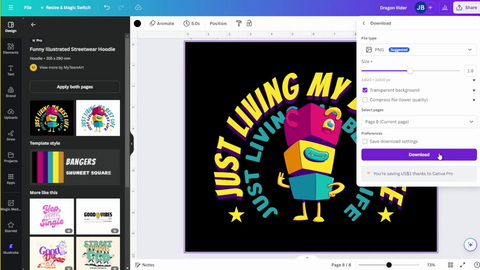
While free Canva can work, Canva Pro offers several critical tools that make DTF designs easier to prepare and more reliable in production.[2][4]
- Transparent background export lets you remove unwanted boxes and allow garment color to show through your design.
- Background remover and AI cleanup help eliminate messy backgrounds and halos that can appear as unwanted shapes when printed.
- Image scaling and enhancement improve lower-resolution elements so they hold up at t-shirt size instead of looking soft.
However, Canva does not allow explicit 300 DPI document settings; instead, you control output quality through pixel dimensions that correspond to the desired print size.[1][4]
Print shops and DTF providers typically recommend artwork at the equivalent of 300 DPI at final size for sharp results. In Canva, this is achieved by using the correct pixel dimensions for your design.[5][2]
The basic rule is:
- Inches × 300 = pixels (per side).
For example:
- A design intended to print at 12 × 10 inches should be created at 3600 × 3000 pixels.
Working this way ensures:
- Sufficient resolution when the PNG is imported into DTF RIP software or transfer portals.[5]
- Reduced risk of fuzzy edges, jagged lines or pixelation in fine details and text.
DTF printing is powerful but unforgiving of certain graphic effects and extremely delicate details, so applying DTF-specific design rules is essential.[3][4]
Semi-transparent elements can behave unpredictably when converted to film and applied with white underbase.
- Avoid glows, soft shadows, airy gradients, transparent overlays and feathered edges in critical design areas.
- Replace them with solid fills, hard-edged shadows and clearly defined shapes to maintain consistency on film and fabric.[4][3]
Thin lines and tiny details are more likely to break or disappear after printing and pressing.
- Prefer bold, high-contrast fonts for small copy such as slogans, URLs and taglines.[6]
- Avoid ultra-thin scripts, hairline outlines and large quantities of micro-speckles or dust textures that may not hold.
Oversized, unbroken blocks of color can accentuate minor printing artifacts or banding.
- Break large fields with subtle textures, outlines, layering or color blocking while keeping overall opacity.[6]
- This approach adds visual interest and helps DTF prints look more polished on garments.
DTF prints a white underbase plus color, so artwork designed only on a white background can look very different on dark shirts.
- Test the design on light, mid-tone and dark mock backgrounds that approximate typical garment colors.[7]
- Adjust contrast and outlines until the design remains legible across the most common shirt tones.
A clear workflow reduces errors and keeps your DTF designs consistent across projects.
Before opening Canva, define the intended print size on the garment.
- Common front-chest prints range from about 10–12 inches wide, while back prints may be larger.
- Having this fixed size avoids guesswork when exporting and importing into DTF software.[3][5]
Convert your target size into pixels at 300 DPI equivalent.
- Example: 11 × 9 inches becomes 3300 × 2700 pixels.
- Create a custom design in Canva using those pixel dimensions to lock in sufficient resolution.[2][5]
While designing:
- Use bold typography, limited color palettes and simple shapes that print cleanly.
- Avoid transparency, complex glow effects and ultra-thin details that may not survive transfer.
Add colored background layers to preview the artwork on different garment types.
- Include at least one dark, one light and one heather or mid-tone background.
- Adjust outlines, contrast and color choices so elements remain clear and impactful.
Zoom in significantly—200–300% or more—to inspect critical areas.
- Look for pixelated edges, rough cutouts, misaligned elements and spelling issues.
- Fixing these before export saves both production time and material waste.[8][4]
When finished:
- Export as PNG at full resolution, with transparent background enabled if available.
- Confirm that the pixel dimensions shown in the export dialog match your intended size and are not being downsized by sliders or compression options.[9][2]
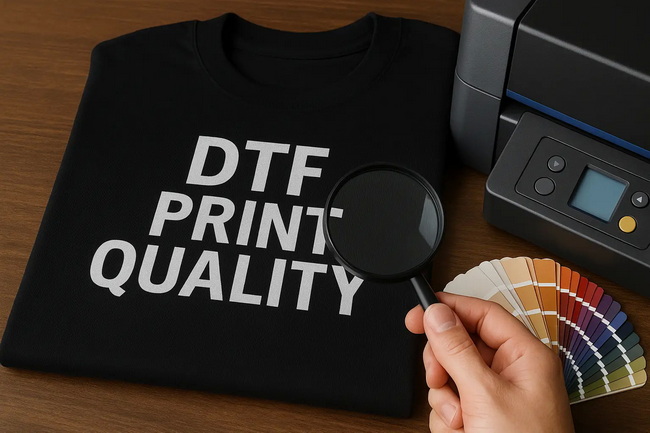
After exporting, your PNG must be correctly handled by DTF software or an external transfer service to maintain retail-grade quality.
If using your own DTF system:
- Import the PNG and verify the physical size in inches to ensure the pixel-to-inch translation is correct.[5]
- Configure or confirm the white underbase settings for opacity on dark garments.
- Arrange files efficiently on gang sheets to save film and speed up pressing.[10]
If outsourcing to a transfer provider:
- Follow their file specifications for resolution, format and color space whenever possible.
- Upload your final PNG or PDF and use their preview tools to double-check size and orientation before ordering.[11][2]
Several recurring issues appear when designers send Canva artwork directly to DTF.
1. Blurry or soft prints
- Often caused by low-resolution images scaled beyond their capabilities.
- Solution: Start with high-resolution assets, use upscaling tools where available, and confirm your canvas pixel size matches 300 DPI equivalent.[4][2]
2. Incorrect output size
- Artwork that prints much smaller or larger than expected usually indicates a mismatch between canvas pixels and target inches.
- Solution: Recalculate the canvas size in pixels and verify dimensions inside your DTF RIP or the provider's portal.[5]
3. Poor contrast on dark garments
- Designs that look fine on white backgrounds may disappear into black or deep colors.
- Solution: Add outlines, increase contrast and preview on realistic mock backgrounds before exporting.[7][3]
4. Over-templated designs
- Heavy reliance on default templates can lead to generic or cluttered images and sometimes odd layering artifacts.
- Solution: Customize layouts, replace stock fonts, adjust color schemes and simplify decorative elements for cleaner printing.[3][4]
Beyond the basics, a few advanced practices help bring Canva-based DTF artwork closer to professional apparel standards.
1. Deliberate stroke and outline usage
- Add high-contrast outlines around type and key shapes to maintain legibility on variable garment colors.
- This is especially beneficial for small text or intricate characters on textured or heather fabrics.[3]
2. Structured color blocking
- Use layered blocks and shapes instead of single large color fields to avoid banding and to add modern, graphic style.
3. Intentional color palettes
- Design with a restricted palette that looks good on your main garment colors, reducing unexpected combinations during production.
- Save brand palettes in Canva so multiple designs share a consistent look and print behavior.[6][3]
For very complex effects, some shops preprocess photos or gradients in specialized software, then import the refined artwork into Canva for layout and typography.[12]
Even the best Canva files require correct pressing conditions and reliable hardware for consistent transfers.
Important points include:
- Use a heat press with stable, evenly distributed temperature and pressure to prevent under- or over-curing.
- Follow the DTF film manufacturer's recommended time, temperature and pressure to avoid adhesion or color issues.
- Match your peel method (hot, warm or cold) to the specific film to minimize edge lifting and defects.[14][11]
For higher volumes, investing in robust heat presses and compatible finishing equipment helps maintain throughput and consistent quality, particularly when integrating DTF into a wider apparel production workflow.[11][14]
Before sending any file to print or to a transfer provider, run through this list:
- Canvas size matches the desired garment size at 300 DPI equivalent.
- All critical elements use solid fills rather than semi-transparent effects.
- Fonts are legible and thick enough at actual print dimensions.
- Design has been tested on multiple background colors that mirror real garments.
- Exported as a high-resolution PNG, ideally with transparent background when needed.
- Final dimensions confirmed in DTF software or provider preview before placing the order.[2][5]
Following this checklist improves repeatability and reduces costly reprints across projects.
Outsourcing can be a smart option when:
- You are validating new designs or product lines before purchasing equipment.
- Production volumes fluctuate and do not yet justify in-house DTF.
- You require large gang sheets or specialized films not currently in your setup.[11][2]
Professional DTF providers typically accept correctly prepared PNG or PDF artwork and return press-ready transfers, letting you focus on design, marketing and finishing with your own heat press.[11][2]
You now have a clear, practical framework for building DTF-ready Canva artwork that prints sharply, holds color and meets professional expectations on real garments. To move from learning to implementation, prepare your next design using the pixel-based sizing method, apply the DTF-specific design rules above, and finalize a high-resolution PNG export. Once your artwork is ready, partner with a trusted DTF transfer provider or integrate it into your own production line using reliable heat press equipment so every Canva design can become a retail-worthy product in your catalog.[14][2][3][11]
Free Canva can work for simple designs, but Canva Pro makes DTF workflows easier by providing transparent background export, better image tools and advanced editing features that improve print-readiness.[4][2]
PNG is typically preferred because it supports high-quality raster artwork and transparency, both of which are valuable for DTF transfers and multi-color garments.[9][2]
A common front print of around 11 × 9 inches should be set to approximately 3300 × 2700 pixels in Canva to approximate 300 DPI at final size.[2][5]
Screen previews are backlit and use RGB color, while DTF printing uses inks, film and fabric, so colors can shift and lose contrast, particularly on dark garments; testing on realistic mock backgrounds and using balanced palettes helps reduce this gap.[7][3]
Most DTF services request exported PNG or PDF files rather than editable Canva links, so you should download your design at the correct dimensions and then upload it through their ordering system or portal.[11][2]
[1](https://www.heatpressnation.com/blogs/academy/canva-dtf)
[2](https://falcontransfers.com/blogs/news/how-to-use-canva-for-your-dtf-print-orders)
[3](https://ninjatransfers.com/pages/tips-for-using-canva-artwork-for-dtf-transfers)
[4](https://www.fmexpressions.com/blogs/free-design-resources/can-i-use-canva)
[5](https://www.printomizeamerica.com/blogs/videos-blog/dtf-printing-canva-guide)
[6](https://samsdtftransfers.com/blogs/custom-dtf-transfers/5-tips-dtf-designs-in-canva)
[7](https://www.facebook.com/groups/1432671203560213/posts/2945356132291705/)
[8](https://www.facebook.com/groups/505849244986561/posts/1021814110056736/)
[9](https://www.youtube.com/watch?v=K1lPwkz6im8)
[10](https://www.youtube.com/watch?v=y7BZFHNldHw)
[11](https://weprintupress.com/blogs/news/from-hobbyists-to-professionals-the-best-heat-presses-for-dtf-transfers)
[12](https://www.youtube.com/watch?v=hX7JmyFZ1o4)
[13](https://www.youtube.com/watch?v=2e-GcJF9HPA)
[14](https://www.teddytransfers.com/blog/the-pros-and-cons-of-heat-presses-for-dtf-transfers)


