If you have any questions, please feel free to contact us.| Email Us: info@dcheatpress.com


Views: 222 Author: Amanda Publish Time: 2025-12-26 Origin: Site


Content Menu
● What Is Sublimation Software?
● How to Choose the Right Sublimation Design Software
● Raster vs Vector: Which Is Better for Sublimation?
>> Raster (Photo-Editing) Software
● Best Sublimation Design Software (Free & Paid)
>> Canva – Beginner-Friendly All-Rounder
>> Adobe Illustrator – Professional Vector Design
>> Affinity Designer – Powerful Illustrator Alternative
>> Adobe Photoshop – Professional Photo Editor
>> Affinity Photo – Budget-Friendly Photo Editing
>> Procreate – Hand-Drawn Digital Art
>> Inkscape – Free Vector Design
>> Cricut Design Space – Hardware-Centered Companion
● Best Sublimation Printing Software and Print Managers
● Print Settings for Converted Printers Without a Manager
● Practical Sublimation Software Workflows
>> Beginner Crafter with a Starter Setup
>> Growing Business with Branded Products
>> Artist or Illustrator Selling Original Designs
● Where Heat Press Equipment Fits into Your Software Strategy
● Quick Reference Table: Software by Use Case
● Take the Next Step in Your Sublimation Workflow
● Frequently Asked Questions (FAQs)
>> 1. What software is best for sublimation beginners?
>> 2. Do I need both vector and photo-editing software?
>> 3. Can I do sublimation with only free software?
>> 4. Is Cricut-style companion software enough for sublimation?
>> 5. How do I avoid faded or dull sublimation prints?
Choosing the right sublimation design and printing software is just as critical as choosing your printer, heat press, or blanks. The right tools streamline your workflow, prevent costly misprints, and help you create professional-grade products your customers love.
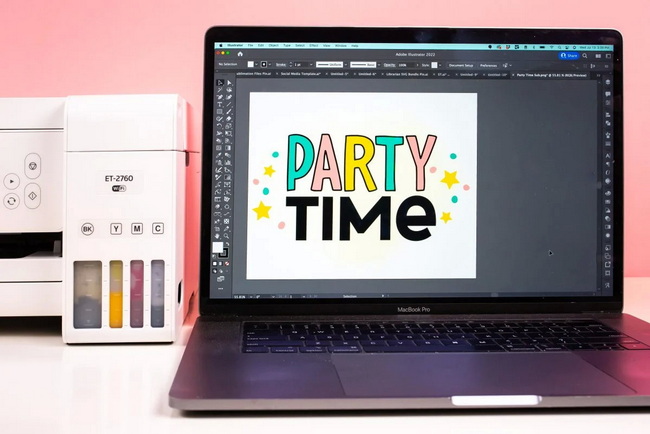
Sublimation software includes graphic design tools and printing utilities used to create, prepare, and output artwork for sublimation. Design software lets you build or edit images, while printing software controls color, mirroring, dpi, and paper settings before printing.
For a reliable setup, most crafters only need one main design app plus the print manager bundled with their sublimation printer. This keeps your system simple, reduces compatibility issues, and shortens the learning curve.
Before picking software, define what you actually need it to do. This prevents you from overpaying for advanced tools you rarely use or struggling with features meant for professional studios.
Ask yourself:
- What type of designs will you create most often: photo-based, text-heavy, or illustrations?
- Do you need photo editing, vector illustration, or a mix of both?
- How important are built-in templates versus full creative control?
- What is your monthly or one-time budget for software?
There are two main design categories you must understand: photo-editing (raster) and vector design.
Sublimation success often starts with choosing the right image format for your workflow. Understanding the difference between raster and vector images helps you avoid blurry prints and scaling issues.
Raster software works with pixel-based images and is ideal when your designs rely heavily on photographs or painterly artwork with subtle gradients and detail.
Pros:
- Precise photo retouching, color correction, and compositing.
- Excellent for realistic graphics, textures, and complex lighting.
Cons:
- Images lose quality if significantly enlarged.
- Less efficient for designs built mainly from text and simple shapes.
Best for: photographers, artists, and brands selling photo-heavy products like custom portraits, pet photos, or detailed collages.
Vector tools create artwork from points and lines, so designs scale up and down without losing sharpness. This is perfect for logos, typography, and simple shapes printed on everything from mugs to XXL shirts.
Pros:
- Infinite scalability with crisp lines at any size.
- Excellent for logos, text layouts, patterns, and icons.
- Easy to reuse and adapt designs across multiple products.
Cons:
- Not ideal for high-end photo retouching.
- Requires some learning to master vector drawing tools.
Best for: most sublimation crafters and small businesses focused on branded merch, quotes, monograms, and clean graphic designs.
Below is an overview of widely used design tools for sublimation, organized by primary use case. The goal is to help you match features, learning curve, and budget with your actual needs.
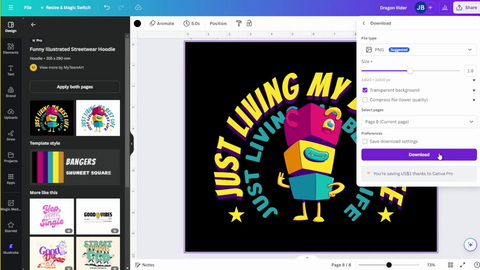
Canva is a browser-based design tool with a gentle learning curve and a large library of templates, fonts, and graphics. Even on the free plan, it is powerful enough for many entry-level sublimation projects.
Why it works for sublimation:
- Thousands of ready-made templates for mugs, shirts, and social graphics.
- Huge library of fonts, shapes, graphics, and stock photos.
- Simple drag-and-drop editor, ideal for beginners and busy shop owners.
Its main limitation is that it lacks advanced vector and high-end photo-editing functionality, so growing businesses may eventually outgrow it.
Adobe Illustrator is an industry-standard vector graphics tool used by agencies and professional print shops. Its precision and feature depth make it ideal for branding-heavy sublimation businesses.
Key advantages:
- Highly precise paths, curves, and typography tools.
- Support for sophisticated layouts, icon sets, and patterns.
- Seamless integration with other apps in the same ecosystem.
The trade-offs are a steep learning curve and a subscription cost that may be high for hobbyists.
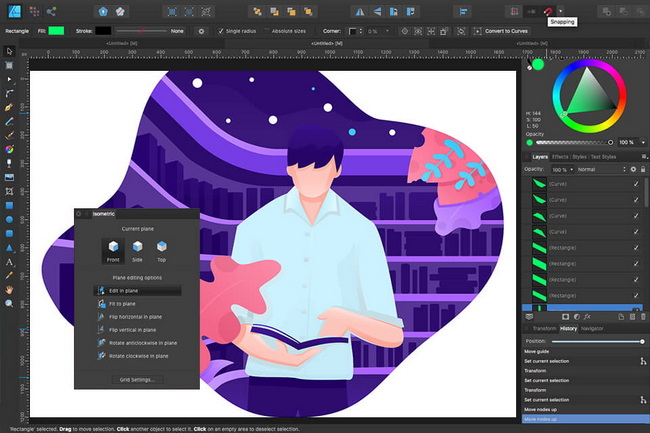
Affinity Designer delivers many of the same capabilities as Illustrator with a modern, fast interface. It is an excellent option for crafters and small studios that want pro features without ongoing monthly fees.
Highlights:
- Robust vector tools plus some raster features in a single app.
- Lightweight and fast, even on modest machines.
- One-time purchase instead of subscription.
This combination makes it attractive to serious side hustlers and small brands that want long-term control of their design environment.
Photoshop is widely used for professional photo-editing and raster design. For sublimation workflows that lean heavily on photography, it allows meticulous control from retouching to color grading.
Strengths for sublimation:
- High-end retouching, masking, and compositing tools.
- Extensive color adjustment tools and layers for accurate print color.
- Integration with companion tools for batch photo management.
It may be overkill if your designs are mostly text and simple graphics, and the subscription model introduces long-term cost.
Affinity Photo mirrors much of Photoshop's general workflow but is available via a one-time license. For serious photo-based sublimation work on a budget, this is a strong contender.
Key benefits:
- Familiar layer-based workflow for those used to traditional photo editors.
- Powerful masking, blend modes, and filters.
- Lifetime access for a relatively low price.
It is well suited for users who want professional control without being tied to a monthly plan.
Procreate provides an immersive digital painting experience on tablets and pens, making it ideal for hand-drawn sublimation art. Artists can create unique designs that stand out from template-based graphics.
Why creators value it:
- Realistic brushes, blending, and texture controls.
- Intuitive drawing interface that feels natural for illustrators.
- Affordable one-time purchase model.
Designs can then be exported as high-resolution files and used in any standard sublimation printing workflow.
Inkscape is a free, open-source vector design program that reproduces many of the core capabilities found in premium vector tools. For users with minimal budget, it is a practical way to start with true vector workflows.
Pros:
- Completely free with no usage limits.
- Offers a solid set of vector drawing tools, layers, and effects.
- Available across major desktop operating systems.
Its interface and documentation can feel less polished, but its capabilities are more than enough for many sublimation layouts.
Cricut Design Space is not a full design suite but can handle basic sublimation tasks if you already rely on compatible cutting hardware.
Useful when:
- You mostly import purchased PNGs or SVGs, resize them, and print.
- You want to reuse one app for both cutting projects and sublimation layouts.
For complex custom branding or advanced artwork, it is better used alongside a more powerful design tool.
Design software creates your artwork, but printing utilities handle the translation from screen to paper. In sublimation, this step is crucial for maintaining color accuracy and sharp detail.
Brand-specific print managers typically handle tasks such as:
- Automatic mirroring for sublimation transfers.
- Optimized dpi and color profiles for specific inks and papers.
- Layout, media type, and quality settings tuned for each printer model.
Using the correct print manager and driver greatly reduces trial-and-error and makes color results more predictable.
If you convert an inkjet printer for sublimation use, you may not have a dedicated sublimation print manager. In that case, you must fine-tune settings from your operating system's print dialog or the generic driver.
Follow these essential guidelines:
1. DPI – Choose the highest available dpi to maximize detail.
2. Mirroring – Enable mirror image manually, because sublimation requires the print to be flipped.
3. Paper type – Test various paper settings to find the one that produces rich color with your sublimation paper.
4. Color profiles – Install and select ICC profiles provided by your ink or paper supplier if available.
5. Test prints – Run small test prints before committing to large or high-value items.
These steps help compensate for the absence of a specialized print manager and reduce wasted blanks.
To make software selection more actionable, consider three typical user scenarios and recommended workflows.
Goal: Launch quickly, keep costs low, and avoid technical overwhelm.
Recommended stack:
- Design: an easy, template-rich design tool.
- Printing: your printer's basic driver or bundled management utility.
Workflow steps:
1. Choose a template or blank canvas sized to your product.
2. Add text, clipart, and photos while leaving safe margins.
3. Export as a high-resolution PNG or PDF.
4. In the print dialog, select correct paper type, highest dpi, and mirroring.
5. Print to sublimation paper and press using a reliable, temperature-stable heat press.
Goal: Build consistent branding, scalable designs, and higher perceived value.
Recommended stack:
- Design: professional or prosumer vector app.
- Optional: separate photo editor if you use photography.
- Printing: manufacturer print manager or properly profiled driver.
Workflow steps:
1. Create vector logos and brand elements.
2. Build modular templates for mugs, tumblers, apparel, and packaging.
3. Place photos after retouching, then lock in brand colors and typography.
4. Export print-ready files in appropriate formats.
5. Print using controlled color profiles and substrate-specific settings.
Goal: Turn original art into premium sublimation products and possibly digital downloads.
Recommended stack:
- Design: a drawing or painting app that supports high-resolution canvases.
- Optional refinement: a photo editor for final color checks.
- Printing: a reliable driver or dedicated print manager.
Workflow steps:
1. Set canvas size and resolution for your largest target product.
2. Draw, ink, and color while organizing layers for flexibility.
3. Export as PNG with or without transparency as needed.
4. Adjust color slightly if necessary, then print with mirrored output.
5. Press onto blanks using proven time, temperature, and pressure settings.
Even the best software cannot compensate for inconsistent temperature, uneven pressure, or unstable timing on your heat press. Your hardware determines how faithfully those carefully tuned colors and details appear on the final product.
For crafters scaling into business, professional heat transfer equipment ensures:
- More consistent results across long runs.
- Fewer misprints and re-presses due to cold spots or pressure issues.
- The ability to expand into new blanks, fabrics, and product lines.
Pairing robust software workflows with dependable heat press machinery gives you a solid foundation for both quality and productivity.
Primary Need | Recommended Type of Software | Cost Model | Ideal User Type |
Easy beginner design | Template-based online editor | Free + subscription | New crafters, hobbyists |
Professional vector design | Advanced vector design tool | Subscription | Branding-focused businesses |
Vector on a budget | Prosumer vector app | One-time license | Growing shops and side hustles |
Advanced photo editing | Professional photo editor | Subscription | Photo-based products and studios |
Photo editing on a budget | Prosumer photo editor | One-time license | Budget-conscious advanced users |
Hand-drawn digital illustration | Tablet-based drawing app | One-time app fee | Artists and illustrators |
Free vector design | Open-source vector editor | Free | Students and low-budget creators |
Hardware-centered layouts | Companion design/driver software | Mostly free | Users tied to specific crafting hardware |
Brand-specific color control | Printer manufacturer print manager | Included with printer | Dedicated sublimation printer owners |
You now know how to choose between raster and vector tools, how to match design software to your business stage, and how print settings affect your final results. The next step is to put this knowledge into action by building a streamlined workflow that combines the right design software, properly configured print settings, and stable heat press equipment. Start by selecting one main design application that fits your skill level and budget, then optimize your printer settings and pressing process so every design you create has the best chance to become a vibrant, durable finished product.
For most beginners, a user-friendly template-based tool is an excellent starting point because it reduces the learning curve while still producing attractive designs. As skills grow, users can move into more advanced vector tools for better control.
Not always. If your designs are mostly text, logos, and simple graphics, vector software alone is usually enough. A separate photo editor becomes important only when you start working heavily with photography or complex composites.
Yes. Combining a free vector editor with a free photo editor covers most design needs, while standard printer drivers handle printing. You may sacrifice some convenience, but it is entirely possible to start without paid software.
It can be enough if you mainly import finished designs and make simple adjustments, especially when you already own compatible hardware. For custom branding or more complex artwork, pairing it with a dedicated design program is highly recommended.
First, ensure you are using compatible sublimation ink and paper. Then check your dpi, mirroring, paper type, and color profile settings, and make sure your heat press temperature, pressure, and time match the blank manufacturer's recommendations.


